Appendix A: Configuring AMS (Mac OS X Only) 47
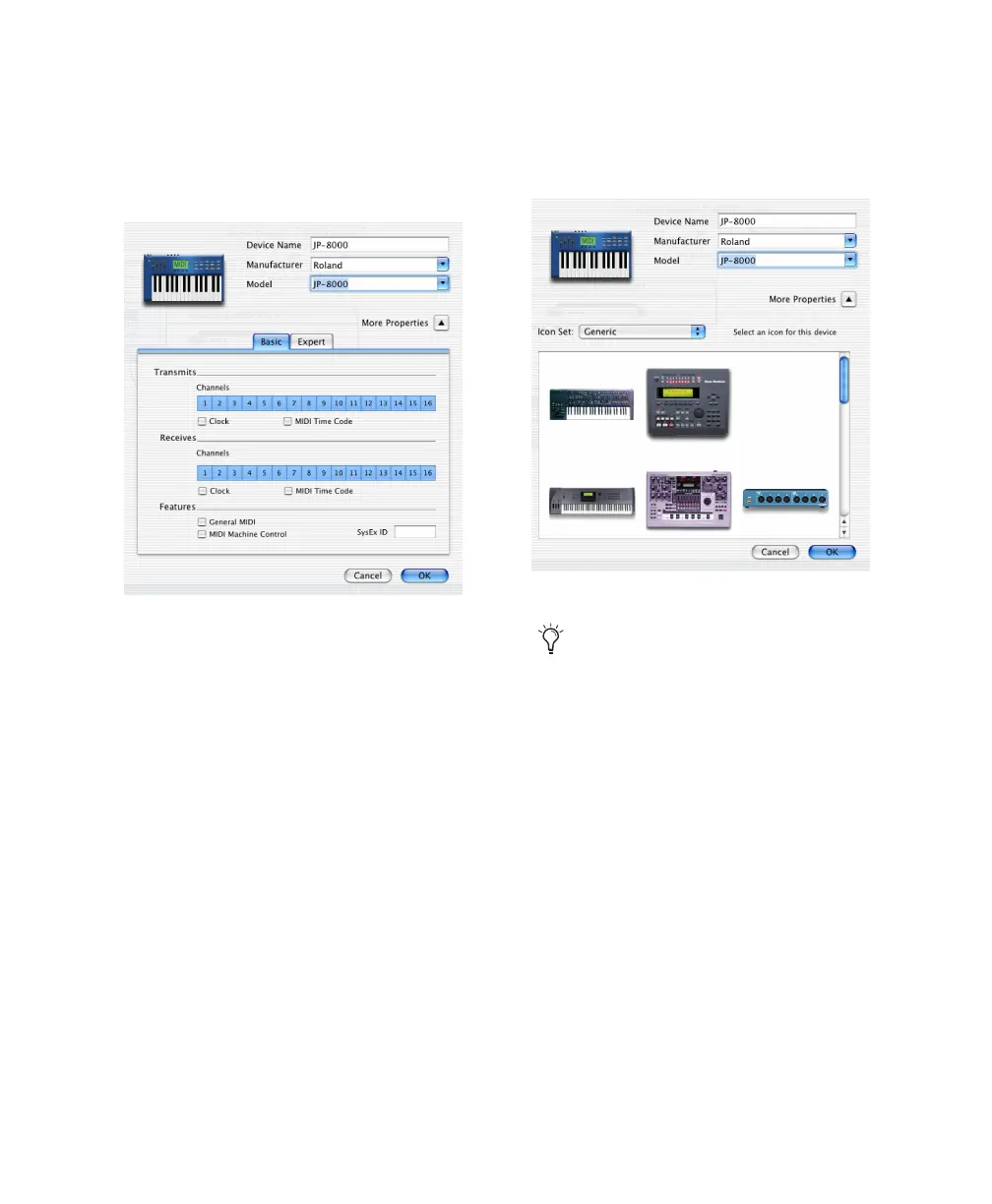
3 Click the More Properties arrow to expand the
dialog, then enable the appropriate MIDI chan-
nels (1–16) for the Transmits and Receives op-
tions. (These determine which channels the
device will use to send and receive MIDI.)
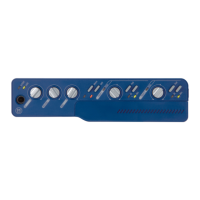
4 Click the device image. The window expands
to show images for various MIDI devices (such
as keyboards, modules, interfaces, and mixers).
Select an icon for your device.
5 Click OK.
The device names you enter appear as MIDI in-
put and output choices in Pro Tools.
Enabling MIDI channels
Selecting a device icon
To use your own custom icons, you can
place TIFF image files in /Library/
Audio/MIDI Devices/Generic/Images, and
they will appear as choices in the AMS
device window.


 To Next Page