Need help?
Do you have a question about the Dinstar MTG1000 and is the answer not in the manual?
Provides a general introduction to the MTG1000 E1/T1 trunk gateway, its features, and models.
Illustrates typical use cases and network diagrams for deploying the MTG1000 gateway.
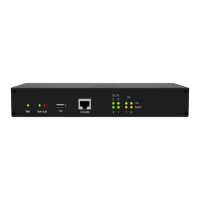
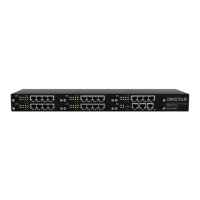
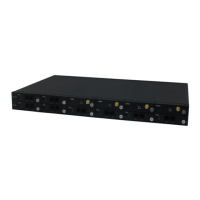
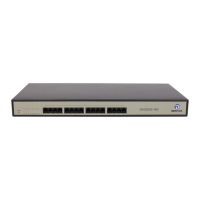
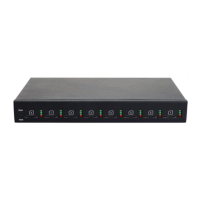
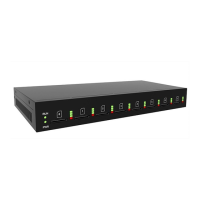
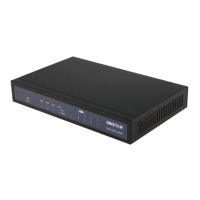
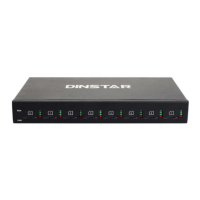
Details the physical appearance of the MTG1000 gateway, including front and back views.
Lists the key features, physical interfaces, supported protocols, voice capabilities, and PSTN interfaces of the gateway.
Outlines essential precautions and site preparations required for a successful MTG1000 installation.
Provides step-by-step instructions for physically installing the MTG1000 device and connecting essential cables.
Covers the proper methods for cabling E1/T1 ports, including making RJ-48 joints.
Guides on how to configure the IP addresses for the MTG1000's network interfaces.
Explains how to perform local maintenance operations using the console port for device management.
Describes the procedure to retrieve the MTG1000's IP address if it has been changed or forgotten.
Details the steps for connecting to the MTG1000's web interface, including network setup and login.
Introduces the structure of the MTG1000 web interface, including the navigation tree and display areas.
Presents a flowchart illustrating the typical sequence of configuration steps for the MTG1000.
Menu for viewing operating information like system status, DTU, physical connections, and call statistics.
Allows configuration of IP addresses for service and management ports, subnet masks, and gateways.
Configures parameters for Primary Rate Interface (PRI) signaling and call attributes.
Configures essential parameters for Signaling System No. 7 (SS7) to ensure proper call signaling.
Configures country-specific R2 signaling parameters for Group I, II, A, B, and C.
Manages PSTN groups and defines channel selection strategies for efficient call routing.
Configures fundamental SIP parameters, including ports, domain, PRACK, and session timers.
Manages IP groups and defines strategies for selecting IP trunks for call routing.
Creates filter profiles that apply defined white lists and black lists to call routing.
Sets routing priorities and manipulation rules for incoming calls from IP and PSTN.
Sets rules to modify caller or callee numbers for different call routing directions.
Configures parameters related to voice and fax for compatibility and performance.
Provides tools for network testing, diagnostics, and troubleshooting.
Configures various device management settings, including system administration and security.
Introduces common command-line interface (CLI) commands for monitoring and querying device status.
Introduces commands used within the configuration mode of the CLI for system setup.
Introduces commands specific to the ADA mode for querying records and controlling message printing.
 General
| Model | MTG1000 |
|---|---|
| Protocols Supported | SIP, H.323 |
| Echo Cancellation | G.168 |
| Fax Support | T.38, Pass-through |
| Weight | 3.5 kg |
| Storage Temperature | -20°C to 70°C |
| Power Supply | AC 100-240V, 50/60Hz |
| Dimensions | 440 x 260 x 44 mm |
| Codecs | G.711, G.723, G.729, G.726 |
| T1/E1 Ports | 1/2/4 |
| Operating Temperature | 0 ~ 45°C |
| Humidity | 10% to 90%, non-condensing |
| Type | Digital VoIP Gateway |


 To Next Page