Page 13
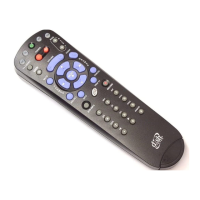
Control Other Devices with the Remote
Enabling SAT Auto-Tune
Note: SAT Auto-Tune is enabled by default; however, after enabling SAT
Auto-Tune, the channel must be set (see Setting SAT Auto-Tune Channel on
page 12). If you disable the SAT Auto-Tune Channel and decide that you
want to use this feature, you must enable the feature and then set the
channel.
1. Press and hold the SAT mode button until all four mode buttons are lit.
2. Press STAR (*), and then press VOLUME UP.
3. Press POUND (#). The SAT mode button flashes three times to
indicate SAT Auto-Tune was enabled.
Removing SAT Auto-Tune Channel
1. Press and hold the TV mode button until all four mode buttons are lit.
2. Press STAR (*), and then enter 00 or 000.
3. Press POUND (#). The TV mode button flashes three times to indicate
SAT Auto-Tune is disabled.
SET UP THE REMOTE CONTROL
You can set up the remote to control other devices using the device codes
listed on page 68.
1. Turn the device on. Use the device’s front panel buttons
or its remote control.
2. Find the brand name of the
device in the tables starting on
page 68.
If the brand isn’t listed, see Scan for
Device Codes on page 14.
3. Press and hold the mode
button until all the other mode
buttons light up, and then
release the button.
The mode button flashes.
For example, hold the TV mode
button for a TV until all of the other
mode buttons light. When you
release, the TV mode light flashes.
4. For AUX mode only. Press 0
for a second TV, or 1 for a
VCR or DVD player, or 2 for
a tuner, or amplifier.
This step is for programming which
kind of device that should be
programmed in AUX mode. If
you’re not programming in AUX
mode, skip to step 5.
5. Enter one of the three-digit
device codes from the table
using the number buttons.
The three-digit device code should
be for the brand name of your device
that you found in step 2.






 To Next Page