EasyManua.ls Logo

DKS 1812 - User Manual

Default Icon
63 pages
Print Icon
To Next Page IconTo Next Page
Loading...
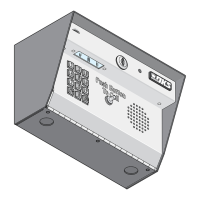
Model 1812 Access Plus
PC Programmable Residential Telephone Intercom / Access Control System
Owner’s Manual
DoorKing, Inc.
120 Glasgow Avenue
Inglewood, California 90301
U.S.A.
Phone: 310-645-0023
Fax: 310-641-1586
www.doorking.com
P/N 1812-162 REV B, 6/09
Copyright 2009 DoorKing, Inc. All rights reserved.

Table of Contents

Questions and Answers

  • S
    Stephanie RogersAug 19, 2025
    What to do if my DKS Intercom System keypad is dead?
    • A
      April Mclean DVMAug 19, 2025
      If the keypad is dead, there might be no power. Check for 24 VAC input power. Also, ensure the keypad is properly connected to the circuit board, making sure the cable on the plug points down when connected.
  • K
    kevinmoodyAug 21, 2025
    How to fix buzz or noise on the DKS Intercom System line?
    • S
      Stacy LewisAug 22, 2025
      To address a buzz or noise on the line, try the following: * Check for a short to ground behind the circuit board. * Check for pinched wires near the door hinge. * Check for 24-volt power shorted to a conduit. * Check for a phone line shorted to ground. * Make sure the phone wires are twisted. * Ensure all wires, including the speaker and keypad, are isolated from ground. * Verify the cabinet is properly grounded, ensuring the case ground (terminal 3) is not used as a low voltage common. * Check for excessive voltage drop on the 24 VAC power. * Check the phone line with a telephone test set.
  • R
    Ryan MartinezAug 25, 2025
    Why can't I get into programming mode on my DKS Intercom System?
    • J
      Justin BrownAug 25, 2025
      If you're unable to enter programming mode, it could be due to several reasons. You might have entered the wrong master code, so try starting over. Ensure you're not waiting too long between button presses; enter the information more quickly. Also, verify that the keypad is correctly plugged into the board with the cable pointing down.
  • L
    Lindsay ElliottAug 26, 2025
    What to do if phones in home will not ring with DKS Intercom System?
    • D
      Dennis AndersonAug 27, 2025
      If the phones in your home aren't ringing, verify that the by-pass switch is not set to by-pass mode. Also, check if the 'Do Not Disturb' time zone is enabled; if so, turn it off or change the time zone boundaries. Additionally, see if the call forwarding feature or call forwarding time zone is turned on; disable them or adjust the time zone boundaries. Check for voltage drop in the 24 VAC supply at terminals 17 & 18. Finally, disconnect PHON OUT wires from terminals 4 & 5. Connect test telephone to terminals 4 & 5. If test telephone rings, problem is with phone out wiring. If test phone does not ring, circuit board may be at fault.
  • N
    Nicole WhiteAug 28, 2025
    What to do if the DKS Intercom System emits a long tone and cancels programming?
    • M
      Michael ChapmanAug 28, 2025
      If the system emits a long tone and cancels programming, it could be that you are waiting too long between pushing buttons. Try to enter the information more quickly. Also, make sure you are pressing * first when programming.
  • T
    thodgesAug 30, 2025
    Why does my DKS Intercom System generate a tone when granting access to a visitor, but will not work on regular phone line?
    • L
      Lawrence PerezAug 30, 2025
      If your system generates a tone when granting access to a visitor but doesn't work on a regular phone line, try switching the wires on the PHON IN terminals.
  • C
    Christy PerezSep 1, 2025
    What to do if phones in home ring, but no communication occurs with DKS Intercom System?
    • L
      lopezmarilynSep 1, 2025
      If phones in the home ring, but no communication occurs, check the telephone company demarcation (interface) device placement. The 1812 must be wired so that the C.O. wires exiting the demarcation device are connected to the C.O. terminals on the bypass switch, according to the wiring diagram. Also, disconnect the PHON OUT wires and connect a test telephone to the PHON OUT terminals (4 & 5). If the 1812 cannot communicate with the test phone, PHON IN and PHON OUT wires may be connected backwards. Check wiring and reconnect.
  • L
    Luis BradleySep 3, 2025
    Why won't my DKS Intercom System answer when called from a remote location?
    • R
      Randy Shaw IISep 3, 2025
      If the system isn't answering when called from a remote location, the auto-answer feature might be turned off. Turn the auto-answer feature on. Alternatively, the number of rings to answer may be programmed too high, so reprogram the number of rings to answer.
  • A
    annamooreSep 5, 2025
    Why won't my DKS Intercom System answer when called from the residents phone?
    • K
      Kayla TorresSep 5, 2025
      If the system will not answer when called from the resident's phone, you might be using the wrong attention number. Try re-programming the attention number.
  • K
    Kevin JohnsonSep 7, 2025
    What causes a dial tone to be heard on the DKS Intercom System 1812 speaker?
    • S
      Stephanie PittsSep 7, 2025
      If a dial tone is heard on the 1812 speaker, the system is not wired in series with the resident phone line. Check the PHON IN terminals (1 & 2) and the PHON OUT terminals (4 & 5).

Summary

Preface

Important Notices

General Information

ADA Mounting Requirements

Guidelines for mounting height and reach for accessibility compliance.

Installation Location Considerations

Advice on selecting the best location for system installation considering traffic and environment.

Features

Section 1 - Installation & Wiring

1.1 Mount the 1812 Plus

Steps for physically mounting the main unit housing and control board.

1.2 Mount the By-Pass Switch

Instructions for installing the telephone line bypass switch for service restoration.

1.3 Unit Dimensions

Technical drawings showing physical dimensions for surface and flush mount models.

1.4 Telephone Line Wiring

Guidance on connecting the system to the telephone line, including wire types.

1.5 Power Wiring

Instructions for wiring the 16.5 VAC power supply to the unit.

1.6 Surge Suppression and Grounding

Recommendations for grounding and surge protection to prevent component failure.

1.7 Wiring for Single Unit - Telephone Mode

Diagram and instructions for wiring a single unit in telephone mode.

1.8 Wiring - Multiple Units - Telephone Mode

Diagram and instructions for wiring multiple units in telephone mode.

1.9 Wiring - Single Unit - Intercom Mode

Diagram and instructions for wiring a single unit in intercom mode.

1.10 Wiring - Multiple Units - Intercom Mode

Diagram and instructions for wiring multiple units in intercom mode.

1.11 Main Terminal Description

Detailed description of each terminal on the main circuit board and its function.

1.12 Access Plus Interface Board

Overview of the interface board for RS-485 and network connections.

Section 2 - Programming

2.1 Programming the Master Code

Procedure to set the four-digit master code for system access.

2.2 Programming Methods

Overview of programming options: PC, keypad, and touch-tone telephone.

2.3 Programming with a Computer (Network Setup)

Guides network setup for programming via PC, including IP, subnet, and port configuration.

2.4 System Parameters Programming

Settings for system behavior like modes, rings, talk time, and relay functions.

2.5 Directory Codes

Features for programming and managing dial-out phone numbers via directory codes.

2.6 Access Devices

Programming and managing access devices like keypads and card readers.

2.7 Time Functions

Features for programming time-based schedules, time zones, and call forwarding.

2.8 Miscellaneous

Utility functions including restoring defaults and erasing transaction logs.

SECTION 3 - ADJUSTMENTS

Speaker Volume Adjustment

Adjusting the output volume for the unit's speaker.

Microphone Gain Adjustment

Adjusting the input gain for the unit's microphone.

SECTION 4 - USER INSTRUCTIONS

4.1 Resident Operating Instructions

Guides residents on granting access, call waiting, and using dial-out numbers.

4.2 Remote Operation

Instructions for remote programming, relay activation, and status checks.

SECTION 5 - MAINTENANCE

5.1 Troubleshooting

Guide to identify and resolve common system problems.

5.2 Phone Line Polarity

Checking phone line polarity for correct operation.

5.3 Isolating Noise Problems

Procedure to diagnose and fix noise or hum on the phone line.

5.4 Troubleshooting Tables

Tables listing common symptoms and their potential solutions.

5.5 Wire Diagram

Schematic showing internal wiring connections of the unit.

5.6 Accessories

List of available accessories and their part numbers.

5.7 Tables

Forms for recording system programming information.

DKS 1812 Specifications

General IconGeneral
BrandDKS
Model1812
CategoryIntercom System
LanguageEnglish

Related product manuals