EasyManua.ls Logo

DMP Electronics eBox-3300 - User Manual

DMP Electronics eBox-3300
27 pages
Print Icon
To Next Page IconTo Next Page
Loading...
eBox-3300 User’s Manual

Questions and Answers

  • M
    Michelle VargasJul 31, 2025
    How to fix a DMP Electronics eBox-3300 that does not start?
    • H
      hmolinaJul 31, 2025
      If your DMP Electronics Server (eBox-3300) doesn't start, ensure it's properly secured and connected to a power source. Check that the power indicator is lit. If using a power strip or UPS, verify they are on and functioning. Also, confirm your VGA or LCD monitor is correctly plugged in and turned on, with brightness and contrast adjusted appropriately. If the power control button isn't working, remove the AC adapter, wait a minute, reconnect everything, and try the power button again. If condensation is present, wait at least one hour before use. As a last resort, remove the power adapter, unplug the power cord, plug it back in, and then turn on the power.
  • R
    randallclarkAug 15, 2025
    What to do if I get a BIOS Error Message on DMP Electronics eBox-3300?
    • E
      Elizabeth GreenAug 15, 2025
      If you receive a BIOS error message on your DMP Electronics Server, first press any key to resume or press the key to enter the BIOS setup main menu. Check if the HDD is detected at "Pri Master". If the HDD is not detected, use the direction keys to choose “AUTO” and return to the main menu by pressing . Then, choose “Save Settings and Exit” and confirm with "Y". Alternatively, go to the “Exit” menu using the direction keys and choose the option “Load Optimal Defaults” and confirm with "Y".

Summary

Safety Precautions

Warning Statements

Precautions regarding exposure to elements, opening the unit, and electrical hazards.

Regulatory Compliance

Unpacking and Initial Setup

Packing List for eBox-3300 Series

List of items included in the eBox-3300 package.

Check Before Use

Visual check of the eBox-3300 and AC power adaptor.

eBox-3300 Overview

Front Panel Components

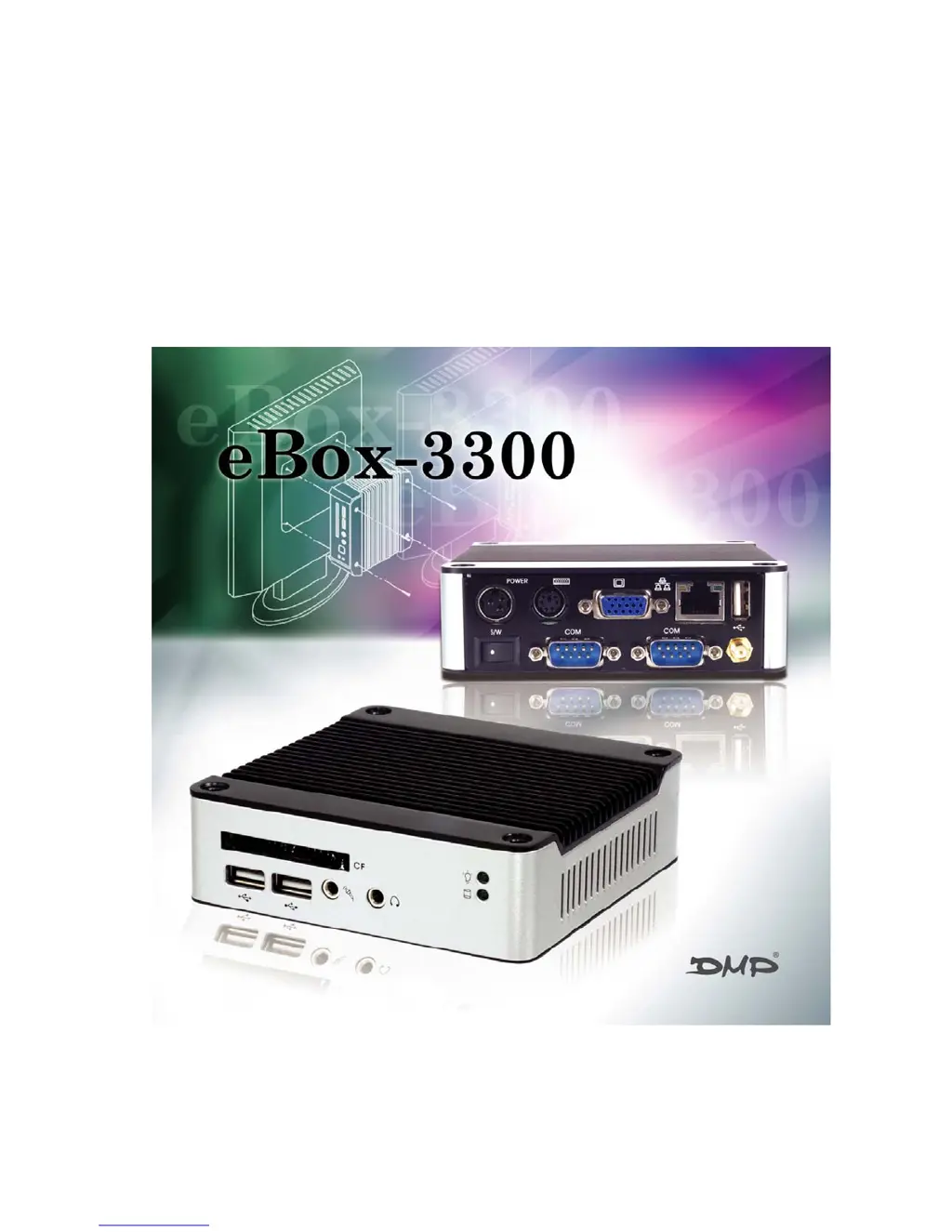
Description of front panel components like Power LED, HDD LED, USB ports.

Back Panel Connectors

Description of back panel connectors like power, VGA, LAN, USB, PS/2.

Embedded CPU Board Specifications

System Specification Details

Detailed specifications for CPU, Memory, BIOS, VGA, Audio, Keyboard/Mouse, IDE, Peripherals, Dimension, OS.

Peripherals Connection Guide

Connecting the Power Adaptor

Instructions for connecting the AC adapter and turning on the eBox-3300.

BIOS Configuration

Technical Specifications

Taking Care of Your eBox-3300

Troubleshooting Common Issues

Troubleshooting VESA PC Startup

Basic troubleshooting steps for common issues when the VESA PC does not start.

Handling Operating System Not Found

How to resolve the 'Operating system not found' error, including BIOS settings.

Resolving BIOS Error Messages

Steps to resolve BIOS error messages and load optimal defaults.

Appendix: Pin Assignments

Pin Assignments: PS;2, USB, LAN

Detailed pin assignments for PS/2, Power SW, DC-IN, USB, and LAN connectors.

Pin Assignments: VGA, COM, USB, LEDs

Detailed pin assignments for VGA, COM, and USB connectors, plus LED states.

Warranty and Support Terms

DMP Electronics eBox-3300 Specifications

General IconGeneral
BrandDMP Electronics
ModeleBox-3300
CategoryServer
LanguageEnglish