As when performing the installation, log in as an administrator before carrying out this operation.
1. Delete the driver
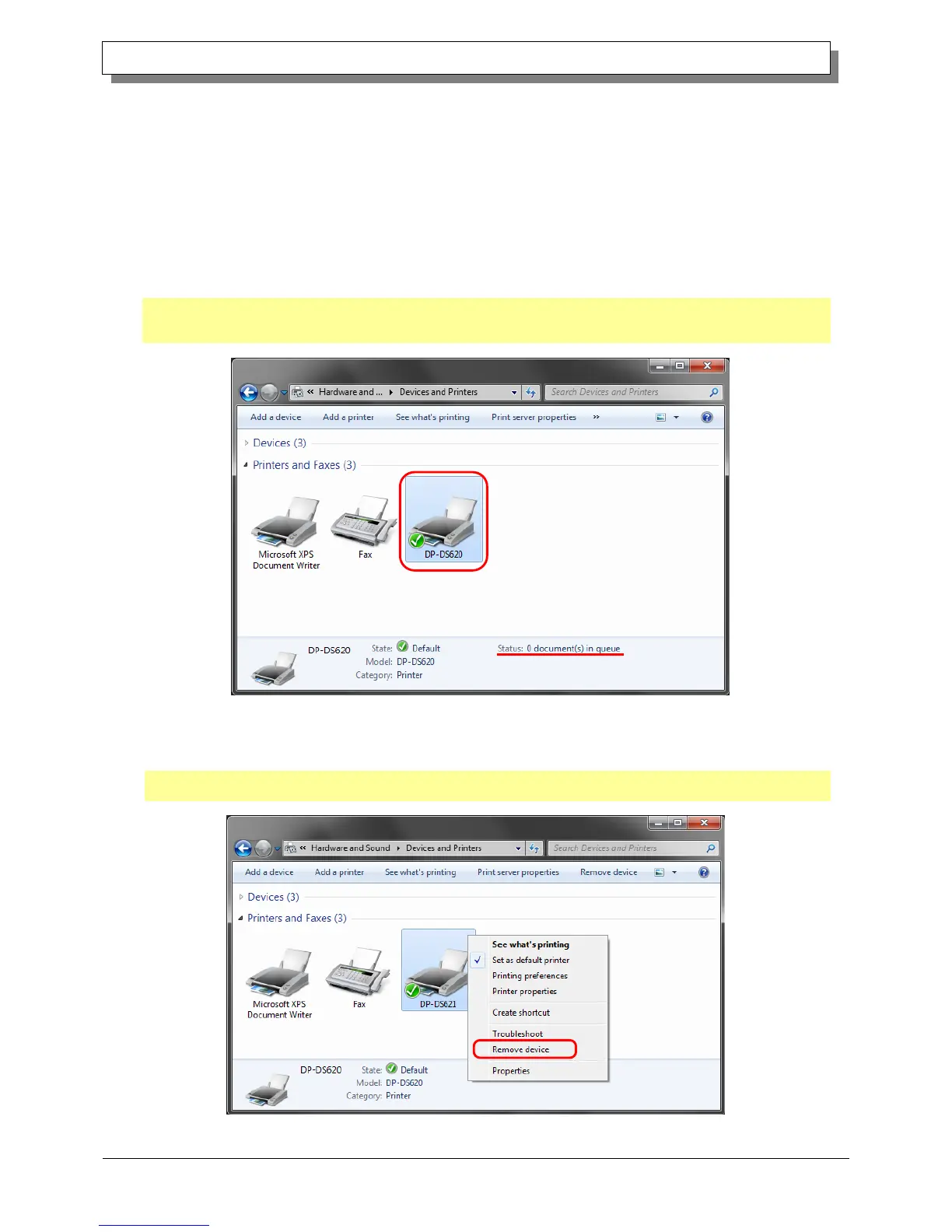
1) Before deleting the printer driver, close all applications. Furthermore, click on the icon of the printer to be deleted in
the Devices and Printers screen. At the bottom area of the screen, confirm that there are no documents in the queue,
and then start deletion of the driver.
Note: In Windows 8, when the printer is offline (the printer is not on and connected), the DP-DS620 icon is not
displayed. If you cannot connect a printer that is on, use the procedure on the following page to delete the
device.
Figure 3.1 Clicking the DP-DS620 icon at the Devices and Printers screen
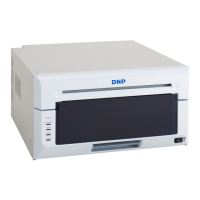
2) Click "Start", and then click "Control Panel". In Control Panel, click "Devices and Printers". From the Devices and
Printers screen, right click the DP-DS620 printer. From the menu, click "Remove device".
In Windows 8, right click the Start screen. In the bottom right area, select "All Apps", and then select "Control Panel".
In the Control Panel, click "Devices and Printers".
Figure 3.2 Right clicking DP-DS620 in the Devices and Printers screen



 To Next Page