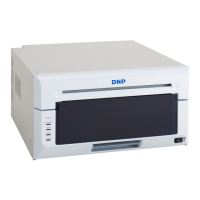
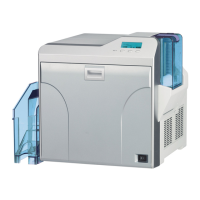
Use the USB cable to connect the printer and computer, and then switch on the power of the DP-DS620 printer.
After the printer is recognized, installation of the driver starts.
*For the connection, see the User’s manual of the DP-DS620.
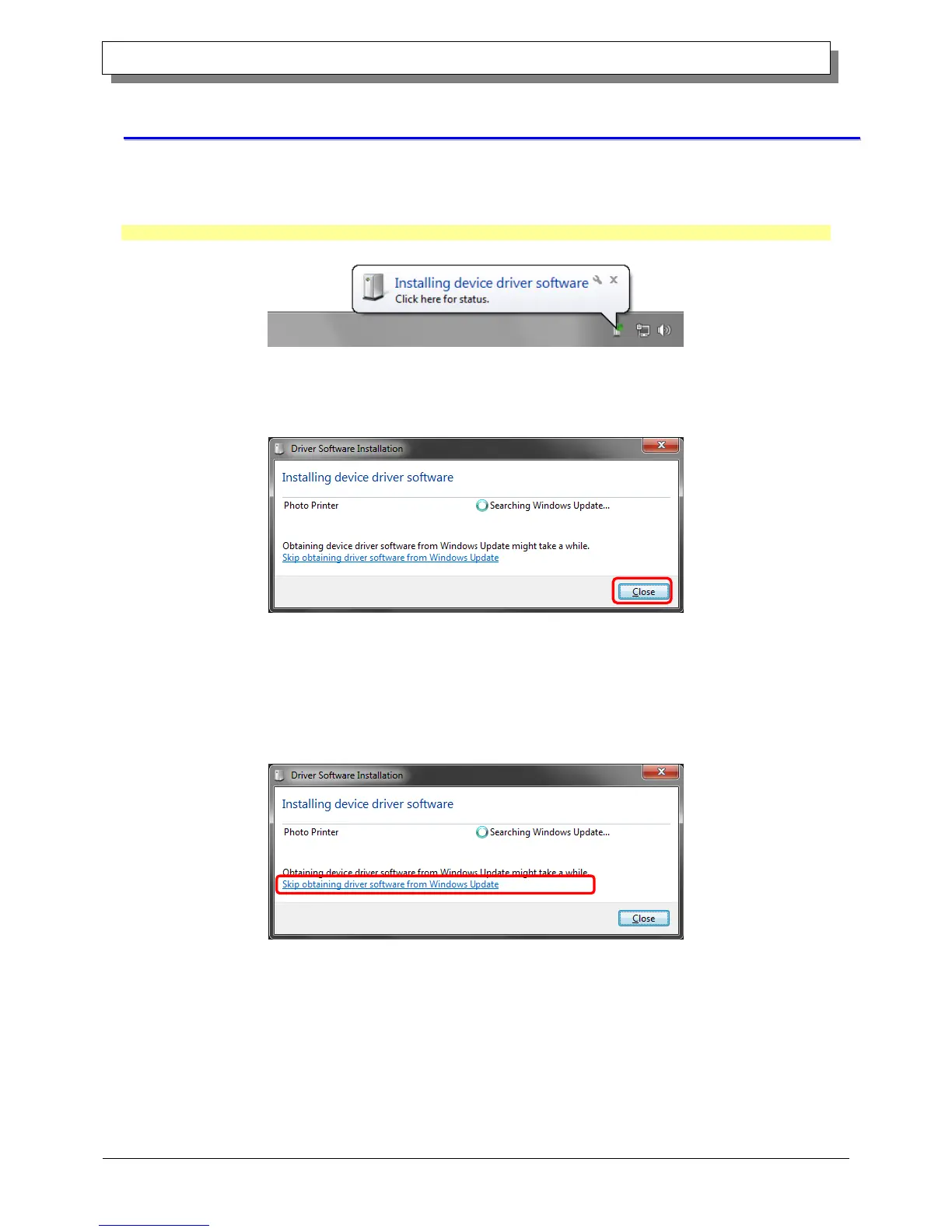
If driver installation starts, the following message appears in the taskbar: “Installing device driver software”.
In Windows 8, this message does not appear. Proceed to page 7.
Figure 1.7 Driver installation message
If you click on this message, the Install driver software screen appears and displays the installation status of the driver. If
Close is clicked, this screen closes.
Figure 1.8 Installing the driver software
*About the “Skip obtaining driver software from Windows Update” option
If your operating system is configured to obtain driver software from Windows Update, it may take time for installation to
complete because the process searches for drivers from Windows Update first. You can reduce the time until the
completion of installation by choosing to skip obtaining driver software from Windows Update. (Depending on your
operating system, it may take some time until installation is complete.)
From the Driver Software Installation dialog box, click "Skip obtaining driver software from Windows Update".
Figure 1.9 Option to skip obtaining driver software from Windows Update



 To Next Page