26 DNP IMS America Corp.
Updating the Driver Software Update Procedure
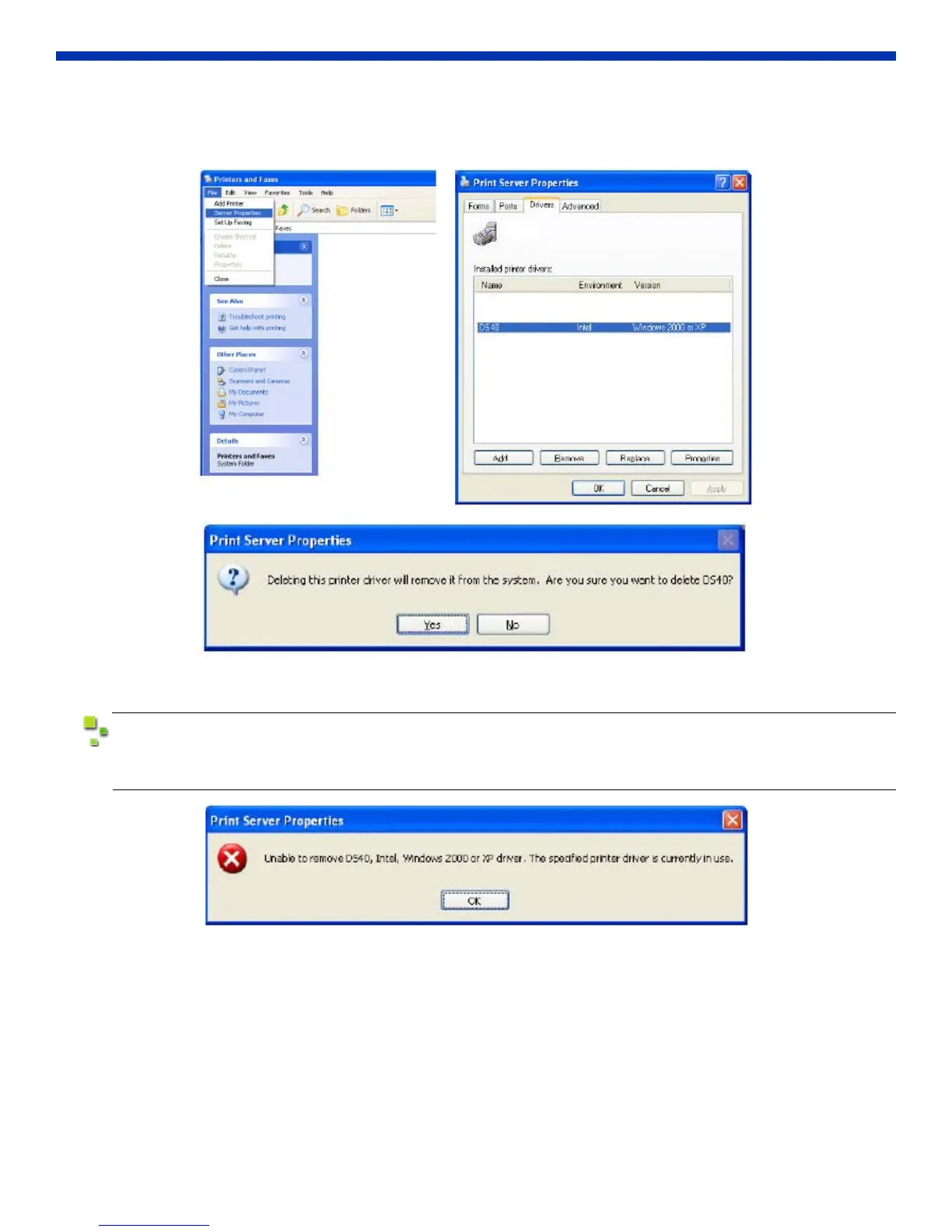
3. After the DS40 printer has been removed, go to the File menu and select Server Properties.
The Print Server Properties dialog box appears. Select the Drivers tab.
Select the DS40 driver and click Remove. A confirmation box will appear. Click Yes.
Figure 43. Removing Driver
Before removing the printer driver, if the following error message (see below) appears, reboot the
computer. After the computer has rebooted, repeat the steps to remove the printer driver.
Figure 44. Error Occurred
Installing the Printer Driver Upgrade
After removing the printer and printer driver, follow the instructions at the beginning of this document for installing the new
printer driver.
Rebooting the Computer
After installation of the printer driver is complete, be sure to reboot the computer.
(Do not print immediately after installation. First, reboot the computer.)


 To Next Page