Lost mobile device
For lock owner
Follow the steps below for optimum
security of your account and locks in the
event of losing your device.
• In order to immediately protect your
account, login with your LockSmart
username and password on another
compatible device
- Each LockSmart user may only
be logged in on one device at
a time. Your lost phone will be
logged out automatically
- Note: If the lost phone is in
airplane mode, this action
will not be eective, and your
locks should instead be reset,
following the instructions
below
• If you want to reset all of your
lock security keys for maximum
protection, you can do so by
removing and re-adding each lock
to your account
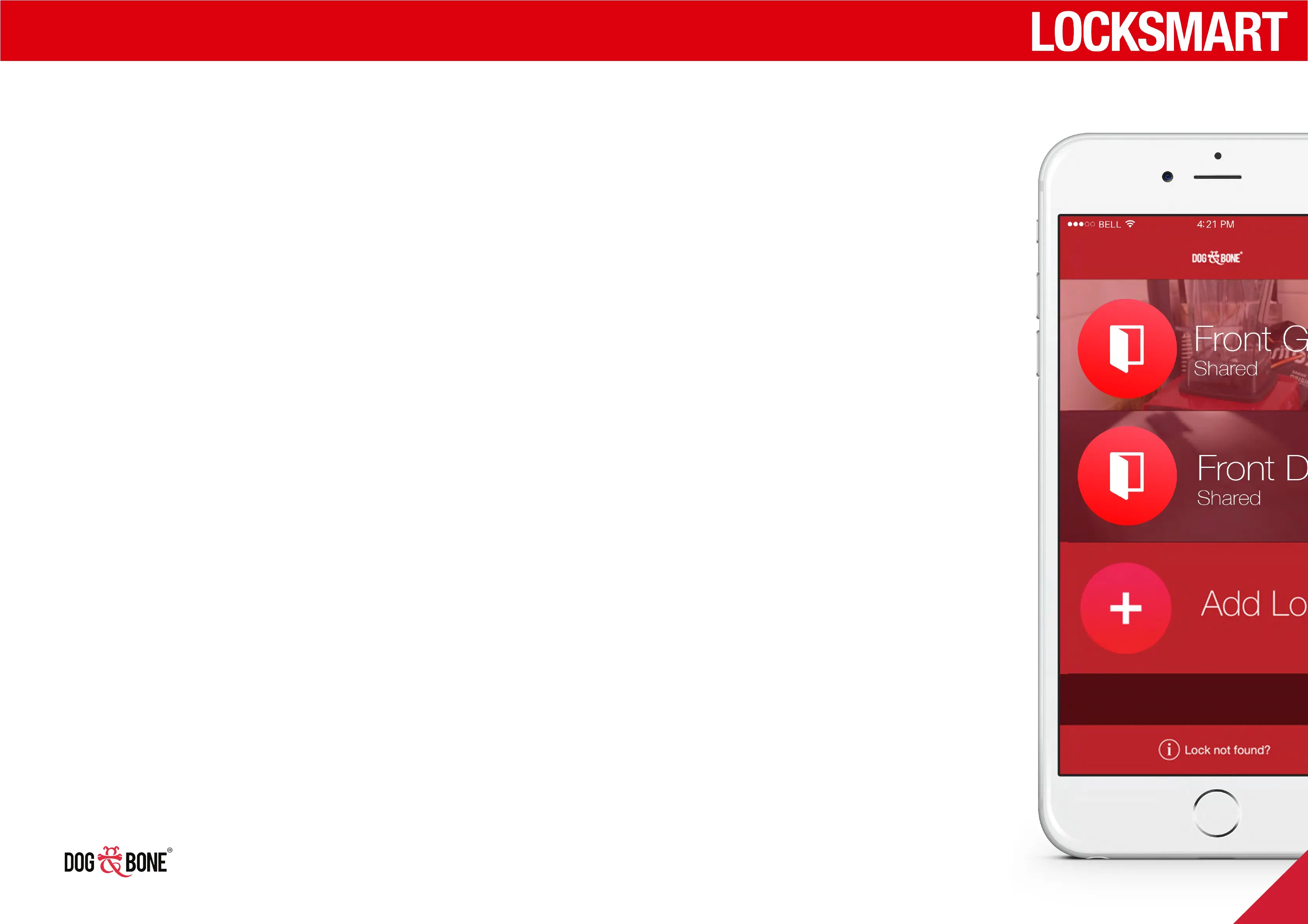
1. Open the lock list screen
2. Swipe left on each of your locks
3. A delete button will show up on the
right
4. Press the delete button
5. Add the lock to your device again
as per the ‘Add a lock’ section on
page 8.
6. The process of re-adding a lock to
your account resets the security key
for that lock
Note: Deleting and re-adding a lock will reset the
settings, activity log and shared users for that lock.
We strongly recommend changing your account
password; details on changing your password can be
found in the Modify account or password section on
24.
Other features
28



 To Next Page