14.2.1 Connection to an Event
• To connect a Trigger Cue to an event, select it in the “Trigger” window and click the
“Connect to an event” button (Figure 183).
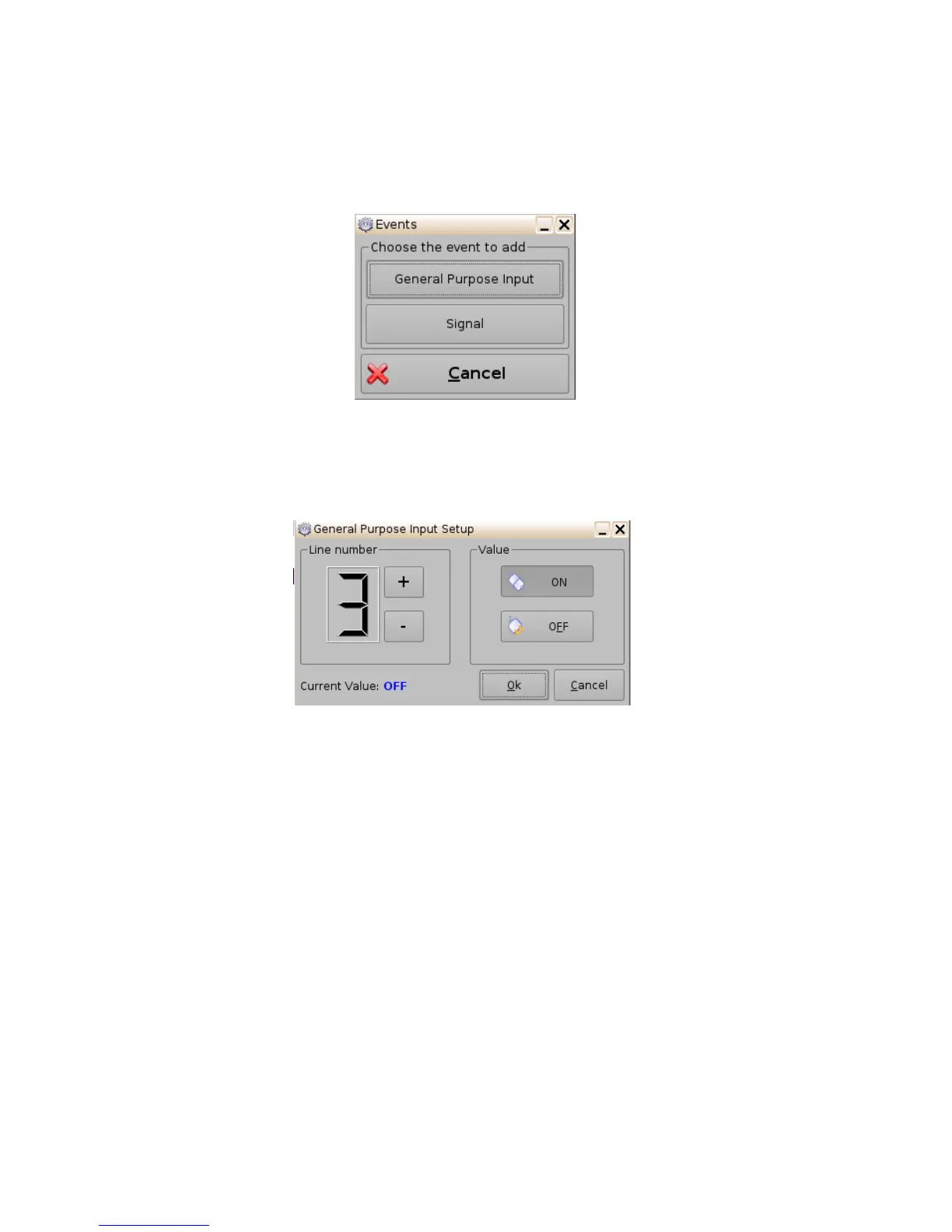
• The following window will appear:
Figure 184: Events Window
• To connect the selected Trigger Cue to a GPI event, click the “General Purpose Input”
button of the “Events" window ( Figure 184).
• The following window will appear:
Figure 185: General Purpose Input Setup Window
• Define the GPI line number and value to connect to the Trigger Cue and click the Ok
button.
• The connected GPI event will then appear in the right part of the GUI.
• To connect the selected Trigger Cue to another signal, click the “Signal” button of the
“Events” window ( Figure 184).
• The following window will appear:
______________________________________________________________________________________
D2K.OM.001822.DRM Page 145 of 177 Version 1.5
Doremi Labs



 To Next Page