19
English
6.1 Getting Started
4) Satellite Channel Search
ᶀ Auto Scan <Figure 6-1-7>
⊹
To select more than one satellite, press the button when the selection bar is
positioned on the satellite.
⊺
Press on the names of the satellites that you want to scan under ‘Satellite List’.
Press the EXIT button to close the ‘Satellite List’.
⊻
Press / and set the ‘Search Type’ and ‘Network Search’ parameters.
- Search Type : Decide for which channels to search (All channels/ Free channels
only/ TV channels only).
- Network Search : Set ON to find more transponders (frequencies) through a Network
Information Table (NIT) scan. That is, when the broadcaster is
sending a NIT through a given transponder, the receiver will also
scan for transponders listed in the NIT and not otherwise recognized.
(this can happen when a transponder is new)
⊼ Press RED buttom under ‘SCAN’ to scan the selected satellites. <Figure 6-1-8>
6.1 Getting Started
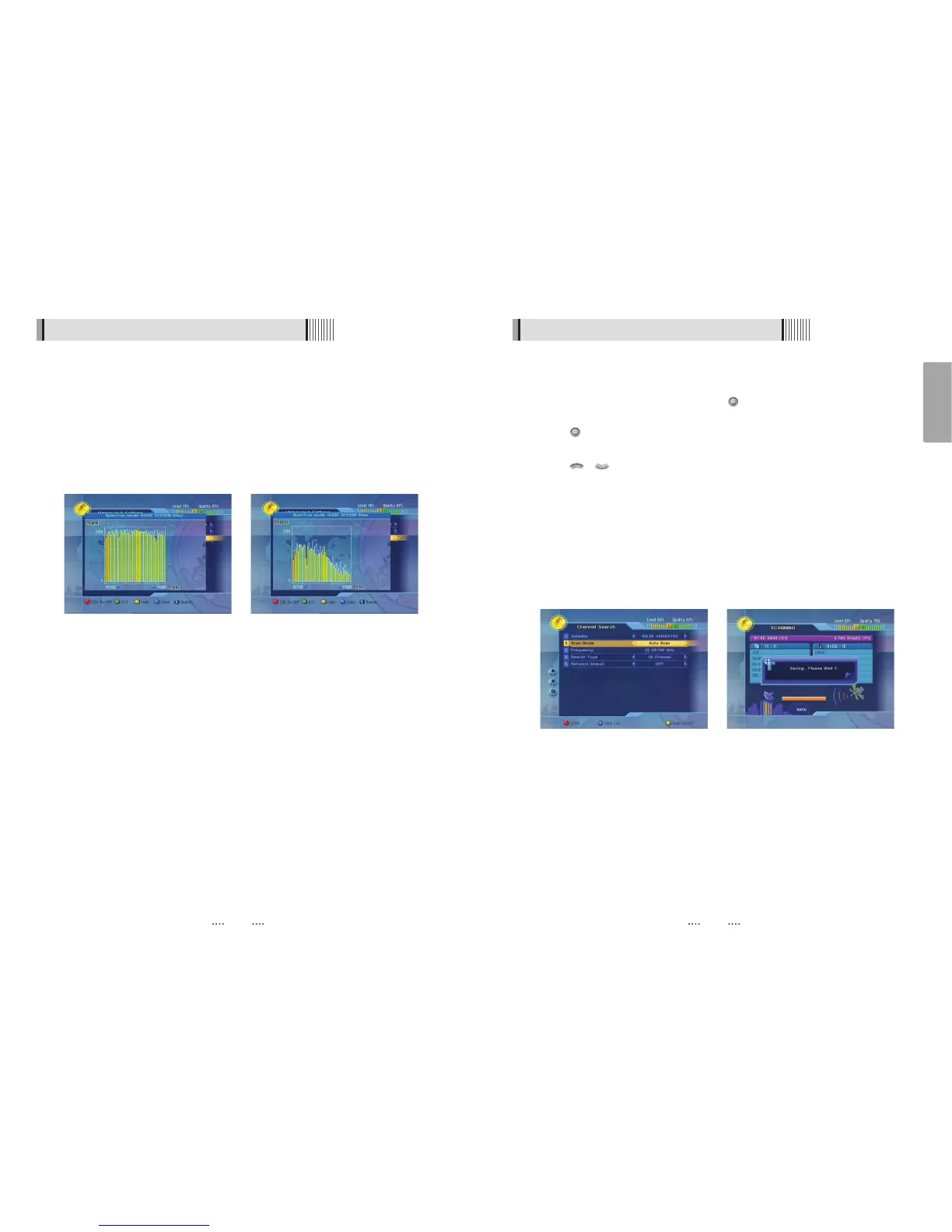
Cable system (LNB cable, LNB, DiSEqC switches, positioners, motors, other commutation
items) general test
You can check cable quality by spectrum analyzer. Low quality cable system causes signal
fade out and distortion: higher frequency results more steep fade out. This leads to poor
quality input signal. You can see the typical poor quality signal spectrum on the last picture
(see below): spectrum fades out and sometimes signal gaps (zero level) can occur on
some frequencies. On the contrary: signal level is more or less equal at all the frequencies if
cable system is good or signal amplifier installed. You can compare pictures below.
<Figure 6-1-7> <Figure 6-1-8>
18
<Hotbird 13E, high quality LNB and cable system> <Hotbird 13E, low quality LNB or cable system>


 To Next Page