DRAMIŃSKI BLUE – user manual
40
10.4.11. Deleting all the measurements
When you press the [Clear] button in [Measurements], all the elements of the measuring and the results will be
deleted from the screen.
Deleting the elements of the measuring also takes place after unfreezing the image in B mode or switching to
B mode from other modes.
10.5. Annotations
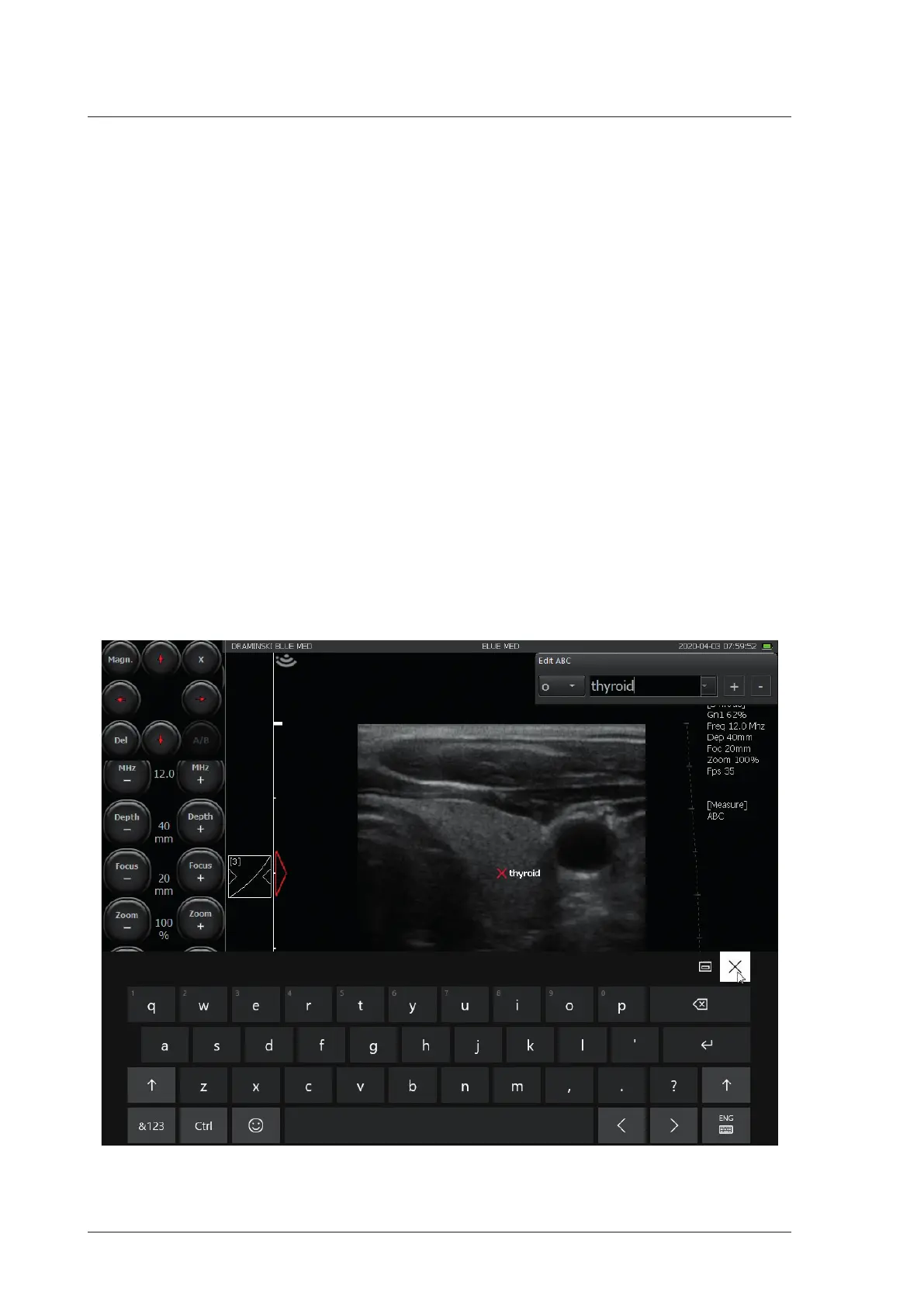
In order to add an annotation, freeze the image and press [ABC].
A point will appear on the image with the description "desc ....", as well as a eld to enter / select from the an-
notation list and a keyboard.
Enter the annotation text in the Edit ABC eld.
To change the position of the annotation, switch on the magnifying glass in the measurement editing window
[Magnier]. Catch and drag to the right place, then turn o the magnier [Magnier].
If you want to change the point to an arrow, expand the list to the left of the annotation line.
If you want to add the entered annotation to the list of ready annotations, press +.
If you want to select an annotation from the list, expand the list at the edit line and select.
If you want to remove an annotation from the list of ready annotations, select it and press "-".
To save the annotated image, turn o the keyboard with the "x" button in the upper right corner and press
Save Image.
Fig. Annotation adding window


 To Next Page