WARNING
OBSERVE ALL PROVIDED
WARNINGS AND SAFETY
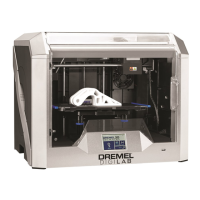
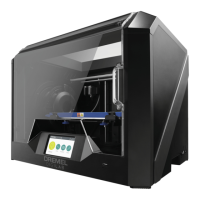
INSTRUCTIONS WHEN USING THE DREMEL 3D20.
FAILURE TO DO SO MAY RESULT IN FIRE,
EQUIPMENT DAMAGE, PROPERTY DAMAGE OR
PERSONAL INJURY.
NOTE: Your Dremel 3D20 will build test objects before
leaving the factory. These test objects may have been
made with a different lament color than you are
using. Therefore, a small amount of lament may be
remaining in the extruder. The start of your rst object
may have some of this lament color until it transitions
over to your lament color.
You have 2 options when building on your Dremel
3D20:
1. SD Card - Build directly from the SD card. The
SD card comes wi th model les installed at the
factory. You can plug this directly into your builder
and begin building right away. Additionally, you can
save new .G3Drem les to your SD card from the
Dremel 3D software.
2. Computer – Build direct ly from your computer
through the USB cable.
STATUS : PRINTING
MOVE
ROTATE
SCALE
IDEA BUILDER
VIEW
BUILD
LOAD
3D ONLINE
FILE EDIT BUILD VIEW TOOLS HELP
BUILDING FROM THE SD CARD
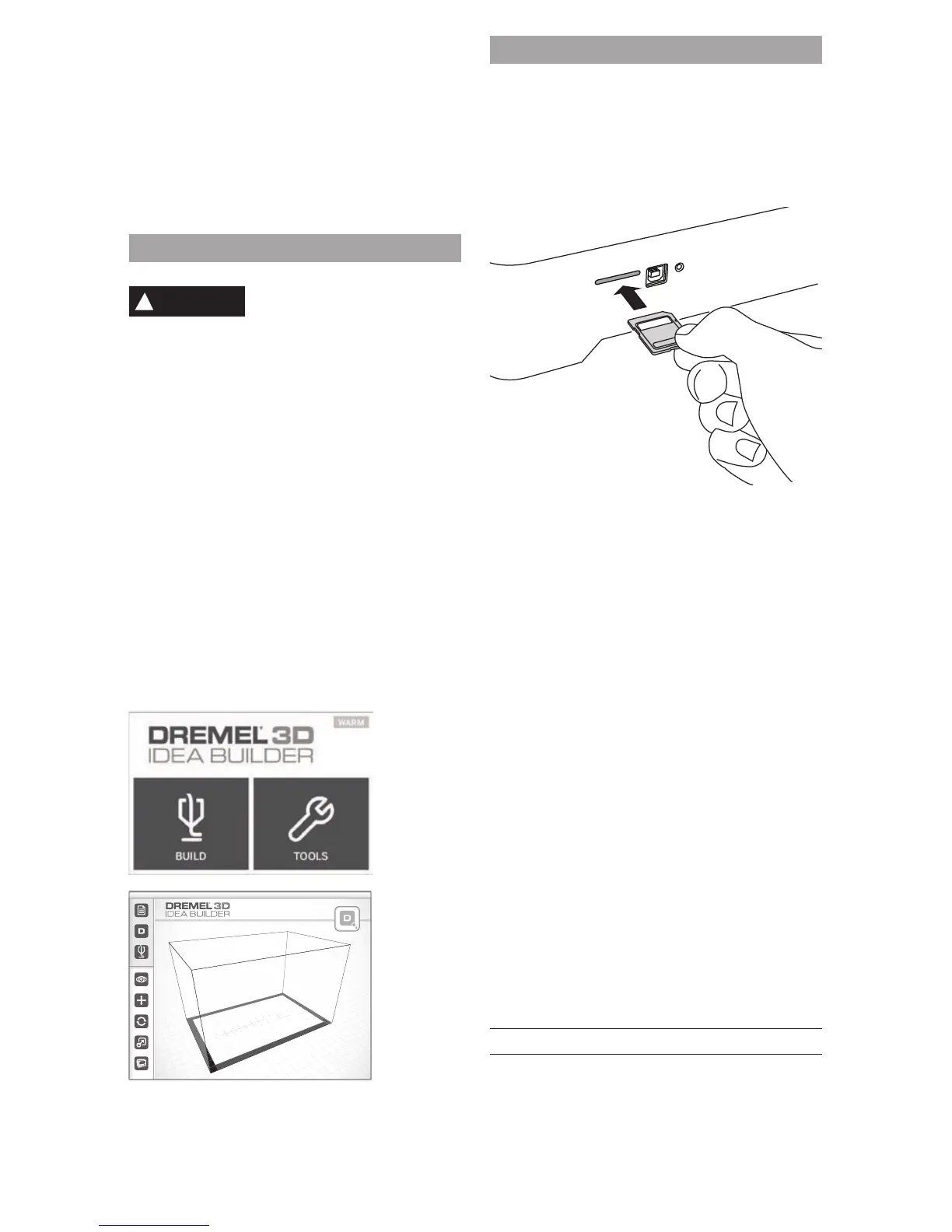
1. Insert SD card containing your model into the
SD port located on the right side of your Dremel
3D20. Your Dremel 3D20 comes with an SD
card containing free model les ready to be built.
Additionally, you can save new .G3Drem les to
your SD card from the accompanying Dremel 3D
software.
2. Ensure an adequate amount of lament is loaded
(see page 19).
TIP: You can determine whether you have enough
lament to complete your object before building by
weighing the lament and spool then subtracting
the weight of the empty spool. The Dremel 3D
software will display the approximate weight of
each model.
NOTE: You cannot edit model les directly on
the Dremel 3D20. Ensure that you are building
.G3Drem les when building directly from SD card.
3. Ensure build tape is applied and build platform is
leveled (see page 20).
4. Tap “Build” on the touch screen, tap the SD card
option, and use the up/down arrows to scroll.
5. Tap on the model le you would like to build.
6. Your Dremel 3D20 will rst align the extruder and
build platform. Your Dremel 3D20 will then begin
the heating process which may take a few minutes.
During the heating process, the extruder will reach
the temperature required for proper building with
PLA. Once this temperature is reached, your model
will begin to build.
7. Once the object is nished building, your touch
screen will display “Object Finished”. Tap the check
box to conrm.
8. Wait until the touch screen indicates that the
extruder temperature is “COOL” to remove you
object . See section for removing you object
from the build platform below for object removal
instructions.
CANCELLING YOUR OBJECT ON DREMEL 3D20
To cancel your object during warm up or building, tap
the “STOP” button on touch screen. The next screen
will read, “Cancel build now?” Tap the “Yes” to cancel
or tap “No” box to abort the cancel command. Wait
until the extruder and build platform completely cools
before reaching inside the build area.
21



 To Next Page