19
GAUGE SETUP & NAVIGATION
NAVIGATING GAUGES:
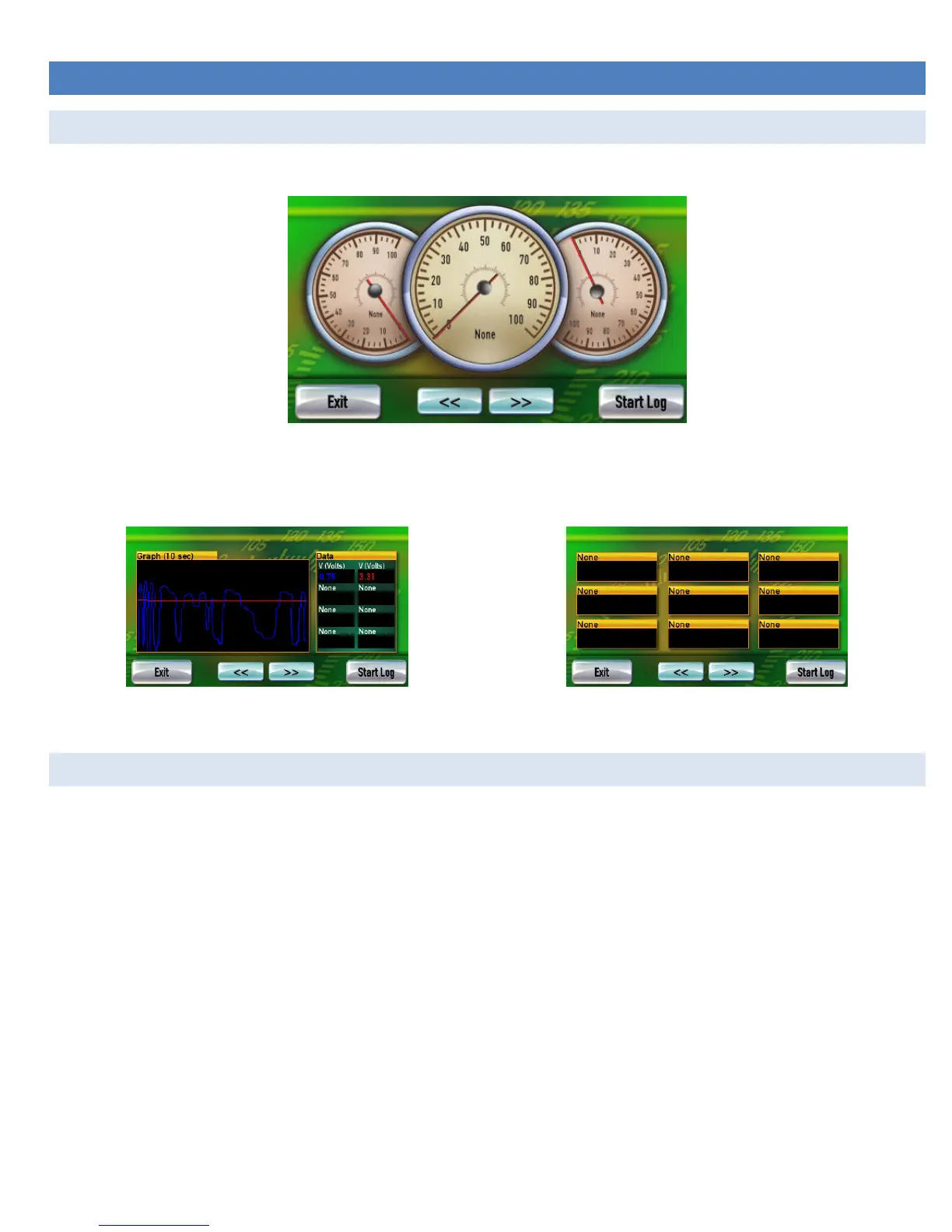
Tap on [Gauges] from the Main Menu. The last gauge layout viewed, or this screen, will be displayed.
Figure 3: Layout with 3 round gauges
To change gauge layouts, tap on the [<<] and [>>] buttons. Two gauge layout examples:
Figure 4: Layout for graphing up to 8 signals
Figure 5: Layout for displaying up to 9 numeric signals
ASSIGN A SIGNAL TO A GAUGE
Before assigning signals to a gauge, make sure the New Vehicle Setup has been completed.
1. Do the New Vehicle Setup for each new vehicle (section 0)
2. Select a gauge layout.
3. Tap on the gauge where the signal will be displayed. This screen will appear:
4. Tap on [Assign Signal].
5. Using the [<] and [>] buttons at the top of the screen and the scroll slider on the right side of the list, go through the available
signals.
6. Select the signal that you would like displayed on the gauge
7. Tap [Save].


 To Next Page