20
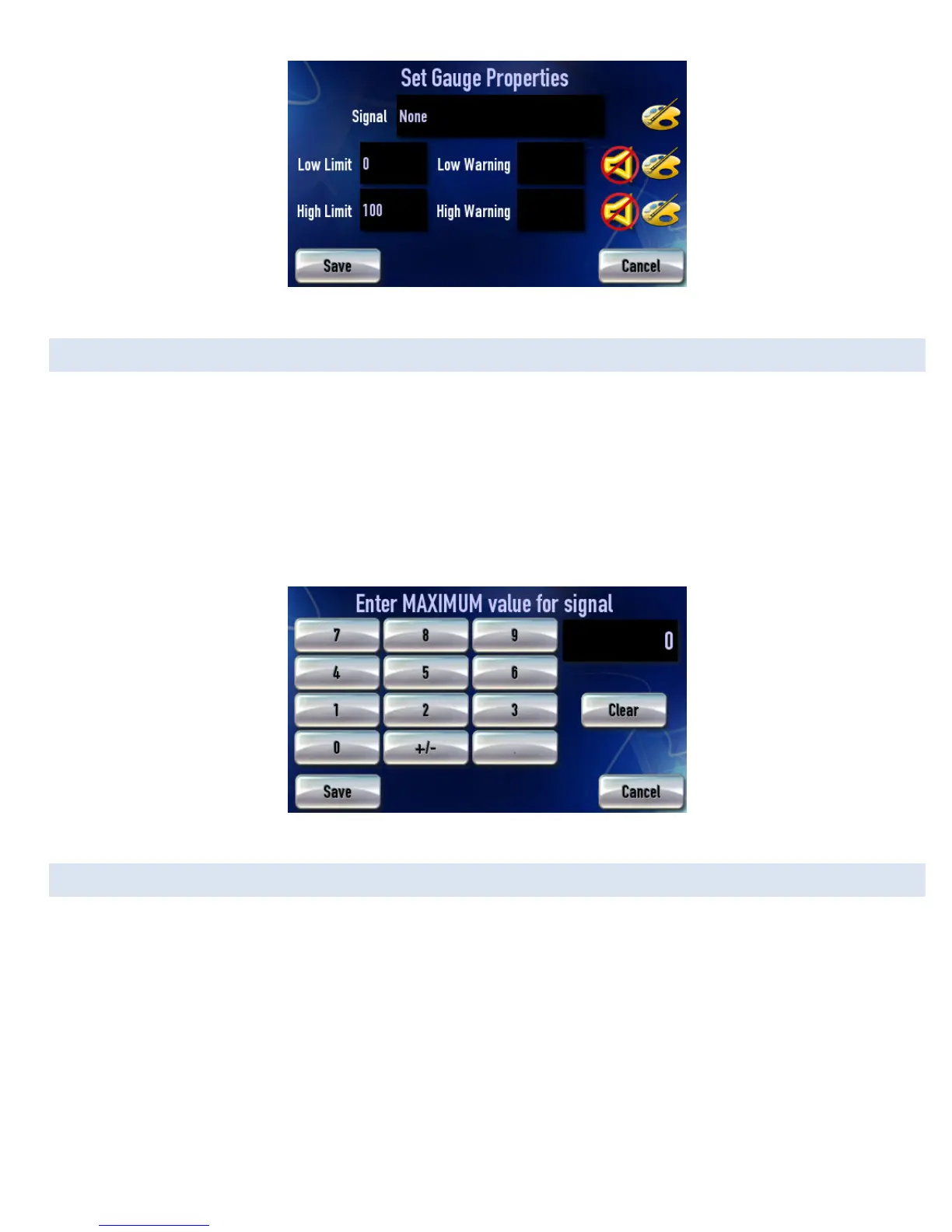
Figure 6: Assign signal screen
SET GAUGE MIN/MAX VALUES
Tap on the [Minimum] button to set the bottom value for a gauge.
Tap on the [Maximum] button to set the top value of the gauge.
1. Tap [Maximum] will bring up this screen:
2. Type in the desired value.
3. To make the value negative tap [+/-]
4. Tap [save]
5. Repeat steps 1-4 to set the gauge’s minimum value.
Figure 7: Entering maximum value for a gauge
SET GAUGE LOW WARNING / HIGH WARNING
For setting the visual representation of “redline” on a gauge. For example: this gauge has a “redline danger zone” between 5000 and
6000 RPM.
To set a High/Low Warning:
1. Tap on the gauge where a High/Low Warning is to be set.
2. On the Assign Signal screen, tap on either High or Low Warning.
3. Type in the desired number. Tap [+/-] to make the value negative.
4. Tap [Save].
5. Tap [Save] on the Assign Signal screen to go back to the gauges.


 To Next Page