38
DashDAQ licenses are required for some of the drivers that Drew Technologies supplies. These licenses must be purchased from the
DashDAQ website. The drivers that require licenses /drivers include:
• GM Enhanced
• Ford Enhanced
• Chrysler Enhanced
• Subaru Enhanced
• AEM
• Autronic
• DTAFast
• EFI Technologies
• Emerald
• Fast XFI
• Haltech
• Hydra Nemesis
• Innovate MTS Chain Devices
• J1939
• Phidgets
• Wolf EMS
These licenses can be purchased from Drew Technologies at any time. Licenses do not need to be purchased when you buy your
DashDAQ. If a license is purchased later, you will need to update DashDAQ through the DashDAQ Recovery Tool (section 0).
Drew Technologies keeps an online database of what licensed DashDAQ drivers a DashDAQ owner has purchased. When the update
tool is used, a serial number query will be sent to the server and available licensed DashDAQ drivers will be listed. Select from the
available drivers list and continue with the DashDAQ Recovery Tool wizard. When the wizard finishes the licenses will automatically be
installed in DashDAQ. Please refer to section 0 for complete details on updating DashDAQ.
USING DEVICE MANAGER
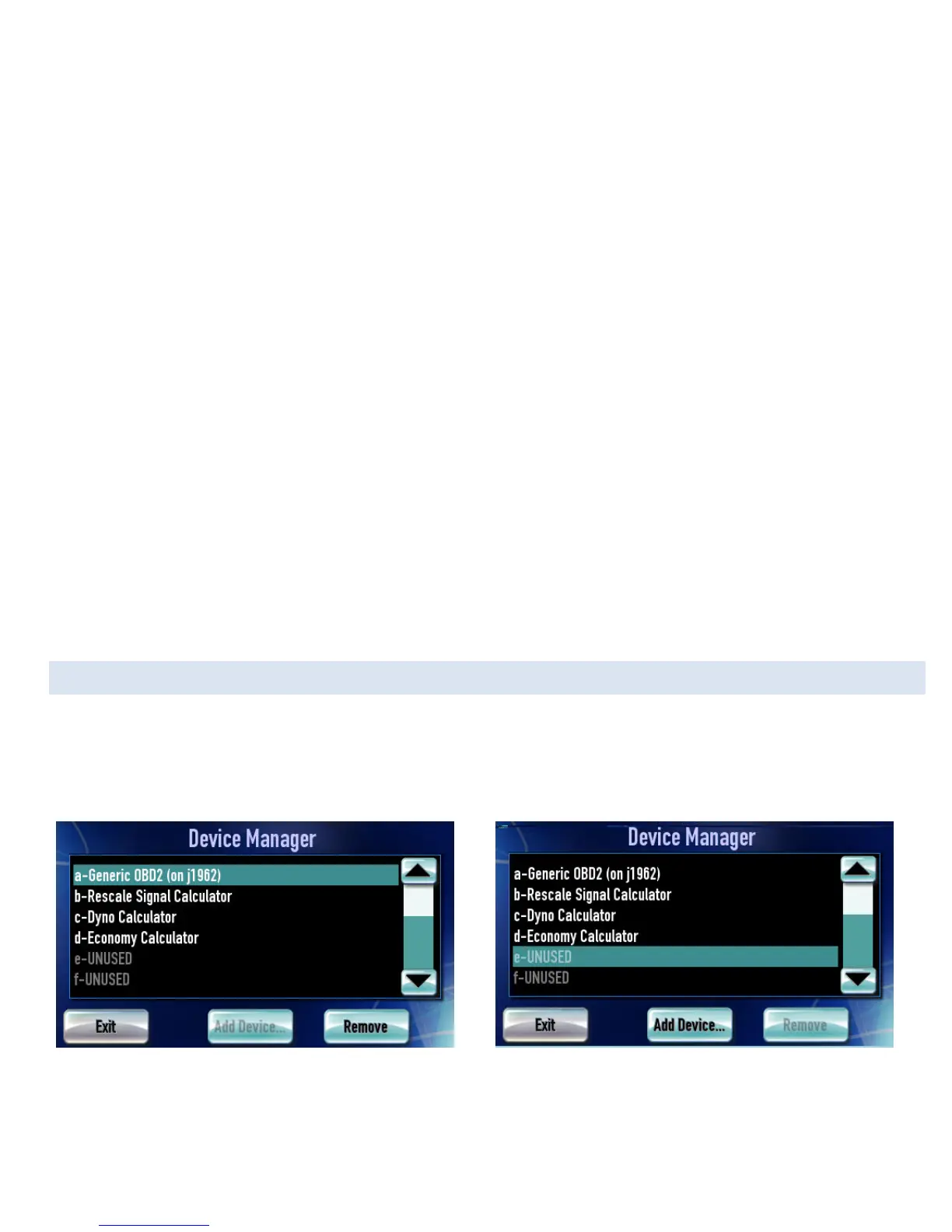
The DashDAQ Device Manager is where all DashDAQ inputs are specified. Anything specified in the Device Manager will be available to
any gauge on the DashDAQ.
To access the Device Manager tap on [Setup] from the Main Menu, then [Devices], then [Manager].
Figure 32: Device manager screen
Figure 33: Selecting the next available slot
Notice that there are slots labeled from A-H. These are spots where the drivers are specified. To add a driver/input tap on a empty slot.
Slot [b] will be used for this demonstration.


 To Next Page