23
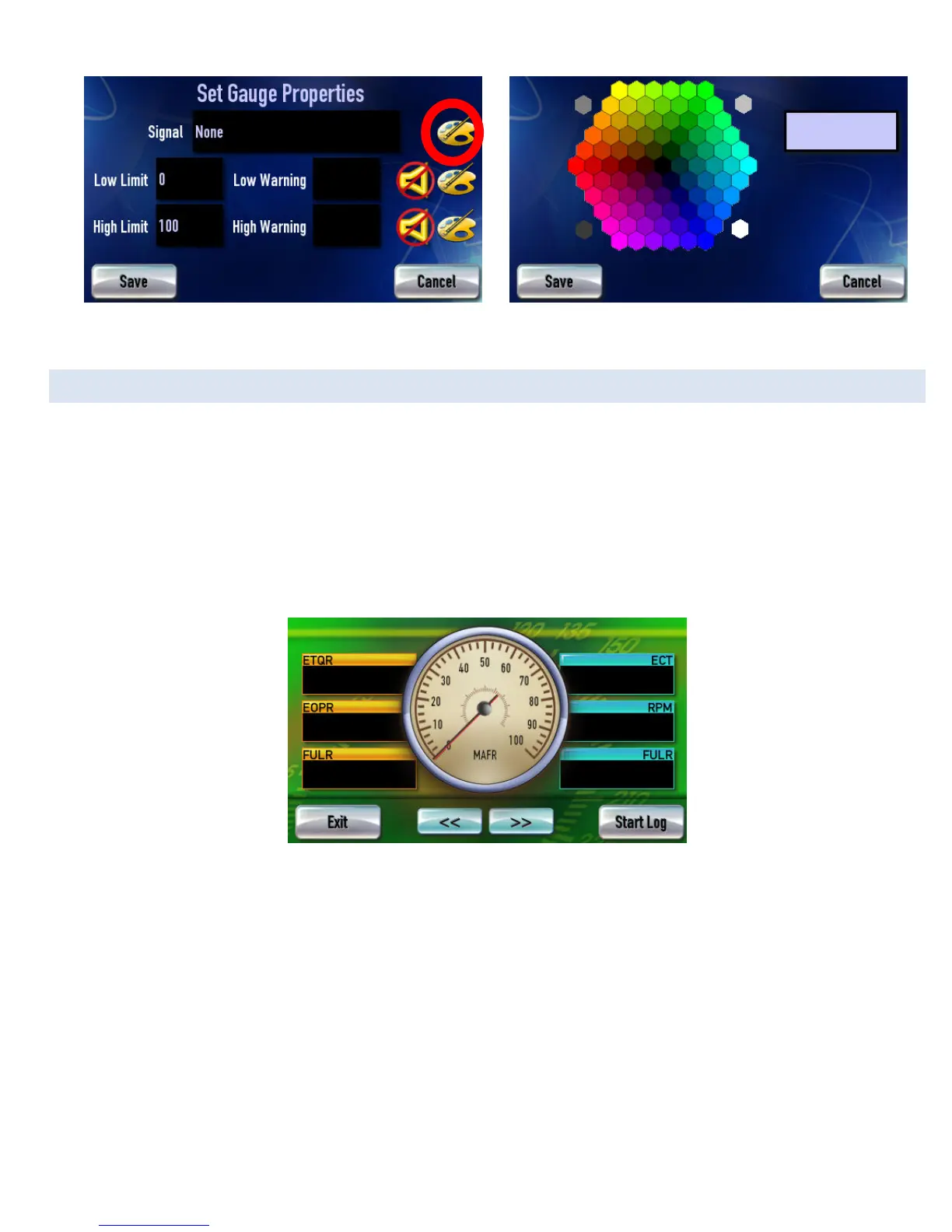
Figure 10: Button to change gauge color
Figure 11: Color selection screen
DATA LOGGING
The DashDAQ can log and save all information represented on the gauges. The information can saved as a Microsoft Excel *.csv, or
Logworks *.dif file directly to a inserted SD memory card.
To begin data logging:
1. Select a gauge layout from which to capture information. Assign signals to the gauges to data log (section 0)
2. Tap on [Start Log]. The signals will be saved to the SD card with a timestamp. The signals will continue to be displayed on the
screen even as they are being saved to the card.
3. Tap [End Log] when finished with the data logging session. The data is now saved to the memory card.
Figure 12: Gauge screen with Start Log button in lower-right corner
Each time a data logging session is started and ended, DashDAQ saves one file to the SD memory card in a directory called “log.” Each
saved file has a log prefix. The default prefix is “log”, but the prefix can be changed.
To change the log prefix:
1. From the Main Menu, tap on [Data Logging].
2. Tap on [Log File Prefix]. This screen appears:
3. Type in the desired name of the log file prefix. Example: TestDrag.
4. Tap [Save].


 To Next Page