43
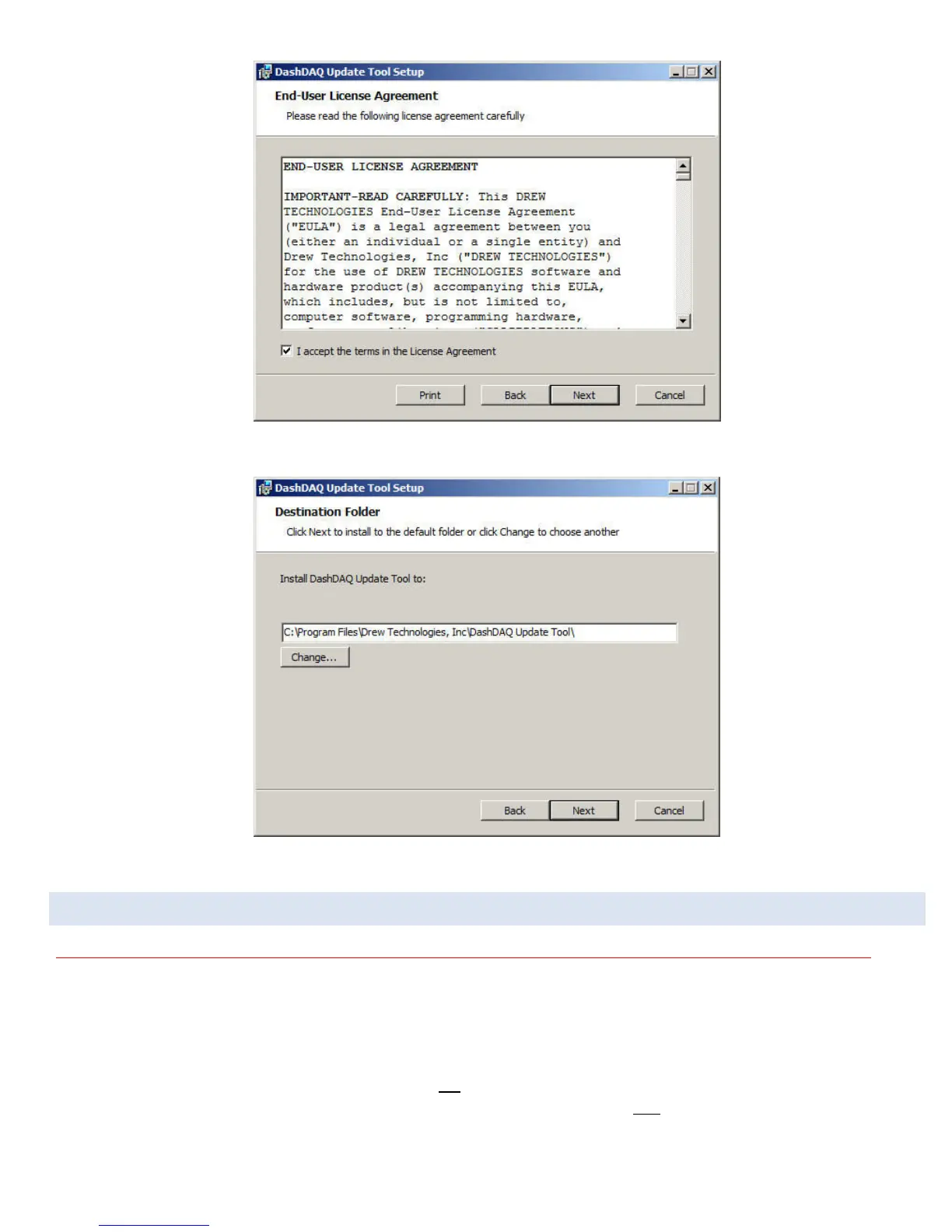
5. Click “Next” to install DashDAQ into the specified directory.
6. Click “Install.” The DashDAQ Update Tool will now be installed to the computer. Click “Finish” when the installer has finished.
UPDATING DASHDAQ
WARNING: Do not power DashDAQ from the PC with the USB ports on the right. Permanent damage to your DashDAQ can occur.
To update DashDAQ:
Establish an Internet connection on your computer. The DashDAQ Recovery Tools requires Internet access throughout the update
process.
Connect the USB cable to the single USB port located on the left side of DashDAQ. Any other USB port will not work. Connect the
opposite end of the USB cable to the computer’s USB port. Note: This USB port is used only for updating the DashDAQ.


 To Next Page