27
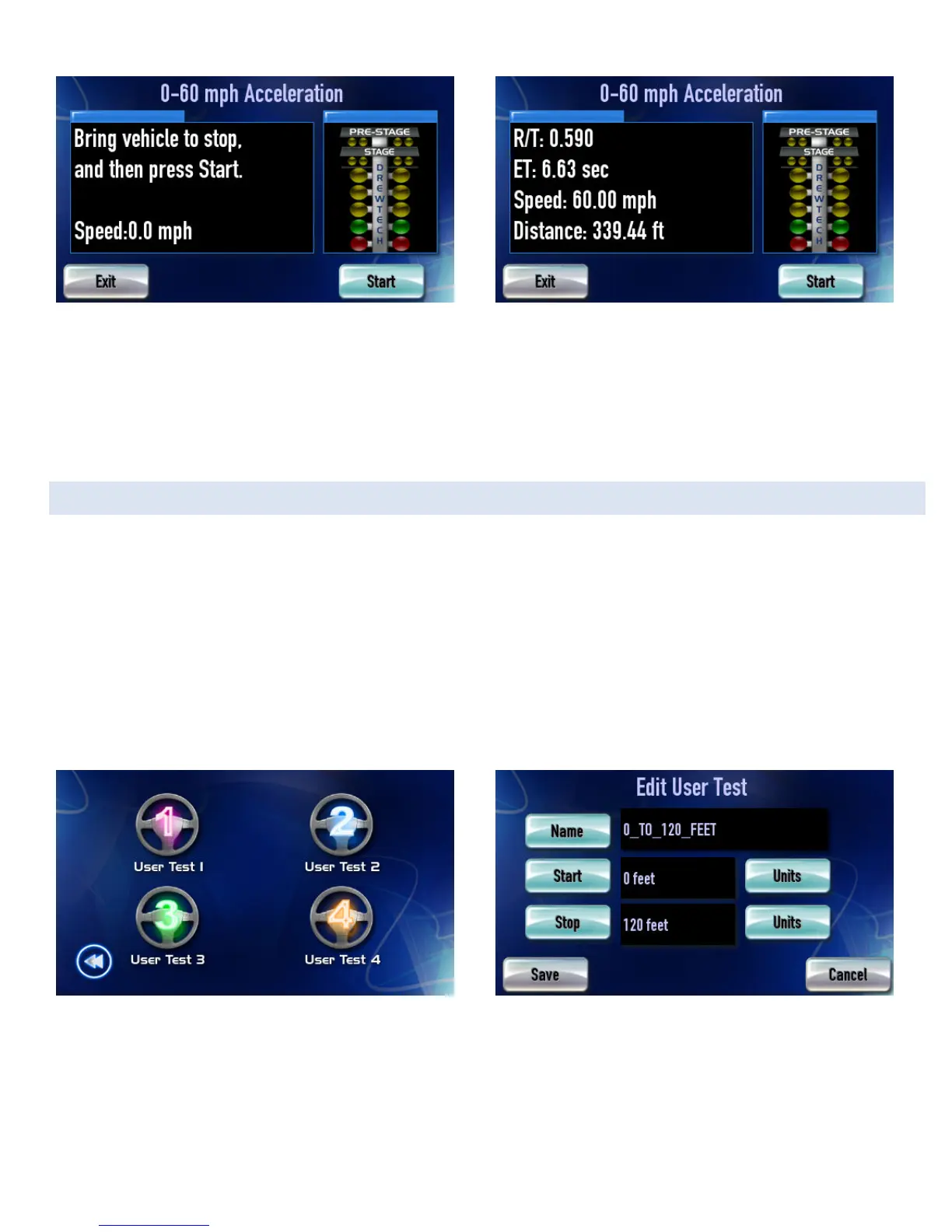
Figure 20: Follow the instructions
Figure 21: DashDAQ will display your reaction time and other measurements
Tap [Start] to start the test.
Follow the on-screen instructions. The results will be posted in the left box at the end of the run. Example:
USER DEFINED SPEED TESTS
Create your own performance tests. To set up a specific test:
From the main menu tap on [Performance].
Tap on [Setup].
Tap on one of the four [User Test] buttons
“Edit User Test” screen will appear.
Tap on [Name]. Type in the name of the test. Example: 0_to_120_feet
Figure 22: DashDAQ has 4 user-configurable tests
Figure 23: You can customize the start/stop distance or speed
Tap on [Units] to select a measurement unit. Example: feet
Tap on [Start] to set the start value of the measurement. Example: 0
Repeat steps 7 and 8 to set Units and Stop value. Example 120 feet.


 To Next Page