26
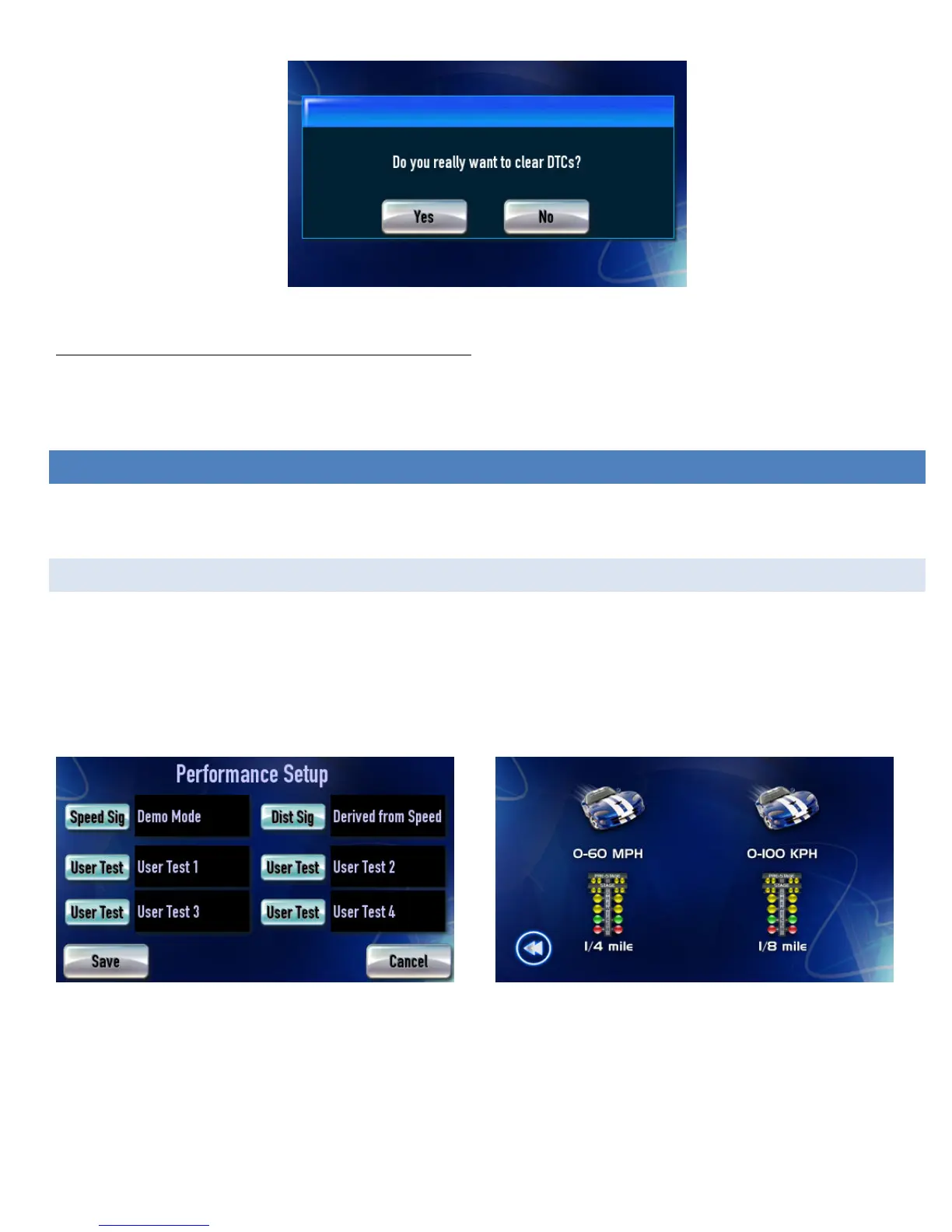
Figure 17: Confirmation to clear diagnostic trouble codes
Note: Clearing codes does not solve any underlying vehicle issues.
Tap [Yes] to clear the code(s) and turn the check engine light off.
Tap [No] to leave the code(s) set and leave the check engine light on.
PERFORMANCE MEASUREMENTS
1/4-mile, 1/8-mile, 0-60mph times and many configurable performance tests can be measured with DashDAQ. All that is needed to
calculate these measurements is a vehicle speed sensor signal or a speed signal from a GPS receiver.
1/4-MILE, 1/8-MILE, 0-60MPH TEST
To measure performance:
From the Main Menu tap on [Performance].
Tap on [Setup] and select the vehicle speed sensor. By tapping on the [Speed Sig] button in the top left corner. User specific tests can
also be setup in this menu. (See 5.2 User Defined Speed Tests)
Figure 18: First specify the signals for speed and distance. You can use
GenericOBD2, a standalone engine management system, or even a GPS
Figure 19: Next choose a speed-based or distance-based measurement
Tap [Save].
Now tap [Acceleration Test]. This screen will appear:
Select the performance test by tapping on it. A screen like this screen will appear:


 To Next Page