47
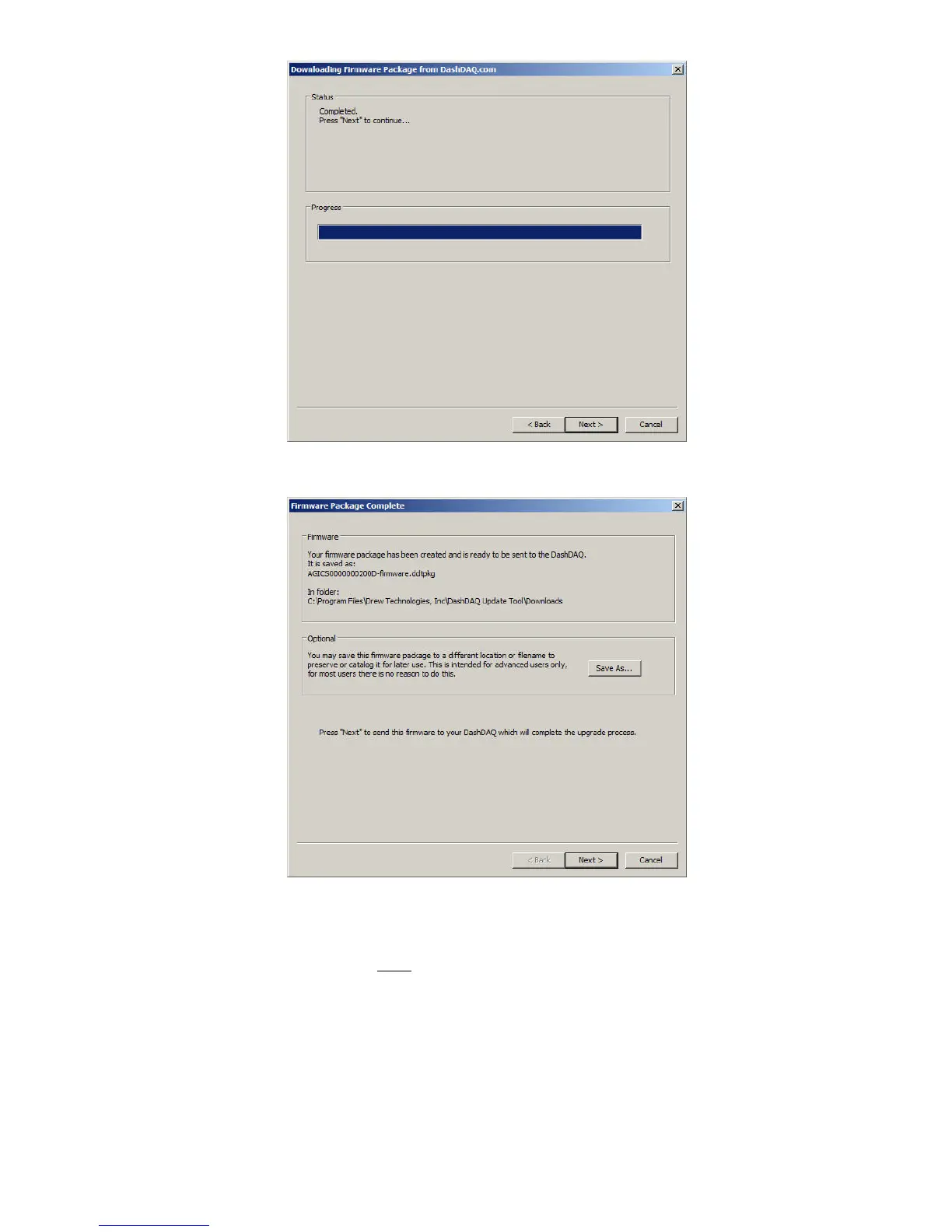
Click “Next.” This screen appears:
Optional: To save the firmware package that was just created to the computer, click “Save As” under “Optional.” Firmware saved to the
computer may be reloaded to DashDAQ in the future without Internet access.
Click [Next] to send the firmware to the DashDAQ. Wait. When DashDAQ has finished updating, the DashDAQ Recovery Tool will display
the screen below. DashDAQ is now up to date!
Click [Finish] to close the Recovery Tool.


 To Next Page