46 47
SOFTWARE UPGRADE
B Y E
B Y E
U P G R A D E
E N A B L E D
S O F T W A R E
F O U N D
USB USB
C O M P L E T E
R E M O V E
U S B
T O
O F F
U P G R A D E
S O F T W A R E
NO
YES
>
READY
TO
WIN
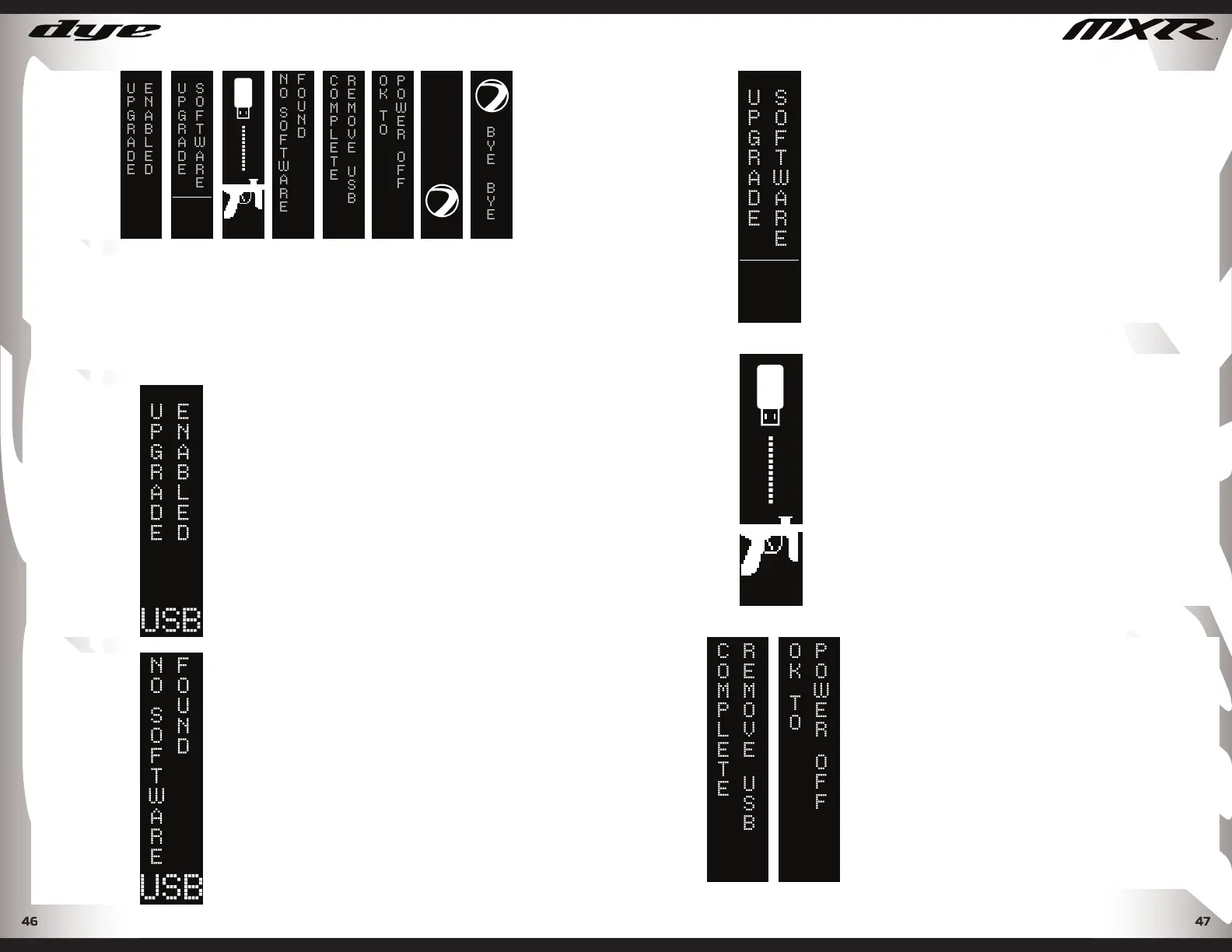
Power on your MXR, the USB sync
screen will be displayed.
It will take several seconds for the
MXR MOS operating system to read
and sync with the fl ash drive.
Periodically DYE will release new updated software for the MXR. The new software will be avail-
able on www.dyepaintball.com
TO UPDATE YOUR OR OPERATING SYSTEM FOLLOW THESE SIMPLE DIRECTIONS.
Save the new operating software to any USB C fl ash drive. A USB C fl ash drive is included with
the MXR. If this fl ash drive is not available, any USB C with a memory capacity of 16gb or smaller
will work.
If the fl ash drive is blank, or the
software is damaged the “No
Software Found” screen will be
displayed.
DYEPAINTBALL.COM
U P G R A D E
S O F T W A R E
NO
YES
>
Confi rm you wish to upgrade the
software.
Press the Center of the joystick to
initiate the upgrade process.
The system will begin to upgrade
the software. This may take several
minutes.
Do not unplug the USB until you are
prompted to do so.
USB
C O M P L E T E
R E M O V E
U S B
USB
T O
O F F
Once the cable has been unplugged
the board will automatically power
off. This signifi es the upgrade is done,
and the MXR is ready for use.
DYEPAINTBALL.COM
SOFTWARE UPGRADE


 To Next Page