18 Dynaudio
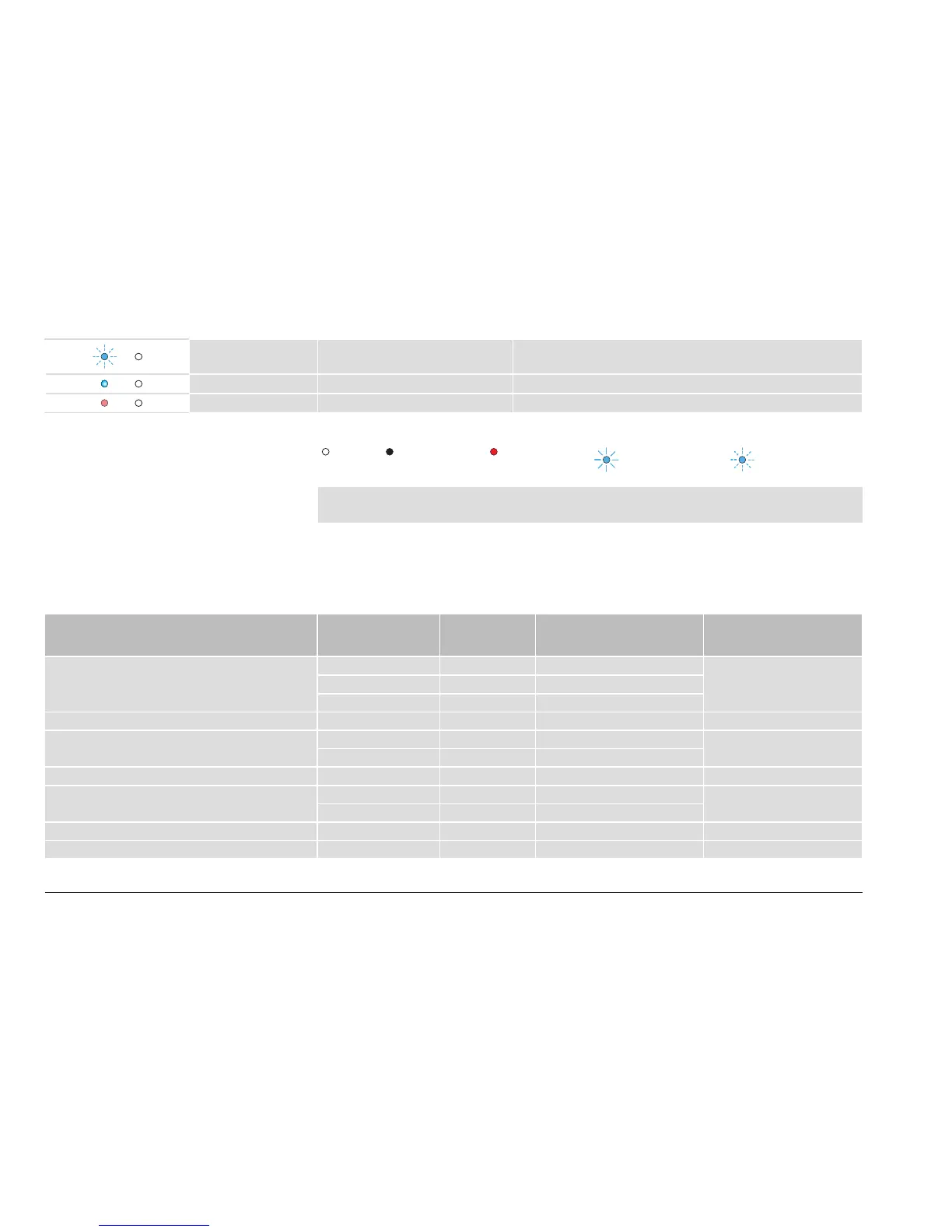
Volume Fast blinking in blue Volume is being adjusted.
Mute Fading in and out Speaker is muted.
Off-state Illuminated dimly in red Speaker is in standby mode.
LED blinking code
off Illuminated
in white
Illuminated
in a colour
Slow blinking
(1 or 2 Hz)
Fast blinking
(3 or 4 Hz)
NOTE:
The LED status conditions also appear in combinations, e.g. while playing back 44.1/48k audio
signals from a bluetooth device, the left LED is illuminated in blue and the right LED in white.
Connection options
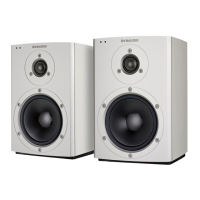
► Connect your signal source to the appropriate input on the Xeo 2 speaker.
Below you will nd a selection of signal sources and options for connecting to the Xeo 2.
Your signal source Signal source
output
Xeo 2 input* Cable
(source – Xeo 2)
Notes
Notebook, MAC™, PC Optical Optical In Toslink – Toslink –
Line out Line in RCA – RCA
Headphones Aux in Jack 3.5 mm – 3.5 mm
Smartphone, other portable devices Headphones Aux in Jack 3.5 mm – 3.5 mm –
Astell&Kern Headphones Aux in Jack 3.5 mm – 3.5 mm –
Optical Optical In Toslink – Toslink
PonoPlayer Jack Aux in Jack 3.5 mm – 3.5 mm –
Docking station, network client, Sonos,
Logitech, Squeezebox, etc.
Line out Line in RCA – RCA * If available
Optical* Optical In Toslink – Toslink
Apple AirPort Express Optical Optical In Mini Toslink – Toslink –
Apple TV Optical Optical In Toslink – Toslink –


 To Next Page