24
Setting Up Key Features
Customizing Receiver
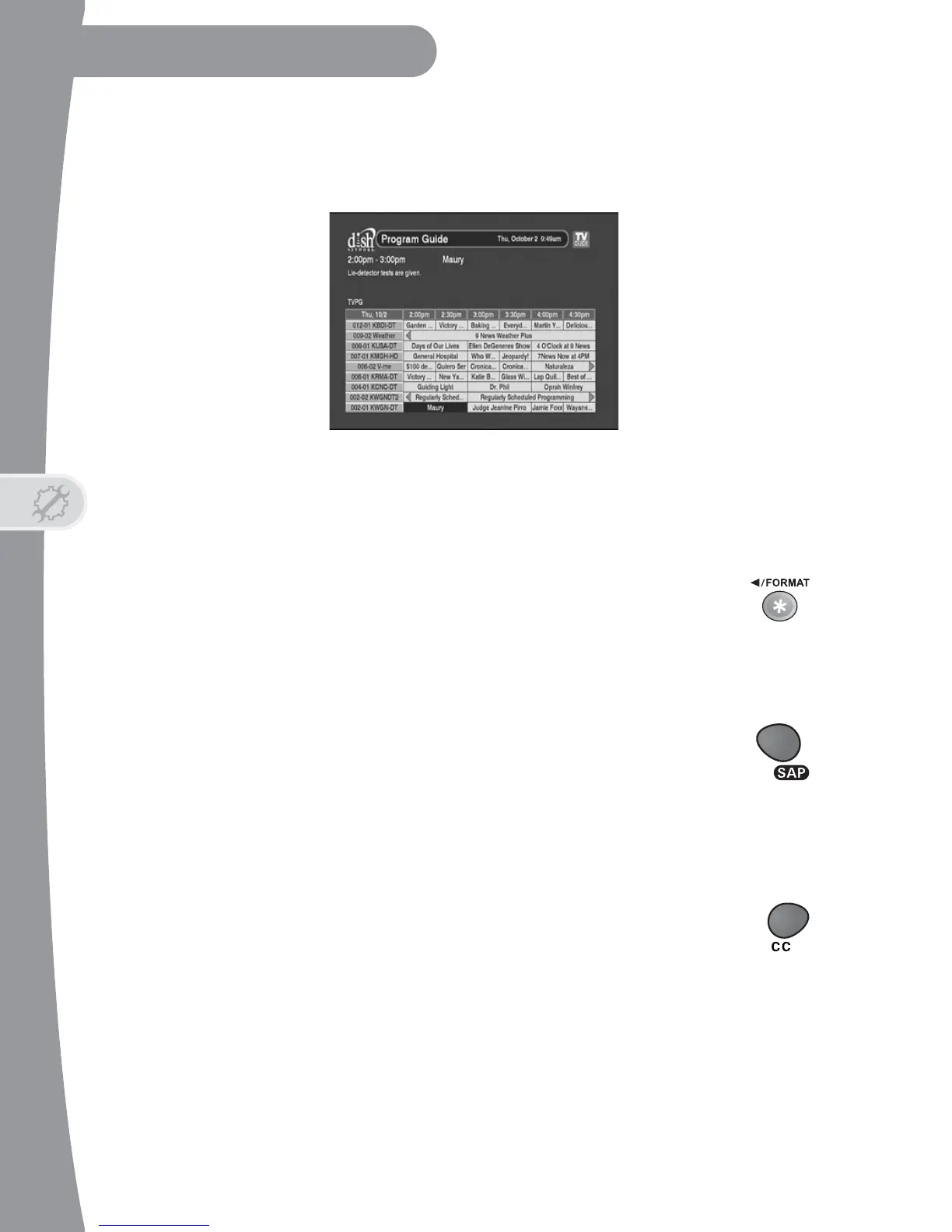
• Small Text - Choose this option if you’d like to see more channels and
three hours of schedule in smaller text per page on the Program Guide.
Changing Display Formats
When viewing live TV or playing back a recording, you can press PAGE UP
(to format the SD video outputs) or PAGE DOWN (for the HD outputs) or the
FORMAT/* button (for both SD and HD outputs) to cycle through the
options for screen display format: Auto (the default, based on data
about the displayed content), Normal (as on Installation screens
under System Setup), Stretch, Partial Zoom, and Zoom.
Changing Languages
You may be able to change the audio language of some programs.
Press MENU, select Setup, Audio Setup, then select to use your
primary or alternative language. Also, when viewing live TV or playing
back a recording, you can press the SAP button to hear the Secondary Audio
Program for programming with SAP. Press SAP again to turn the feature off.
Closed Captioning
Your DTVPal DVR has many options for Closed Captioning (CC),
including font size, colors, edge style, service and opacity. To enable
Closed Captioning for when viewing programming with captions, press
CC, or you can press MENU, select Preferences, and select Closed
Captions, then Captions On. Select either off or on, and then Done. When
viewing live TV or playing back a recording with closed captions turned on,
you can press CC again to turn the feature off.


 To Next Page