52
Chapter 4. Remote Software
1. Using Remote Software
Note
: Before using the remote software, refer to a customer card in the package to download
the software. Please install the software on your PC once you download it.
1-1. Starting the Software
Double click on the program icon on PC to run the remote software.
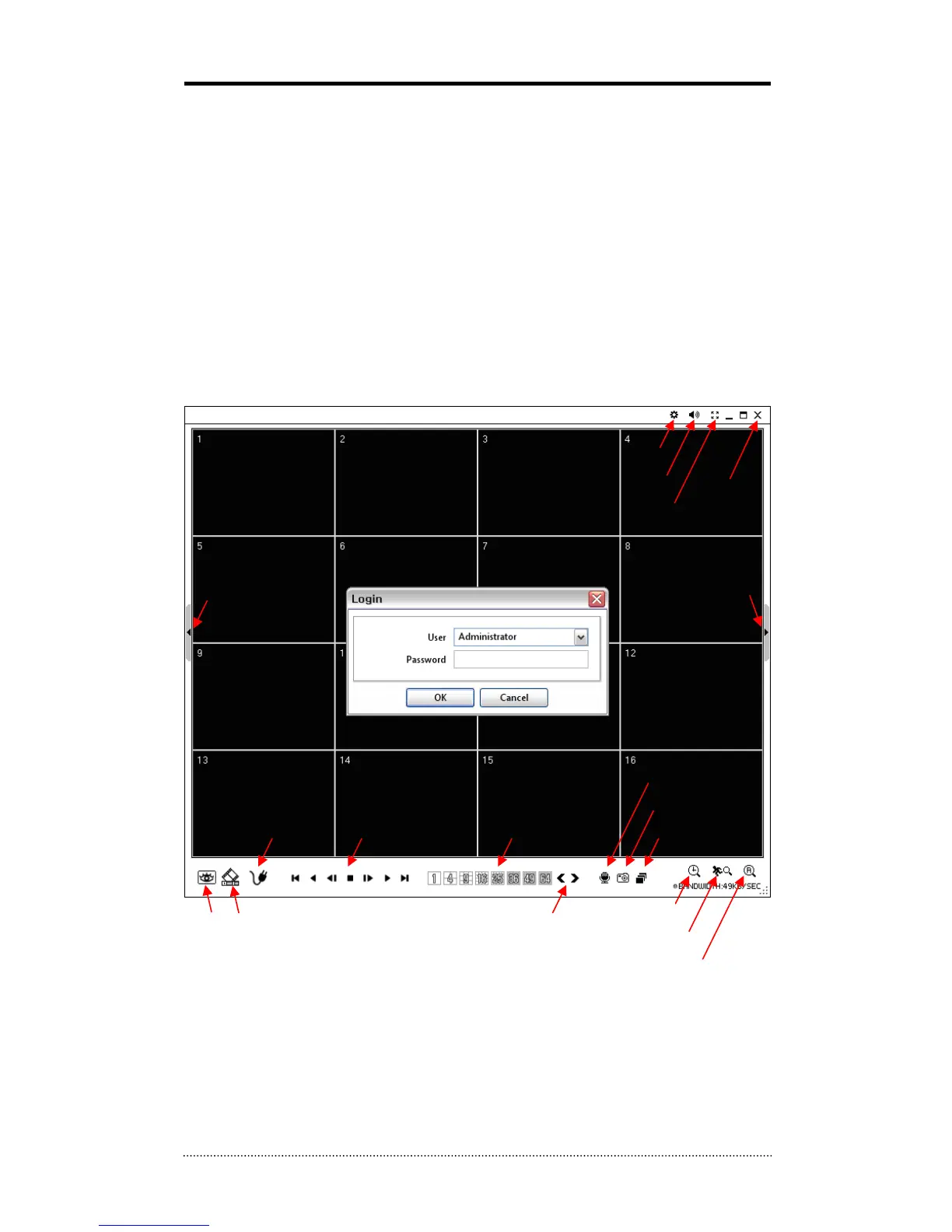
Main screen of the remote software appears as shown below.
Note
: A minimum resolution should be more than 1024 x 620; and a recommendable one is over
1280 x 1024.
The Log In window will appear when the remote software starts. Select user level as each user
will have different authority level over the system control depend on the pre set up. Enter OK
once the user level is selected as the default password is ‘none’.
Live: Click the image to enter the live mode.
Playback: Click the image to enter the playback mode.
Connect / Disconnect: Click button to connect a site as live or playback mode.
Connect
Disconnect
Setup
Playback Control
Change Display Page
Display Mode
Full Screen
PlaybackLive
Close
Audio Volume
Voice Transmission
Calendar Search
Screensho



 To Next Page