Connecting to WiFi
Your EcoNet Smart Thermostat supports WiFi 802.11 b/g/n. WiFi is normally configured during initial setup. You
may, however, be required to reconfigure the settings if your WiFi network settings change.
Connecting to WiFi will enable you to view the local weather and allow you to remotely manage your comfort and
receive critical alarms should something ever go wrong. To save time, we recommend having your home WiFi
network password and your Internet-connected smartphone or tablet close to the thermostat before you begin.
1. Download the EcoNet App and ensure your smartphone or tablet is already connected to your home
WiFi network.
2. Select ‘Create Account’ and follow the instructions.
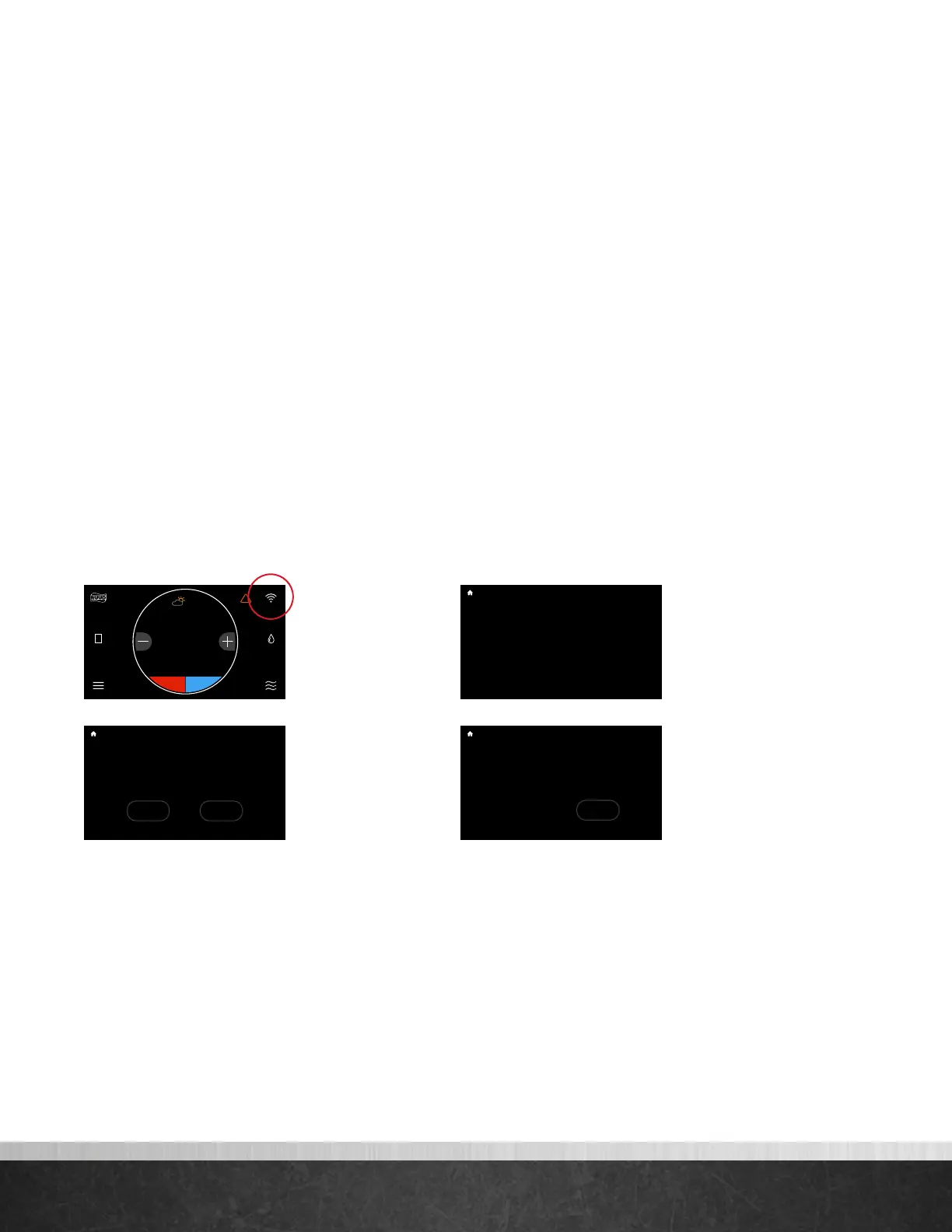
3. On the EcoNet Smart Thermostat, tap the WiFi icon in the top right corner of the home screen (See Fig. 1).
4. Select ‘Get Started’ (See Fig. 2).
5. When ‘Ready to Connect’ appears, use the EcoNet App to complete the setup process (See Fig. 3).
6. Follow the in-app instructions to complete your connection.
7. You may be required to enter your network password.
8. Tap ‘Done’ to complete setup (See Fig. 4).
75
Home 44%
72
80
75
44%
80
65
Away
Resume Schedule
When "Ready to Connect" appears below use the
EcoNet app to complete the setup process.
Ready to Connect
WiFi Status
Almost There!
75
Home 44%
72
80
75
44%
80
65
Away
Resume Schedule
Congratulations! Your thermostat has successfully been
connected to Wi-Fi.
Done
Setup Complete!
75
Home 44%
72
80
75
44%
80
65
Away
Resume Schedule
Connect to Wi-Fi to receive local weather
and remotely manage your system with the
EcoNet mobile app.
Setup
Later
Get
Started
Wi-Fi Setup
75
Home 44%
72
80
75
44%
80
65
Away
Resume Schedule
75
Home
62 85
!
44%
80
(Fig. 1)
(Fig. 2)
(Fig. 3)
(Fig. 4)
EcoNet
®
Smart Thermostat User Guide 10
> Return to Table of Contents


 To Next Page