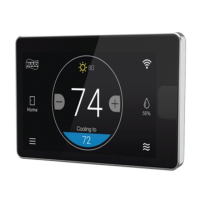
Menu Options
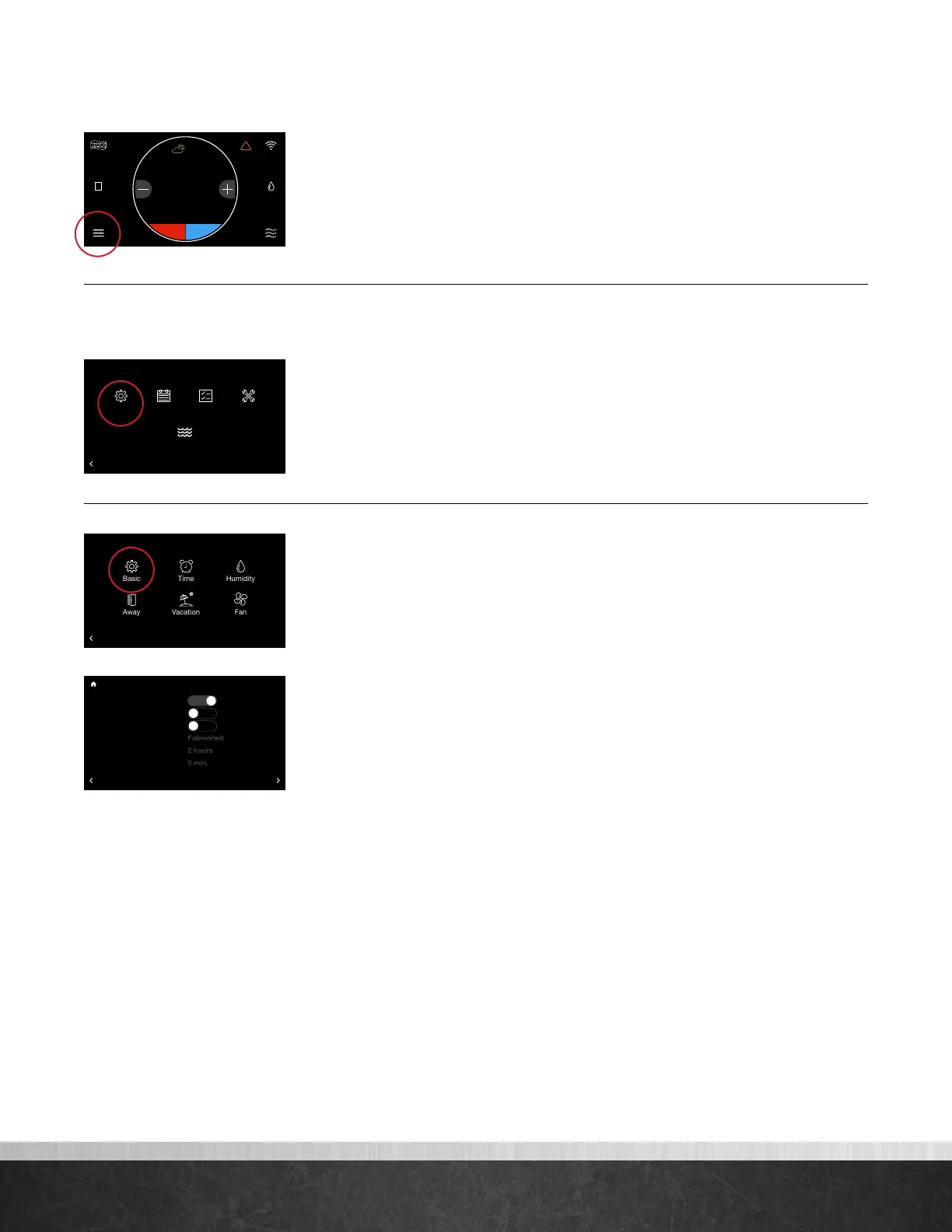
Tap the Menu icon in the bottom left corner of the home screen to easily
view and configure your personal and system settings.
Settings
Settings (Menu > Settings)
Adjust system-level settings and preferences, from customizing your away
temperatures to scheduling a vacation. Tap the Menu icon from the home screen
and then tap Settings.
Basic (Menu > Settings > Basic)
Adjust thermostat or basic equipment settings and preferences.
Follow Schedule – If a programmed schedule is desired, set to “Yes.”
Alarm Beep Enable – Sounds an audible alarm tone shall a critical alarm
condition occur.
Screen Lock– To lock the main screen from any changes, enable the lock. To
unlock, enter the Basic settings menu again and set Screen Lock to “No.” This
locking function prevents any changes except changes made from within the
Basic Settings.
Temperature Display – Change your indoor temperature and set points
between Fahrenheit and Celsius.
Schedule Override Time – While a schedule is running, if a set temperature
change occurs on the main screen, the change will be in effect for this amount of
time. The default is 2 hours. You can customize between a minimum override of 1
hour and a maximum of 8 hours.
Auto Changeover Time – When the system is in Auto mode, this is the
amount of time demand must exist in the opposite mode (cooling or heating) in
order for the system to switch to that mode. The default is 5 minutes. The setting is
configurable between 5 and 60 minutes.
75
Home 44%
72
80
75
44%
80
65
Away
Resume Schedule
BACK
Settings
Installer
75
Home 44%
72
80
75
44%
80
65
Away
Resume Schedule
BACK
Menu
Settings
Schedule
Status
Water Heating
Service
75
Home 44%
72
80
75
44%
80
65
Away
Resume Schedule
75
Home
62 85
!
44%
80
75
Home 44%
72
80
75
44%
80
65
Away
Resume Schedule
Follow Schedule?
Alarm Beep Enable?
Screen Lock?
Temperature Display
Schedule Override Time
Auto-Changeover Time
BACK
Basic Settings
Yes
MORE
No
No
EcoNet
®
Smart Thermostat User Guide 12
> Return to Table of Contents


 To Next Page