System Modes
The EcoNet Smart Thermostat will call for heat or cool based on the current settings and temperature. Cooling
and heating equipment may have a delay period before operation is enabled. The delay can be up to 5 minutes
(if the mode was changed right after equipment turns off). Status screen will show a “Hold-Off Timer”
for Equipment State.
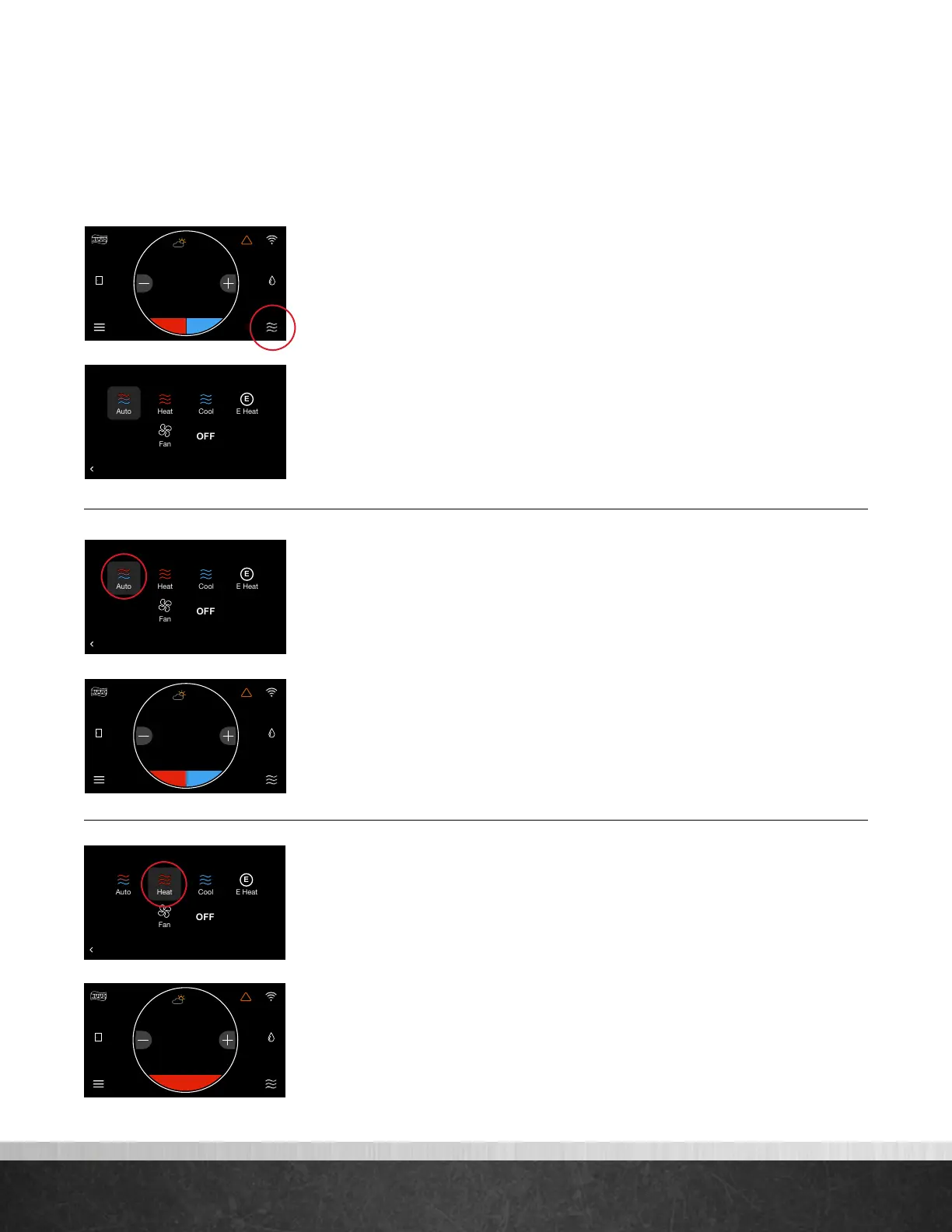
Select the mode icon in the bottom right corner of the home screen to quickly
change the operating mode.
Select from Auto, Heat, Cool, E-Heat, Fan and Off.
Auto – Activates the heating or cooling system as required to keep your home
within the configured range of set point temperatures. Select the desired set
point, and then use the large adjustment buttons to set the desired temperature.
To adjust your cooling set point, tap the set point on the right - it will turn blue,
then adjust using the plus and minus buttons. The current temperature in the center
of the screen will temporarily be replaced by the set point in large font during
temperature adjustments.
Note: The default deadband or separation between the heating and cooling set points is 2 degrees.
Heat – Turns on heating when the current temperature drops below your set point
temperature. When there is an active call for heating, the words ‘Heating To’ will
appear above the heating set point.
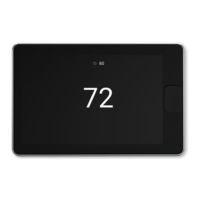
(Heating set point screen)
75
Home 44%
72
80
75
44%
80
65
Away
Resume Schedule
75
Home
62 85
!
44%
80
75
Home 44%
72
80
75
44%
80
65
Away
Resume Schedule
BACK
Select a Mode
75
Home 44%
72
80
75
44%
80
65
Away
Resume Schedule
75
Home
!
44%
62
80
75
Home 44%
72
80
75
44%
80
65
Away
Resume Schedule
BACK
Select a Mode
75
Home 44%
72
80
75
44%
80
65
Away
Resume Schedule
BACK
Select a Mode
75
Home 44%
72
80
75
44%
80
65
Away
Resume Schedule
75
Home
62 85
!
44%
80
EcoNet
®
Smart Thermostat User Guide 7
> Return to Table of Contents


 To Next Page