41
Chapter 6
Administrator Settings
Function
Adjustable
Range
Description
Picture
Setup
DisplayPort Single
Dual
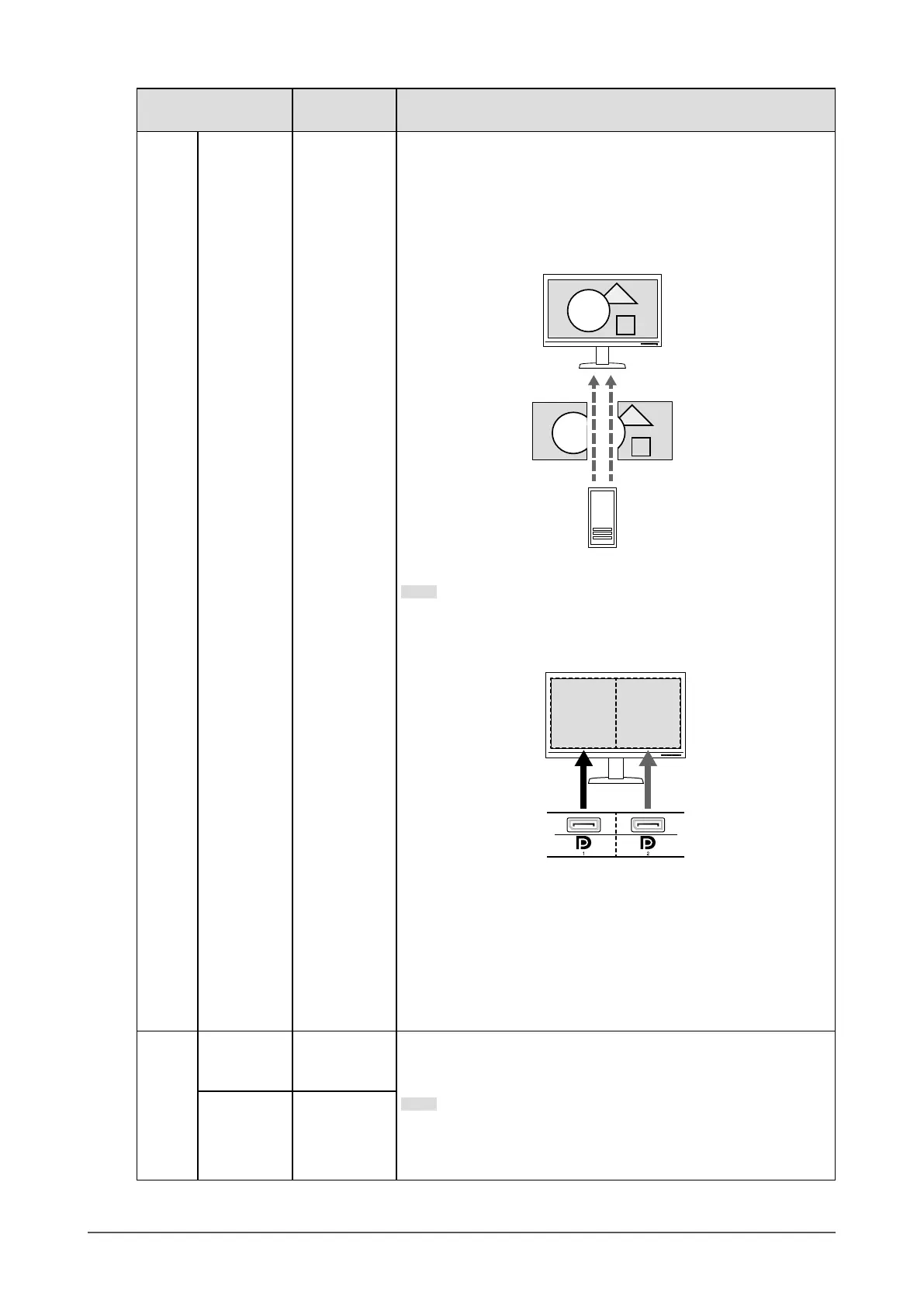
To input two separate signals from a single external device into the
monitor, and view the side-by-side on the left and right sides of the
screen, change this setting to "Dual".
For example, if your graphics board does not support a 4K (4096 ×
2160) signal output, you can use this setting to display two 2048 ×
2160 side-by-side on a 4K screen.
External device
2048×21602048×2160
4096×2160
Note
• For a "Dual" display, the signal that is input to DisplayPort 1 is
displayed on the left side of the screen, and the signal that is input
to DisplayPort 2 is displayed on the right side.
• The resolutions that are supported for the "Dual" setting are shown
below.
640×480 / 720×400 / 800×600 / 1024×768 / 1280×960 /
1280×1024 / 1600×1200 / 1920×1080 / 1920×1200 / 1920×2160 /
2048×2160
• When using "Dual" display, the connector settings of the screen on
the left, such as the Color setting, will be applied.
Signal
Format
DisplayPort 1
DisplayPort 2
Ver. 1.1
Ver. 1.2
Extra
You can switch the signal type that the monitor can display.
Try changing this setting if the input signal is not displayed, or if the
displayed image does not appear correctly.
Note
• The default setting for 4K 30Hz and 4K 60Hz Extra is 1920 × 1080.
When using 4K resolution, resolution settings of your OS need to
be changed.
HDMI 1
HDMI 2
4K 30Hz
4K 60Hz
4K 60Hz Extra




 To Next Page