44
Chapter 4 Troubleshooting
Problems Possible cause and remedy
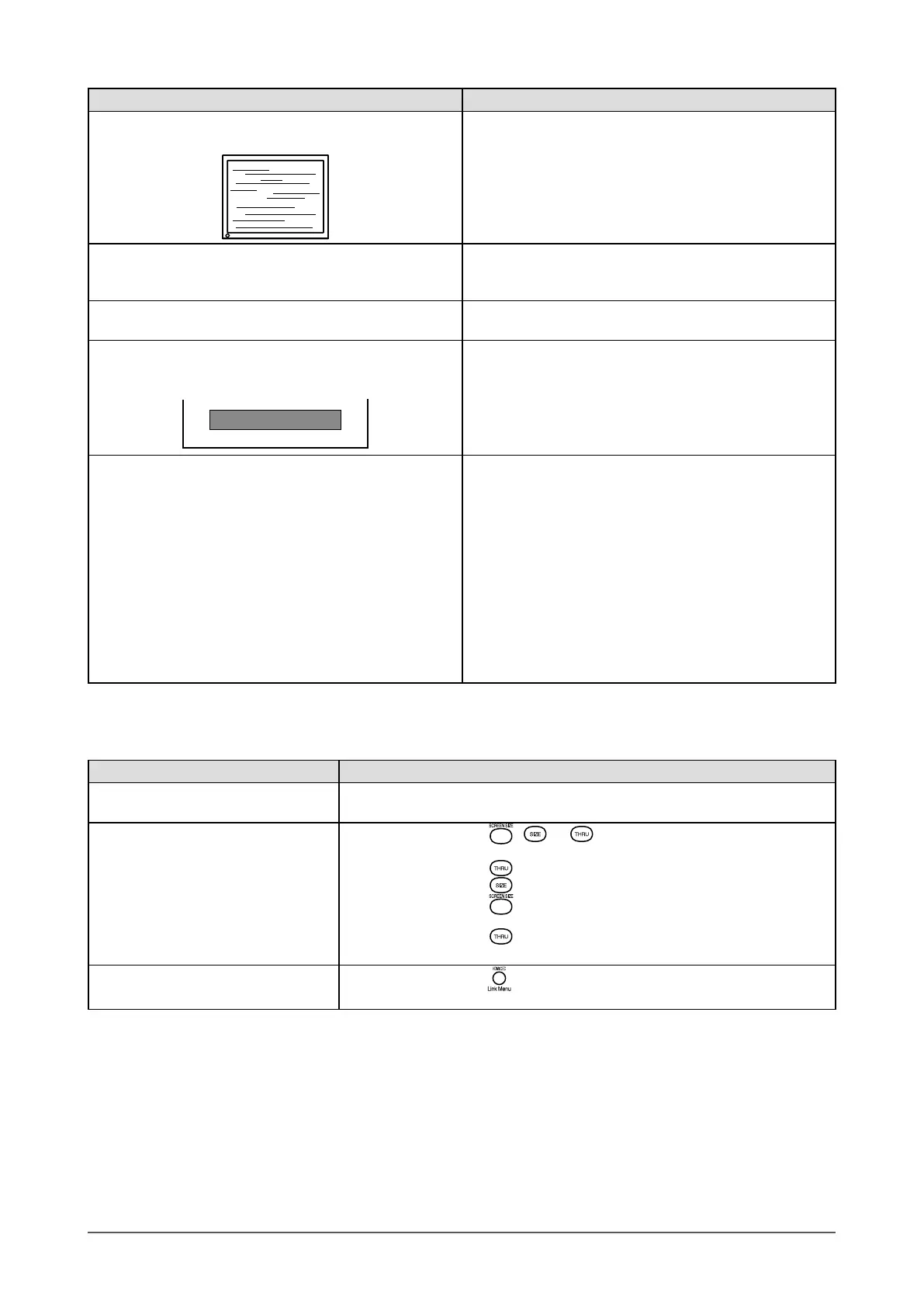
5.
Wholescreenisickeringorblurring(VIDEO2
input).
• Adjust the phase in [Monitor Settings] - [Advanced
Settings] menu - [Phase]. (Refer to page 25.)
6. The color shown on the display is not correct
(HDMI (video signal) input).
• Change the color space of the video signal in [Monitor
Settings] - [Advanced Settings] menu - [Color Space].
(Normally, select “Auto”.)
7. Thescreenashes(HDMI(videosignal)input)
. • Transferable signals differ on the category of the HDMI
cable. Check whether the cable is High Speed compliant.
8.
No sound/Volume control is not available (HDMI
(video signal) input).
• The message below appears.
• Check whether the applicable format of the device
connected is correct.
Refer to page 47 for the sound input format of the
monitor.
9. The connected device is not detected correctly
(when using the HDMI CEC function).
• The device is not displayed in [Device List].
• The input signal of the device is wrong.
• “Error” is displayed.
• The connected device is applicable to HDMI CEC.
• Multiple devices are not connected through such as
HDMI selector. This monitor does not support the
connection through HDMI selector.
• Check whether the setting of the connection has been
changed. The setting of the connected device needs to
be changed when adding the devices to be connected
or changing the connected input signal. Display the Link
Menu and select [Search Devices] in [Device List] with
the connected device powered on. (Refer to page 17.)
(While the “Please wait a few minutes.” message is
displayed, do not turn off the monitor and connected
device.)
●
Messages List
The meanings of the main messages appearing on the screen are described below.
Messages Description
“The power will turn off soon.” • Appears on the display one minute before the power turns off when [No
Signal Off], [No Operation Off] or the Off Timer is set.
“This operation is not available.”
• Appears if you press
, or on the remote control when no signal
or the signal that is outside the specication is input to the monitor.
• Appears if you press
on the remote control during PinP display.
• Appears if you press
on the remote control during PinP display.
• Appears if you press
on the remote control when the Sub-Window
displays the PC input signal from HDMI input during PinP display.
• Appears if you press
on the remote control when the input signal is
1080p @ 24 Hz / 25 Hz / 30 Hz for PC input or HDMI input.
“Select [Enable] of [HDMI CEC] in
“ScreenManager
®
” ”
• Appears if you press
on the remote control when “Disable” is set in
[Monitor Settings] - [HDMI CEC Setting] menu - [HDMI CEC].




 To Next Page