User Guide
Product: Evolis
A_Evolis Solution GB elancity
Page
/
Date: 03/01/2018
Confidential document, property of ELANCITY. All copies and transfers are unauthorized without prior consent.
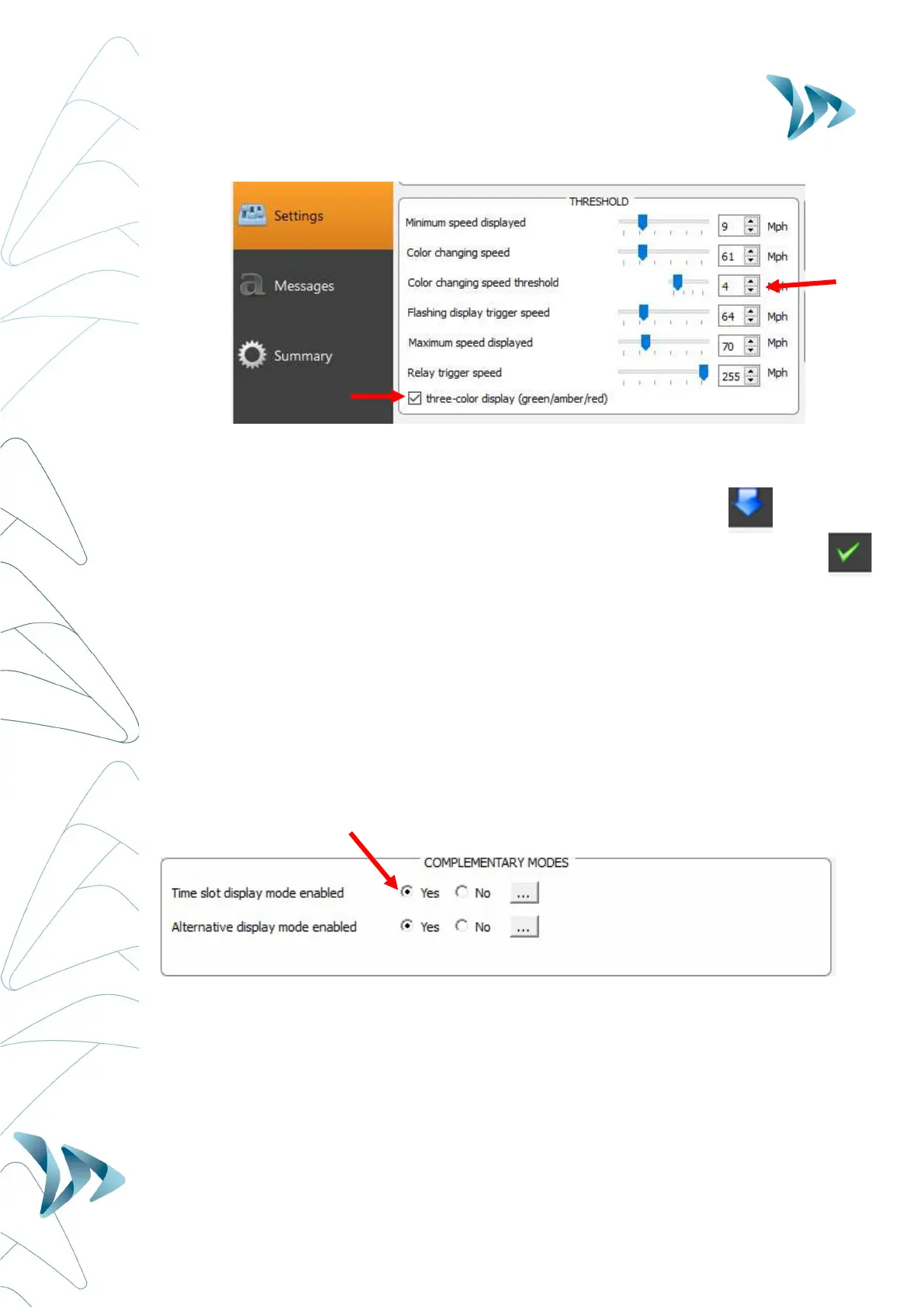
Then set the margins within which you wish the display in Amber in the ‘Colour
changing Speed Threshold’. i.e. in the example above, at 4mph before the display will
turn to RED.
Upload the new settings to the device by clicking the blue arrow.
Select the green tick to launch a display that will preview your selected settings.
6.3 SCHOOL-ZONE MODE (‘TIME SLOT DISPLAY MODE’):
The radar can be configured to switch between two different settings – Ideal for school zones!
This can be done through the Evocom software in the section “time slot display mode.” The
radar will automatically switch the speed threshold and messages / graphics at a certain time
of day. For example, the radar can be configured to feature a lower speed limit when school
is out and children are present, AND display a special message such as: « CAUTION
SCHOOL »
- Ensure the control dial is set to ‘SP’
- Go to Complementary modes
- Select “yes” for the “time slot display mode enabled”
By selecting « Yes », the following window will appear:


 To Next Page