User Guide
Product: Evolis
A_Evolis Solution GB elancity
Page
/
Date: 03/01/2018
Confidential document, property of ELANCITY. All copies and transfers are unauthorized without prior consent.
4.2 DATE AND TIME SET-UP:
The next step is to download the device software and then make the connection between the
software & the Evolis. All of our software programs are available for download through our
website.
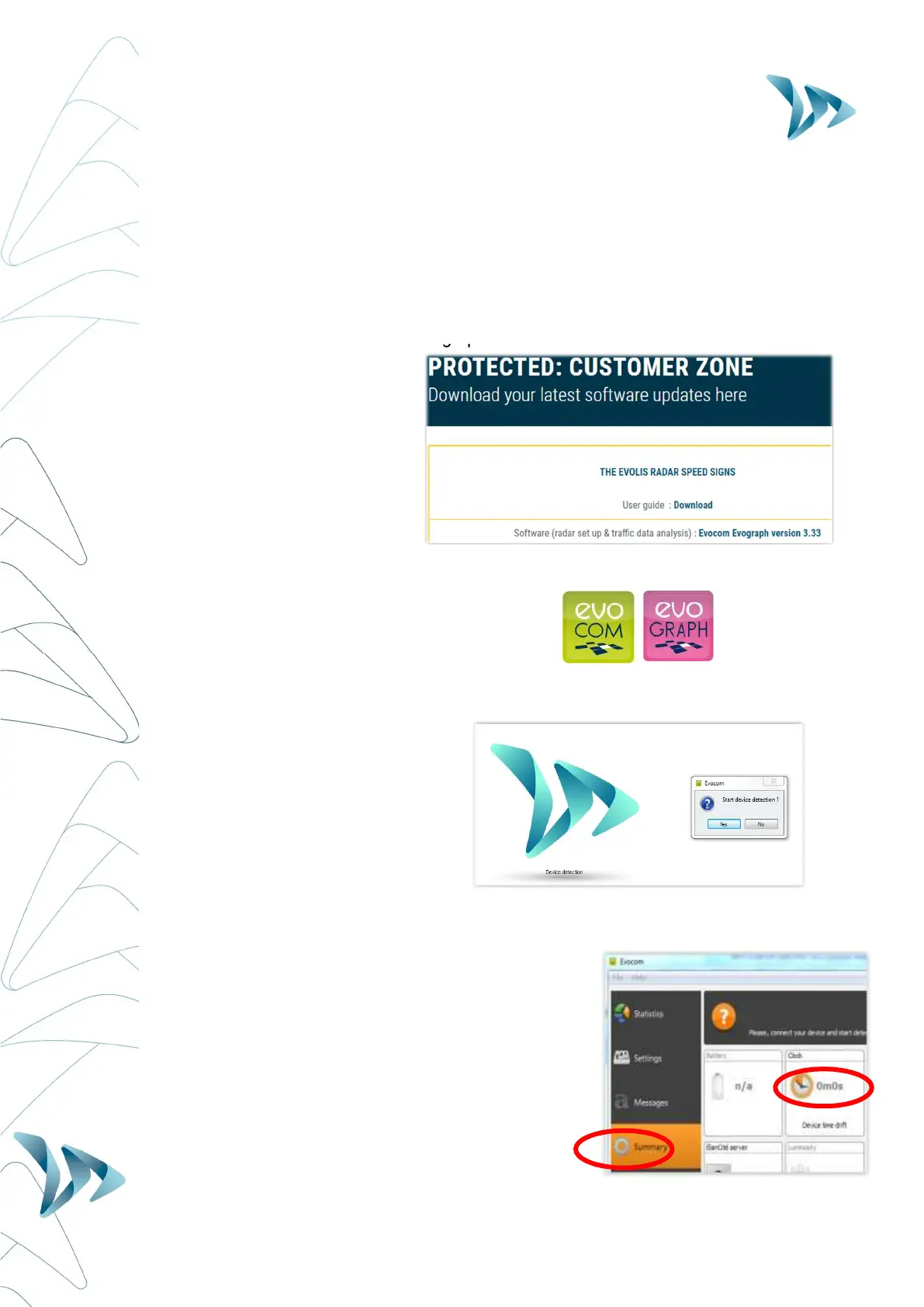
Go to: www.elancity.co.uk and in the upper right hand corner click on “Customer Zone”
You’ll be asked for a password. The password required is "radarevolis.”
Download the Evocom – Evograph software.
Install using "Setup.exe".
Follow the instructions that will appear in the pop up dialogue boxes
Two shortcuts will appear on your desktop:
Connect the Evolis radar sign to your computer. (by USB cable or by Bluetooth)
Launch the EVOCOM software and it will propose an automatic detection of the device:
select “YES.”
Go to Summary / Clock: Update the Evolis internal clock to your local time. All you
need to do is click once on the clock symbol
(See section 6 for further details on installation
and advanced use of the software packages)


 To Next Page