R
18
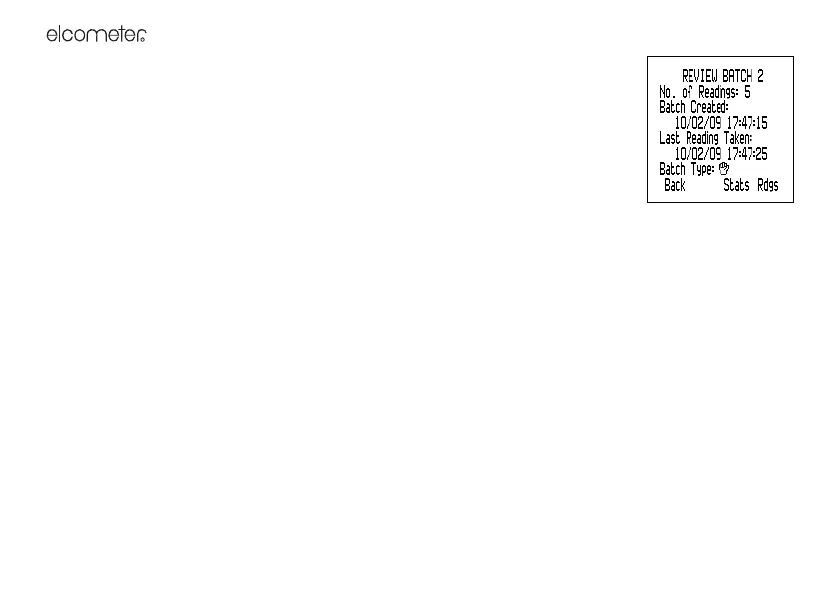
The Review Batch screen is displayed. The screen lists: Batch number, number of
readings, date and time batch was created, date and time of last reading, batch type
and interval (interval logged batches only).
To view the statistics for the batch, press Stats (see “Statistics” on page 19).
To view the readings for the batch, press Rdgs. If required, scroll through the
readings for each parameter; to change parameter press the right hand softkey.
When finished, press Back.
Copy Batch: Creates an empty copy of an existing batch, ready for data input by
manual or interval logging. Copy Batch replicates the settings, limits, etc. of the copied batch, but it does
not copy the readings - the newly created batch is empty.
The Copy Batch menu is displayed. The batch number, batch type and number of readings of each batch
in gauge memory is listed.
To select a batch to copy, scroll to the appropriate type of batch and press Sel.
If the selected batch contains a delayed start you are asked if you want this setting copied.
After copying the batch settings a screen shows confirmation of where the copied batch is stored.
This empty batch can now be used for data input - see “Open Existing Batch” on page 17.
Delete: Deletes a single batch or all the batches.
The Delete menu is displayed.
To delete a single batch, scroll to Single Batch and press Sel. All the batches in gauge memory are listed.
Scroll to the batch required and press Sel. Press Yes to confirm or No to decline.
To delete all the batches in gauge memory, scroll to All Batches and press Sel. Press Yes to confirm or No
to decline. Press Yes again to confirm or No to decline.
When finished, press Back.


 To Next Page