Software Installation and Setup
2. How to Use Voxeldance Tango
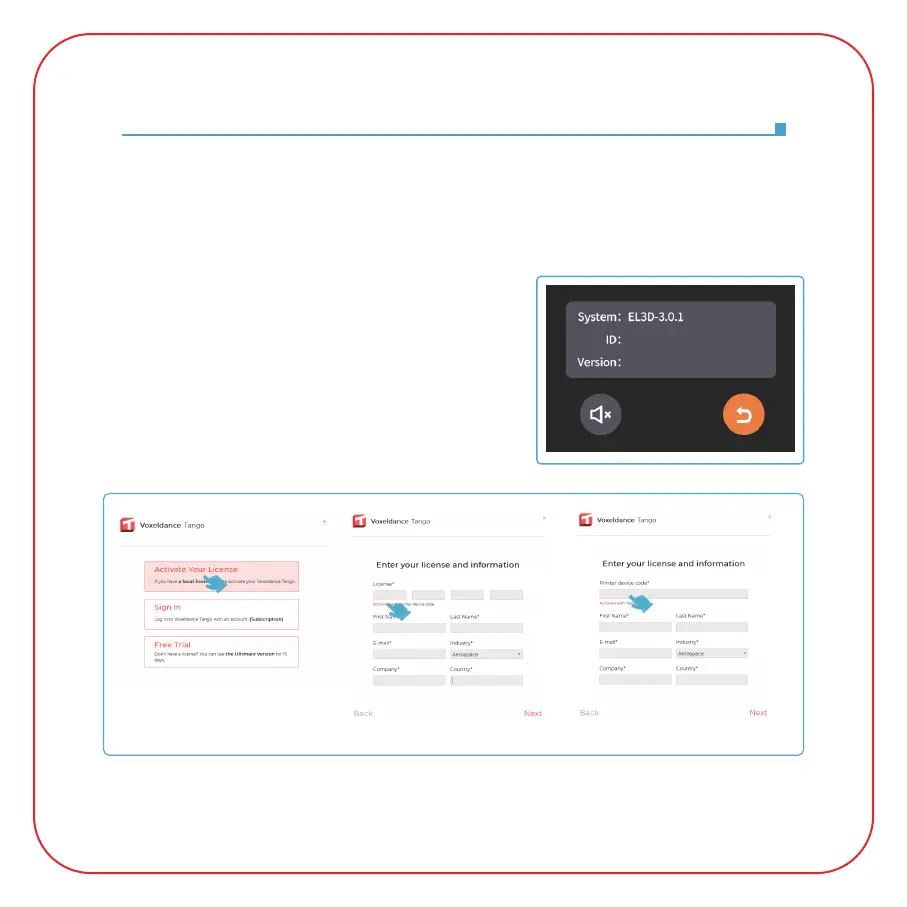
2.1 Once the installation is complete, run the Voxeldance
Tango software, select "Activate your license" - "Activate
with printer hardware code" (See Picture11); Press
"Settings" - "System" on the machine to view the
machine "ID" (See Picture 10), and fill in the 10-digit "ID"
into the "Printer Hardware Code" column of the software,
and fill in other relevant information to complete the
software activation.
(Picture 10)
2.2 Click File-Open File, and then open your own 3D model file (stl. format), You can control and
change the viewing angle, size, and position of the model by left-clicking on the model, and use
the options on the upper menu.
(Picture 11)
XXXXXXXXXX
The printer can install and use Chitu Box and Voxeldance Tango slicing software in the USB flash
drive, here we take Voxeldance Tango as an example.
1. Install Voxeldance Tango
Select the right version of slicing software on the USB flash drive and install it on your computer.



 To Next Page