11
Page
Step 7
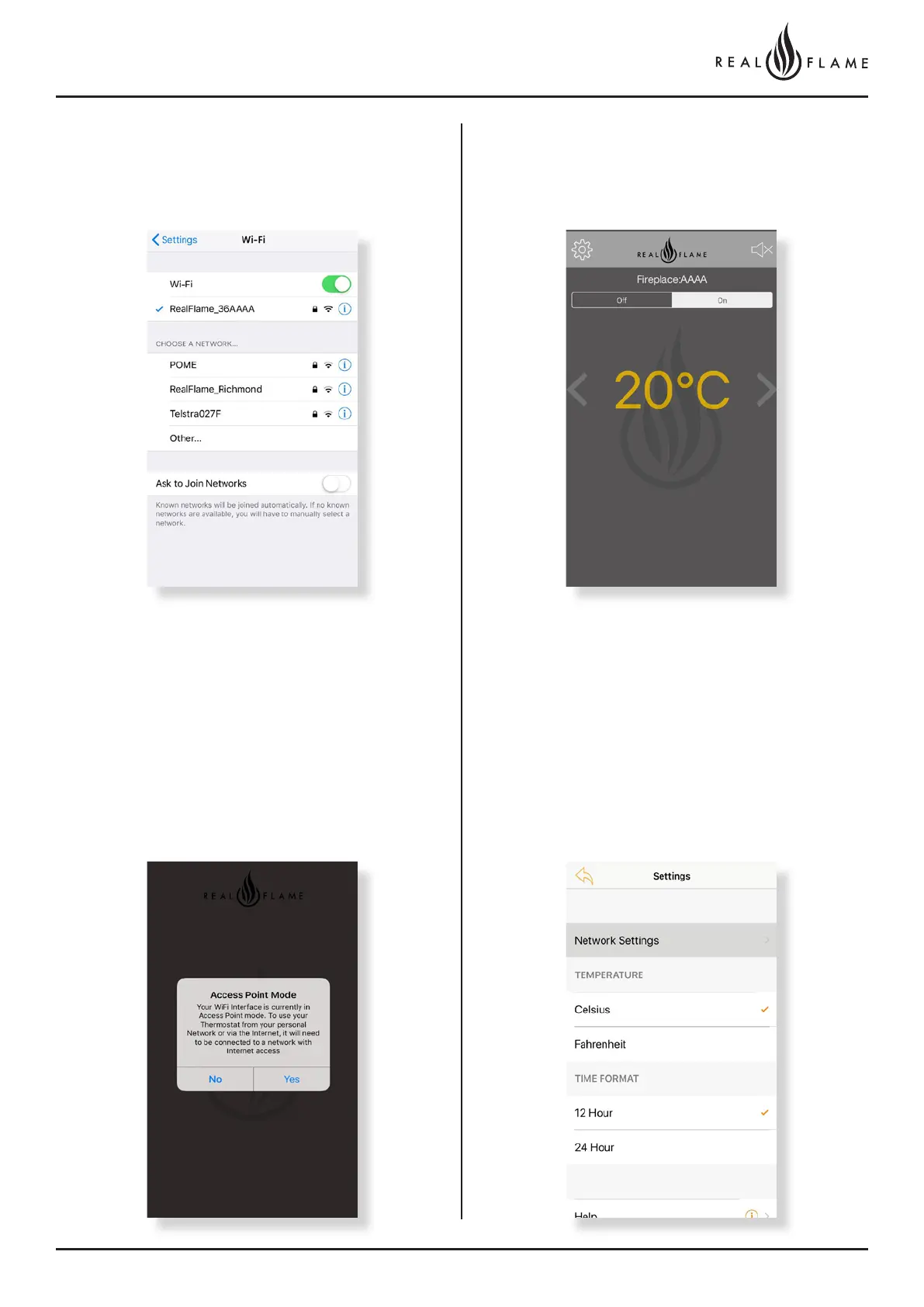
Once the fireplace is connected click on the information button and
select auto join for ease of connection in the future.
Step 8
Open the App and click on NO when this pops up. Clicking NO
would prompt the device to access the fireplace in the access point
mode, which means you have connected to the device using the
fireplace WiFi.
*Check Step 11 under “Setting up remote access to the fireplace” to connect to your
fireplace from any location.
Step 9
Congrats you have connected to the fireplace. Sit back, relax and
increase or decrease the temperature as you please.
Step 10
Incase you want to change the name of your fireplace connection,
click on the settings button on the left corner and it will transport you
to the settings tab. Click on Network settings.



 To Next Page