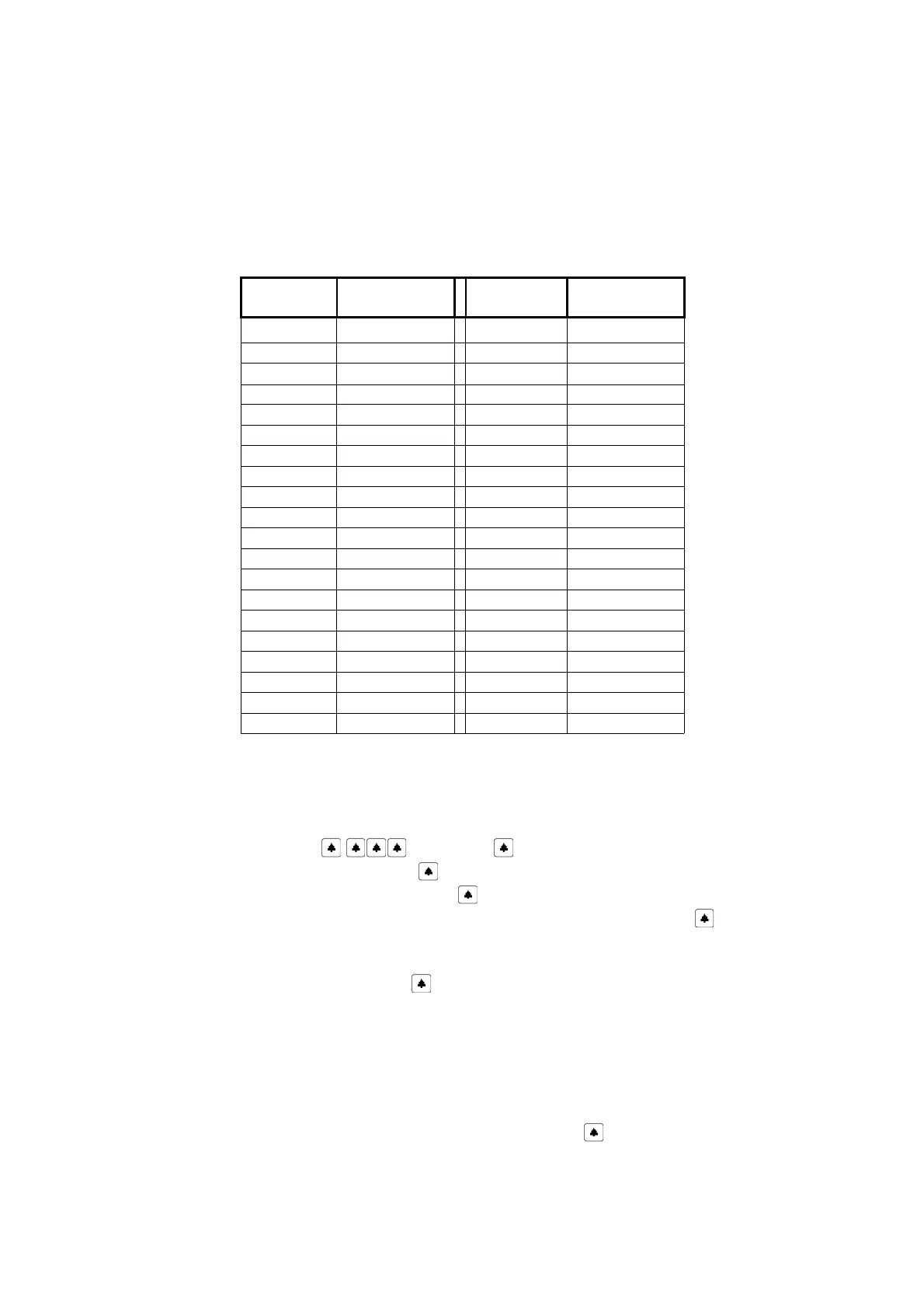
Example No 3 - mixed numeration
There are 30 flats in the building – 20-39 and 240-259. To delete and add these two ranges, user should
proceed just as in example 2. Because the second range exceeds number 255 (which is maximal amount of
handsets), OPTIMA 255V2 will assign numbers bigger than 255 to the lowest free adresses in the system.
Device will show message “RANGE ADDED – MAPPED ADDR.”. Table 7 presents the assignments flat number
- handset physical address for the range defined using this method.
Flat No (NO) Handset No (HS) Flat No (NO) Handset No (HS)
20 20 240 240
21 21 241 241
22 22 242 242
23 23 243 243
24 24 244 244
25 25 245 245
26 26 246 246
27 27 247 247
28 28 248 248
29 29 249 249
30 30 250 250
31 31 251 251
32 32 252 252
33 33 253 253
34 34 254 254
35 35 255 255
36 36 256 1
37 37 257 2
38 38 258 3
39 39 259 4
Additional feature for shifting and adding the ranges is Assignment NO <-> HS (where: No - flat number, HS -
handset physical number), that gives currently added numbers and corresponding physical addresses, to be
set in the handsets. The feature allows editing individual assignments flat number - handset address.
To change the assignment:
§ Enter the menu Settings ( service code )
§ Select Service programs (confirm with „ ”)
§ Select Assignment NO <-> HS (confirm with „ ”)
§ Using the keys „7”, „9” select the assignment to be changed and confirm with „ ”
Using the keys "0", "8", it is possible to select whether new handset physical address is to be set for
a flat number (NO) or new flat number (NO) for the given handset physical number
§ Enter new number and confirm with „ ”,
Change of the assignment will only be possible, when new number isn't already in use.
Extra Numeration
This function allows to edit six assignments NO ↔ HS. After entering this funkction, the screen prompt two
numbers which are physical number of handset (HS) and flat number (NO). Pushing the buttons “8” or “0”
user can move cursor, to edit requested flat numbers. After pushing “ “, screen promtps “CHANGE TO:”
24



 To Next Page