Smart ZB Thermostat 16 A
Pairing device with auto scan
Pairing the device with auto scan automatically discovers the device when it is
powered on.
1. On the Home page, tap +.
2. Tap Auto scan > Confirm.
3. Enable permissions to Access location and Wi-Fi for scanning device and
tap Start scanning.
NOTE: If you have multiple hubs, do Step 4 or proceed to Step 5.
4. Tap Select hub and select the ELKO SmartHUB from the slide-up menu.
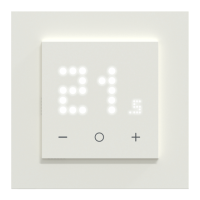
5. Long press the O button until 'Jn' is displayed and then release the button to
initiate joining.
NOTE: If you have already paired your thermostat, and want to change
the preset mode during the current pairing process, you will need to
perform a factory reset. Otherwise, the thermostat will be paired with the
previous preset mode. Refer resetting the device, page 39.
TIP: If you want to pair multiple devices at once, perform step 5 on each
device and wait for a few seconds.
6. Wait for a few seconds until the device search is complete, than tap Next (A)
and select Smart ZB Thermostat 16 A.
Auto Scan
Available devices found
Next
A
Smart ZB
Thermostat 16A
7. Once the device is paired successfully, assign a room to enable settings and
than tap Done.
NOTE:
• Assigning a room, creates a group to control the thermostats, refer
using the device, page 25.
• Refer changing the device location, page 18 to assign a room to the
thermostat, if you did not assign the room at Step 7.
16 DUG_ZB Thermostat 16 A_ELKO-00


 To Next Page
 Loading...