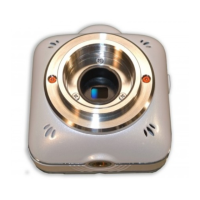
By connecting the camera to your smart device using WiFi, you can view real-time images
from the camera on your smart device.
The live image can also be viewed on TV or projector.
The following smart devices can be used as a monitor for the live viewing:
[iOS]: 5.1 or later
[Android OS]: 2.3 or later
* Some functions are limited for the Android 2.3.
You can switch between start WiFi and stop WiFi by pressing the WiFi Switch for over 1
second. The WiFi LED turns blue while the WiFi is on.
INSTALLING QBIC APP
For both iOS and Android, QBiC proprietary application software needs to
be installed in your device in advance
[iOS]: Download “QBiC APP” from “App Store”.
[Android OS]: Download “QBiC APP” from “Google Play”.
Refer to the QBiC MS-1 official website for details about the downloading procedure.
QBiC MS-1 official website: http://www.elmoqbic.com/ms1/
CONNECTING YOUR SMART DEVICE
This section describes how to connect your smart device to the camera using WiFi.
Refer to the instruction manual of your smart device for further details.
[Camera operation]
1. Turn on the camera.
2. Verify that the flashing WiFi LED of the camera turns blue (which means the
WiFi is activated). If the WiFi LED does not flash or turn blue, press the WiFi



 To Next Page