www.emachines.com
17
Starting your computer
To start your computer:
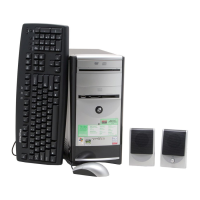
1 Connect the power, network, mouse, keyboard, and
monitor cables to your computer according to the setup
poster.
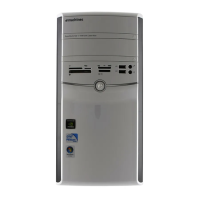
2 Press the power button on the front of your computer.
If your computer does not turn on, check the power
cable connections.
3 If you are starting your computer for the first time,
follow the on-screen instructions to select the language
and time zone and to create your first user account.
4 Attach and turn on any USB or audio peripheral devices,
such as printers, scanners, and speakers. If you need to
attach a peripheral device to the parallel port, turn off
your computer first. See the documentation that came
with each device for its setup instructions.
5 To open your computer’s main menu, click Start. From
that menu, you can run programs and search for files.
For more information on using your computer’s menus,
see “Using Windows” and “Customizing Windows” in the
online User Guide.
Waking up your computer
When you have not used your computer for several minutes,
it may enter a power-saving mode called Standby. While in
Standby mode, the power indicator on the power button
flashes.
If your computer is in Standby mode, move the mouse, press
a key on the keyboard, or press the power button to “wake” it
up.
Important
Your computer has a built-in, variable-speed fan. In addition, your
computer uses a powerful processor which produces heat and has its
own cooling fan. Both the system fan and processor fan can run at
different speeds at times to ensure correct system cooling. You may
notice an increase in the fan noise when the fan is running at high speed
and a decrease in the fan noise when it switches to normal speed.
Tip
For more information about changing the power button mode, see the
“Customizing Windows” chapter in the online User Guide.
8512635.book Page 17 Friday, July 27, 2007 11:21 AM



 To Next Page