13
Section 1. Getting Started
Device settings
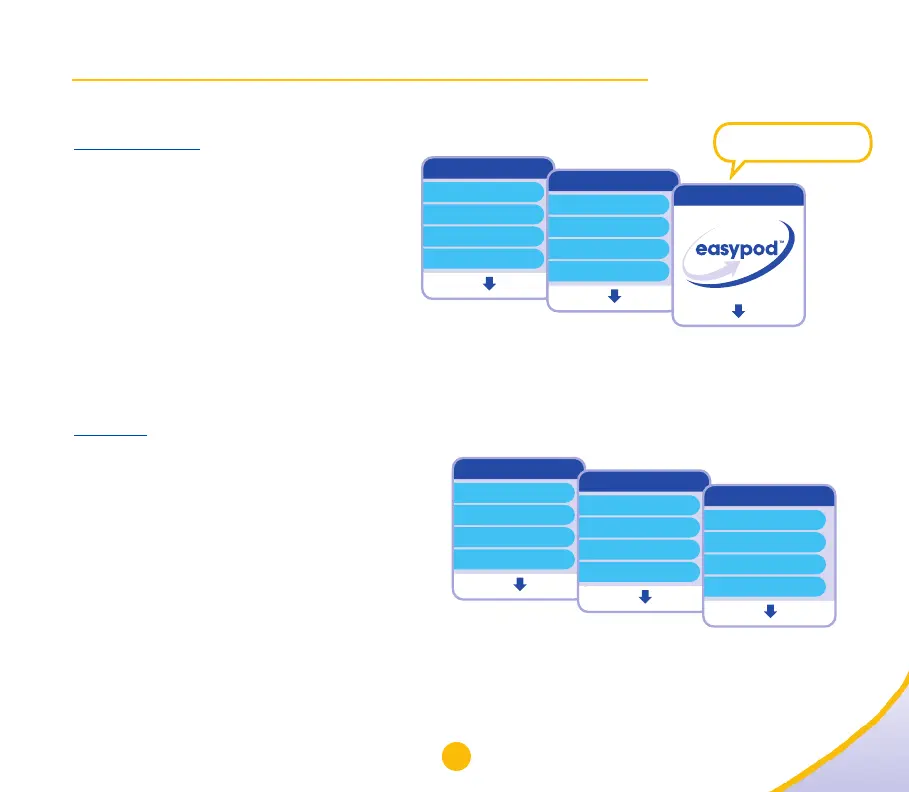
Welcome picture
1. Open the “Device settings”
menu (13a).
2. Use the “” key to highlight
“Welcome picture” (13b).
3. Select “Change” to open “Welcome
picture”. The current Welcome
picture will appear.
4. Use the “” key to scroll through
the pictures (13c).
5. Select “OK” when your choice appears.
Language
1. Open the “Device settings” menu (13d).
2. Use the “” key to highlight
“Language” (13e).
3. Select “Change” to open the
“Language” menu. The current
setting will be highlighted.
4. Use the “” key to scroll through
the language options (13f).
5. Select “OK” when your language
choice is highlighted.
Menu
Battery status
Comfort settings
Remove cartridge
Device settings
Open Exit
Device settings
Date & Time
Sound
Name
Welcome picture
Change Back
Welcome picture
Select a Welcome picture
OK Back
Menu
Battery status
Comfort settings
Remove cartridge
Device settings
Open Exit
Device settings
Sound
Name
Welcome picture
Language
Change Back
Language
OK Back
Eesti
English
Suomi
Français
13a
13b
13c
13d
13e
13f


 To Next Page