2.3 USB Transceiver Installation
Plug the provided Emotiv USB transceiver into an unused USB port on your computer. After one or
two seconds you should see a single LED flashing slowly, or a single bright LED and another dim
LED if the transceiver has already paired with a nearby neuroheadset. The transceiver should be
recognized and installed automatically by your computer as a USB Human Interface Device. Please
wait for a moment until Windows indicates that the new hardware is installed and ready to use.
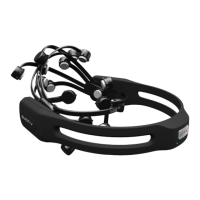
Hold the Emotiv EPOC close to the USB receiver, and turn it on using the switch at the rear of the
headband. You should see a new steady LED on the receiver, which indicates that the
neuroheadset has properly paired with the USB receiver, and a more dim LED which flashes
indicating successful data transfer.
2.4 EPOC Control Panel™
This section explains how to use EPOC Control Panel to explore the Emotiv detection suites.
Launch EPOC Control Panel by selecting Windows Start → Programs → Emotiv→ EPOC Control
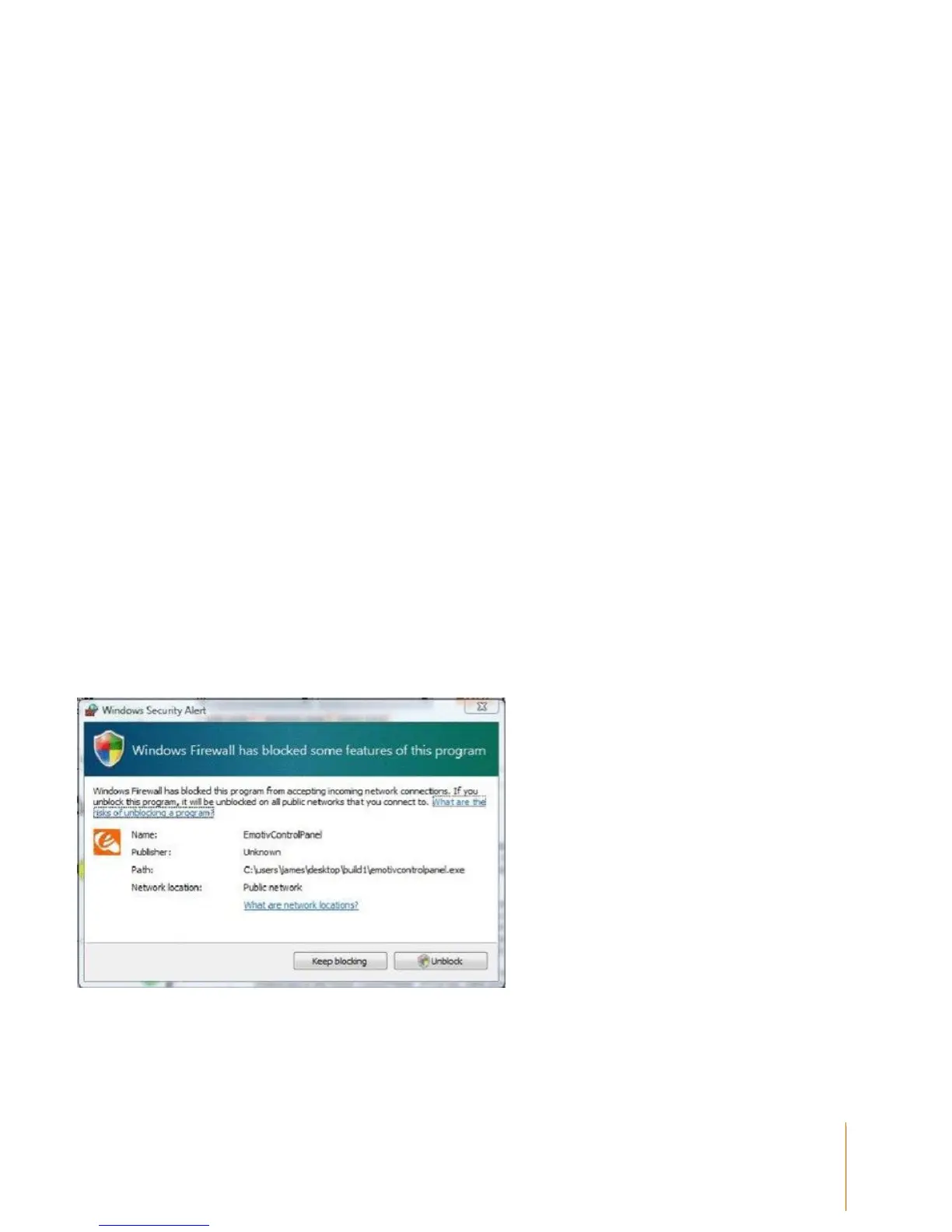
Panel. When the Control Panel is launched for the first time, your firewall software (if installed on
your computer) may notify you that the Control Panel is trying to accept connections from the
network. For proper operation, you must allow EPOC Control Panel to use this port by selecting
“Unblock” (or a similar option, depending on your firewall software).
Figure 1 Windows Firewall warning about EPOC Control Panel – select Unblock
EPOC Control Panel showcases the capabilities of the Emotiv EPOC Neuroheadset to decipher
brain signals, facial expressions and even mouse control using the in-built motion sensors.


 To Next Page