Red: Very poor signal (Not Acceptable)
Orange: Poor signal
Yellow: Fair signal
All Green: Ideal signal
Green + Some Yellows: Acceptable
Green + Black and/or Orange/Red: Not Acceptable (EPOC may continue to function with several
black or red sensors however many detections will be disabled and others will be less reliable).
The setup procedure used to achieve good contact quality is outlined below. Only after the EPOC
Neuroheadset sensor contact quality has been maximised, should you move on to other EPOC
Control Panel tabs.
3.0 Achieving Good Signal Quality
STEP 1: Before putting on the EPOC Neuroheadset, ensure that each of the 16 electrode sockets
are fitted with a sensor unit with a moist felt pad. If the pads are not already moist, wet them with
saline solution before inserting into the neuroheadset using the procedure outlined in Section 2.2,
above.
STEP 2: Switch on the EPOC Neuroheadset, and verify that the built-in battery is charged and is
providing power by looking for the blue LED located near the power switch at the back of the
neuroheadset. If the neuroheadset battery needs charging, set the power switch to the off position,
and plug the neuroheadset into the Emotiv battery charger using the mini-USB cable provided with
the EPOC Neuroheadset, or alternatively through a spare USB socket on your PC using a USB-
MiniB cable. Allow the EPOC Neuroheadset battery to charge for at least 15 minutes before trying
again. A fully discharged neuroheadset will take up to 6 hours to reach full charge.
STEP 3: Verify that the Wireless Signal reception is reported as “Good” by looking at the Engine
Status area in the EmoEngine Status Pane (described in Section 2.6). If the Wireless Signal status
is reported as “Bad” or “No Signal”, then make sure that the Emotiv Wireless USB Receiver is
inserted into a USB port on your computer and that the bright LED and dim flickering data transfer
LED on the top half of the receiver are visible. If the LED is blinking slowly or is not illuminated, then
remove the receiver from the computer, reinsert it, and try again. Remove any metallic or dense
physical obstructions located near the receiver or the EPOC Neuroheadset, and move away from
any powerful sources of electromagnetic interference, such as microwave ovens, large motors, or
high-powered radio transmitters. You may also attach the USB Transceiver to the end of a USB
extension cable in order to position the Transceiver prominently in the space, away from potential
sources of interference such as monitors and wireless routers.
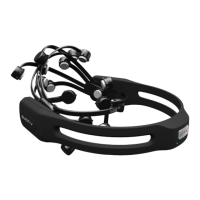
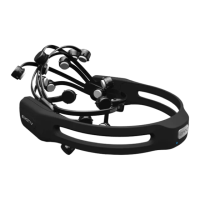
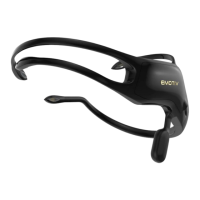
STEP 4: Put on the EPOC Neuroheadset by gently pulling apart the headband and lowering the
sensor arms onto your head from the top down, near the rear of the skull. Next, slide the
neuroheadset forward until the sensors closest to the neuroheadset pivot points are located directly


 To Next Page