Engine Status
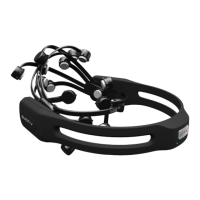
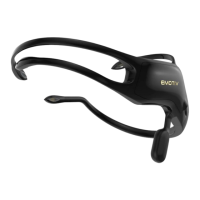
By default, the Control Panel will automatically connect to the EmoEngine when launched. In this
mode, it will automatically discover attached USB transceivers and Emotiv EPOC Neuroheadsets.
There are four status indicators:
System Status: A summary of the general EmoEngine status.
System Up Time: The timestamp (in seconds) attached to the most recently received EmoState
event. Generally, this corresponds to the length of time that the EmoEngine has been running with
an EPOC Neuroheadset connected to the USB receiver.
Wireless Signal: This displays the quality of the connection between the EPOC Neuroheadset and
the Emotiv wireless USB receiver connected to your machine. If you have not yet connected, the
display will show “No Signal”. If the wireless signal strength drops too low (displayed as “Bad” or
“No Signal”) then no detection results will be transmitted and the Control Panel will disable its
detection suite UI controls.
Battery Power: Displays an approximation of the remaining charge in an EPOC Neuroheadset’s
built-in battery.
2.7 User Status
Use the controls in this section to manage user profiles and assign a specific user (via their profile)
to a specific attached EPOC Neuroheadset. Although the EmoEngine supports up to two
simultaneously connected EPOC Neuroheadsets, EPOC Control Panel only displays status
information and detection results for a single EPOC Neuroheadset at a time. The Headset combo
box allows you to specify the EPOC Neuroheadset that has the current “focus.” In Figure 3 the User
Status controls tell us that the Control Panel is currently displaying information for the user with
profile “Emotiv User”, wearing EPOC Neuroheadset “0.” If you wish to use multiple headsets you
can switch between them using the “Headset” drop-down box, or you can launch a second instance
of EPOC Control Panel and select a different headset for each instance.
Note: neuroheadset numbering begins with 0 and not 1 as you might expect. Other operations that
are supported include adding, saving, removing, and switching between user profiles. Note: EPOC
Control Panel will automatically save user profile data to disk when it exits so it is generally not
necessary to use the Save Profile button.


 To Next Page