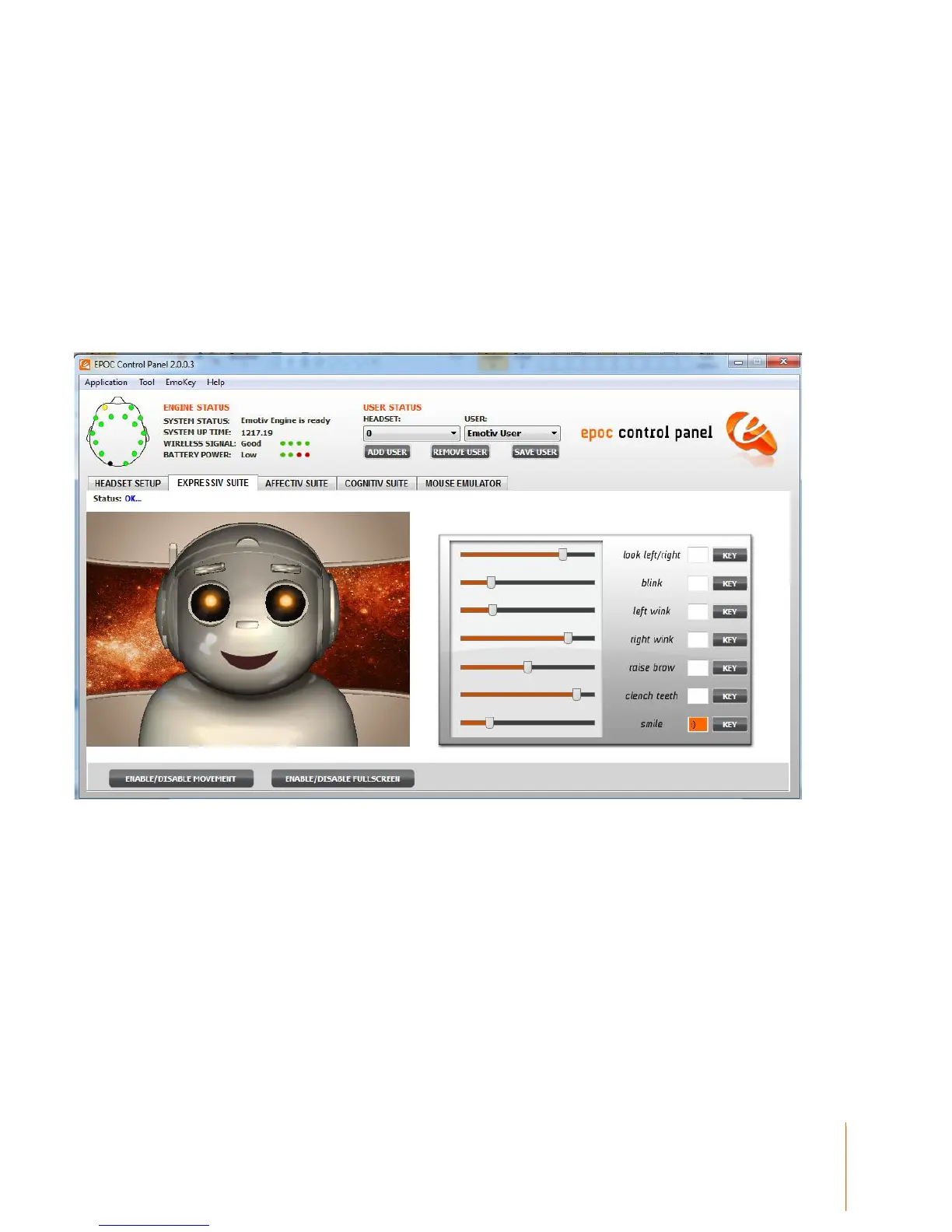
Once EmoKey is activated, the keystroke(s) allocated to the facial expression will be marked in the
corresponding box. An orange highlight will flash in the box to the right of the facial expression
description that is being triggered. Only actions that have keystrokes allocated will be sent to an
application window that is active. This is shown in Figure 8, where a smile triggers the keystroke
“:)”. To make this happen, enter the desired keystrokes and carefully choose the trigger condition.
Note the some Expressions have the option “occurs” while others have “is equal to”, “is greater
than”, “is less than”. Select “is greater than” and type “0.2” into the condition box, which will trigger
your smile keystrokes whenever a Smile greater than 20% of full scale is detected.
Figure 8 EmoKey - Smile detection linked to “:)”
You can manage and save Emokey mappings using the EmoKey menu at the top of the Control
Panel Window. Mappings can be loaded or saved and you can also temporarily suspend EmoKey
activity using the Activate tick selector in the EmoKey menu.


 To Next Page