eMKW-TD0054-21- Page 28
Import a Single Patient from KUDUwave Software File
You can import a patient file which was exported from the KUDUwave software in a “.moyo” format.
Click on “Import a patient and clinical data from an eMoyo EMR software file that was exported on a
patient”. Find and select the “.moyo” file, then click “Open” to import it.
Import Multiple Patients from a Spreadsheet
You can import multiple patients into a folder from a spreadsheet that is saved in a “.csv” format. Select
the folder you wish to assign all your patients into. Click on “Import multiple patients listed in a
spreadsheet using the following format”. Select the “.csv” file and click “OK”.
Note: This file upload cannot be undone! Make sure you have selected the correct folder!
Finding Patients
Search
The search function can only be accessed from the Home screen. Search for patients using either: Name,
Surname or Date of Birth. Begin typing in the search field and the software will automatically start
bringing up possible matches.
Find
The find function can only be accessed from within a folder. Search for patients using either: Name or
Surname. Begin typing in the search field and the software will automatically start bringing up possible
matches.
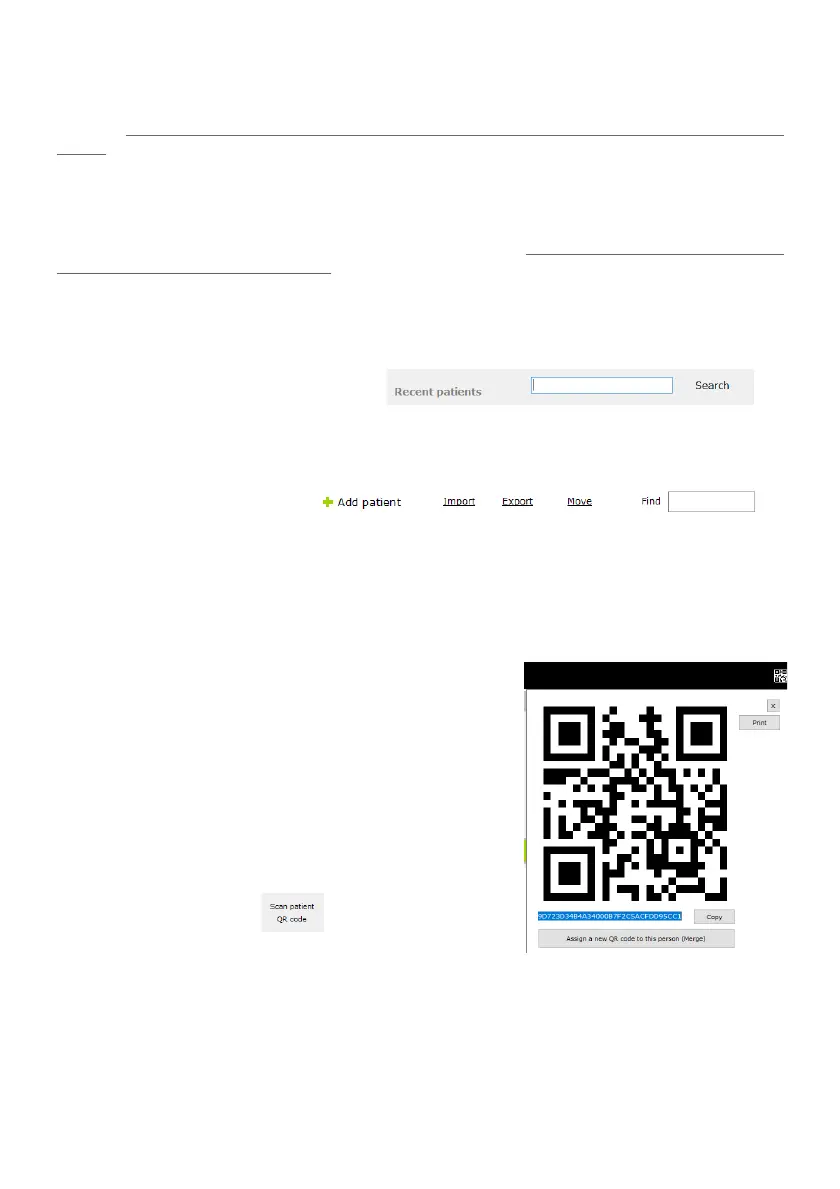
QR Codes
Your eMoyo EMR software has the ability to automatically
generate a QR code for each patient that you create. This code
will appear on all reports associated with this patient. To view
the QR code assigned to them click on the box in the right hand
corner of the patient profile, or view any record saved in their
history.
In the Settings menu you can print multiple of these codes, copy
the unique code associated to the QR code printed and assign it
to the patient. This will override the automatically generated QR
code and replace it with the one you printed.
On the home screen click on to open the webcam view
and hold the QR code in front of the camera lense of the
computer. Once the code has been scanned and registered, click
search and it will take you to the patient profile.



 To Next Page