eMKW-TD0054-21- Page 27
Exporting Patient Data
Exporting a Single Patient’s Data
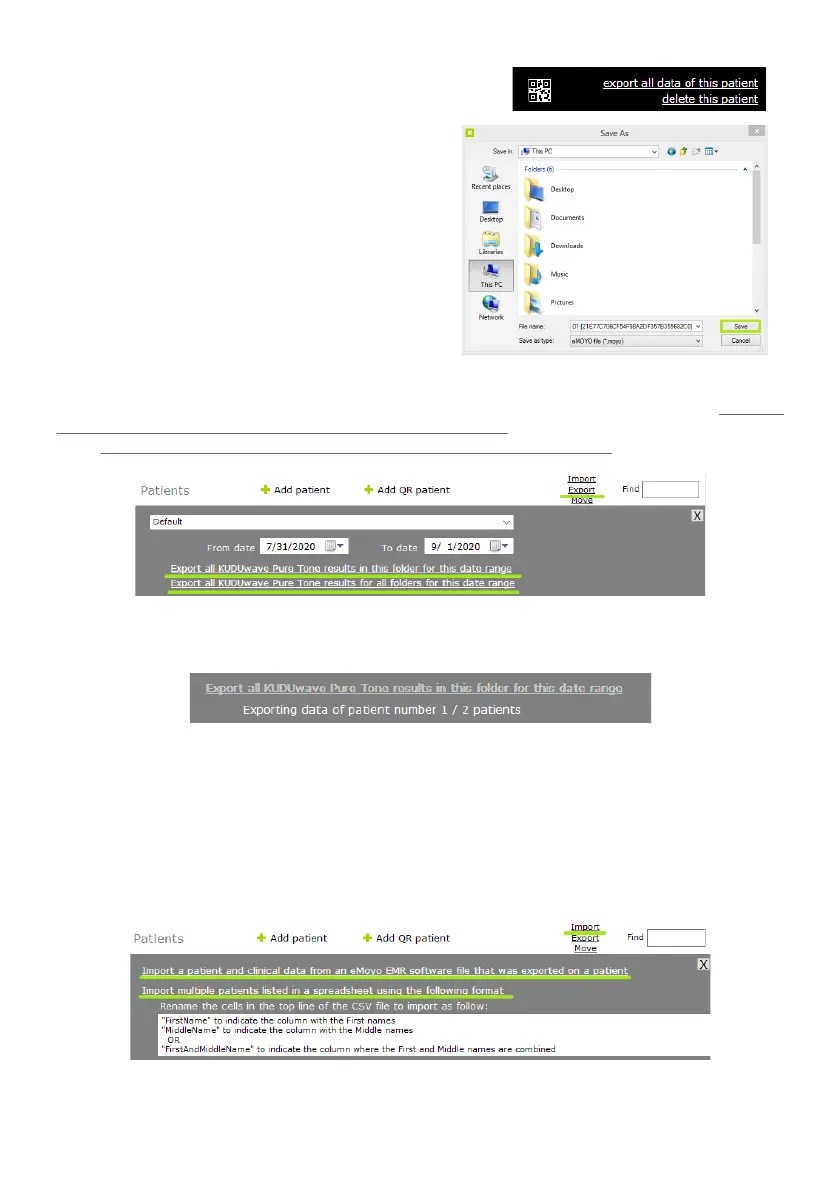
From within a patient profile, click on “export all data of
this patient” at the top right corner of the patient
management screen. This will bring up a dialogue box.
Select where you would like to save the patient data, and
click “Save”.
Note: This exported data can only be viewed if imported
back into the eMoyo software.
Exporting Multiple Patients’ Data
From within a folder, you can export multiple pure tone
test results for all patients within a specific date range. This can include patients from that folder alone,
or all patients in all folders. In the folder view, click “Export”, select a date range and then click “Export all
KUDUwave Pure Tone results in this folder for this date range” to only include patients in this folder.
Click “Export all KUDUwave Pure Tone results for all folders for this date range”.
Select where you would like the file to be saved and click “Save” to finish. The software will inform you
of the progress of the export.
Note: This exported data is saved in csv format and must be opened as a spreadsheet. If all data is stored
in one column, convert the Text to Columns by choosing the delimiter as a comma.
Importing Patient Data
To import patient data, select a folder from the Folder Management Pane and click “Import”. You have a
choice to import a single patient or multiple from a spreadsheet. Select the option you would like, locate
the file in the browser and click “Open”.


 To Next Page