Long Range Wireless Access Point / Client Bridge Version 1.0
12
3 Switching Between Operating Modes
This device can operate in three modes: Access Point, Client t Bridge, and Client Router.
This chapter will describe how to switch between operating modes.
3.1 Logging In
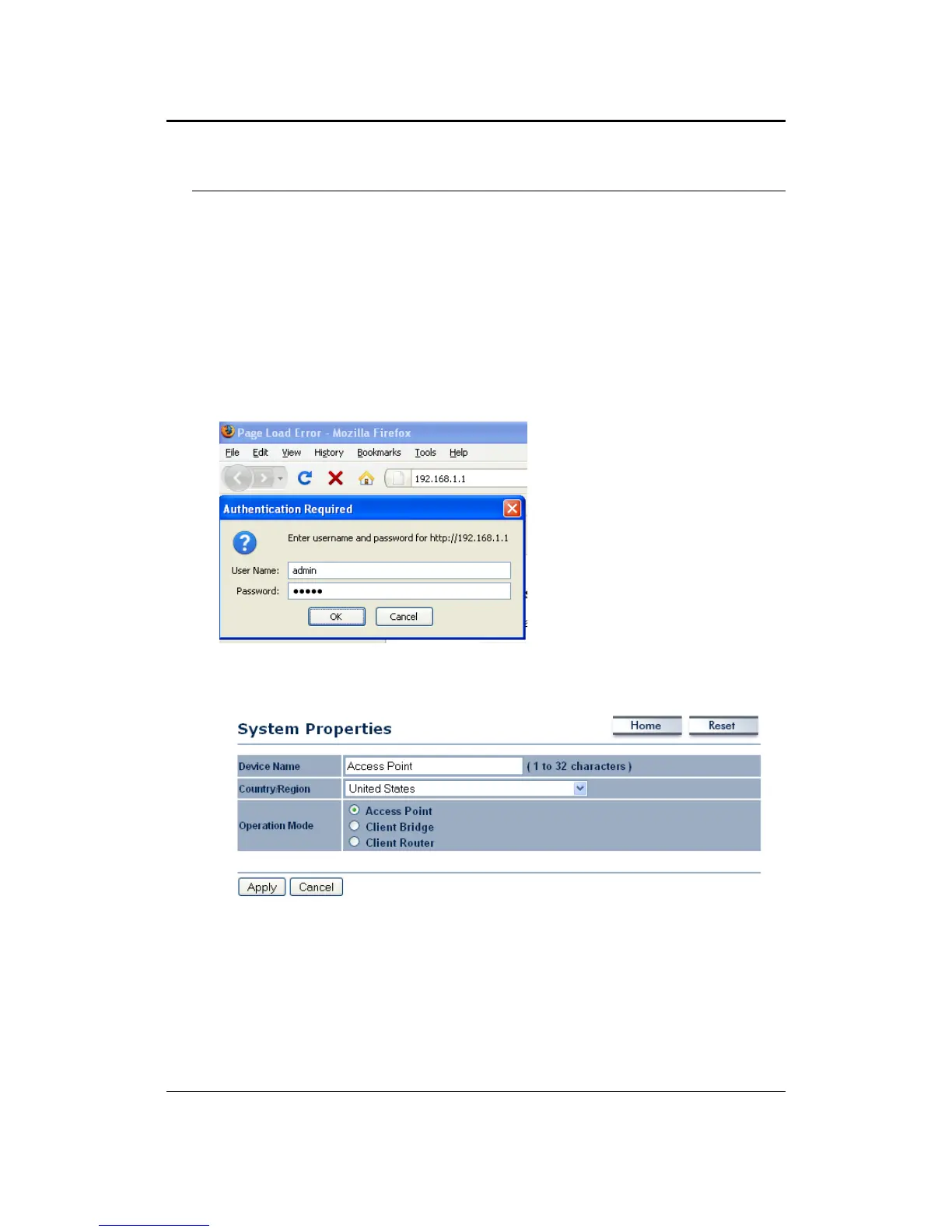
To configure the device through the web-browser, enter the IP address of the device
(default: 192.168.1.1) into the address bar of the web-browser and press Enter.
Make sure that the device and your computers are configured on the same subnet.
Refer to Chapter 2 in order to configure the IP address of your computer.
After connecting to the IP address, the web-browser will display the login page.
Specify admin for both the user name and password.
After logging in, you will see the graphical user interface of the device. Click on the
System Properties link under the System navigation drop-down menu.
Select and operating mode from the list (Access Point, Client Bridge, or Client Router)
and then click on the Apply button.


 To Next Page