46
Using Tags
Youcandenetagsforyoursubjectsandusethemtosortallthecontentonyourdevice.
Forexampleyoucancreateatagnamedchem 102, andthentagallofthebooks,journals,
andrecordingsthatarerelatedtochem102.
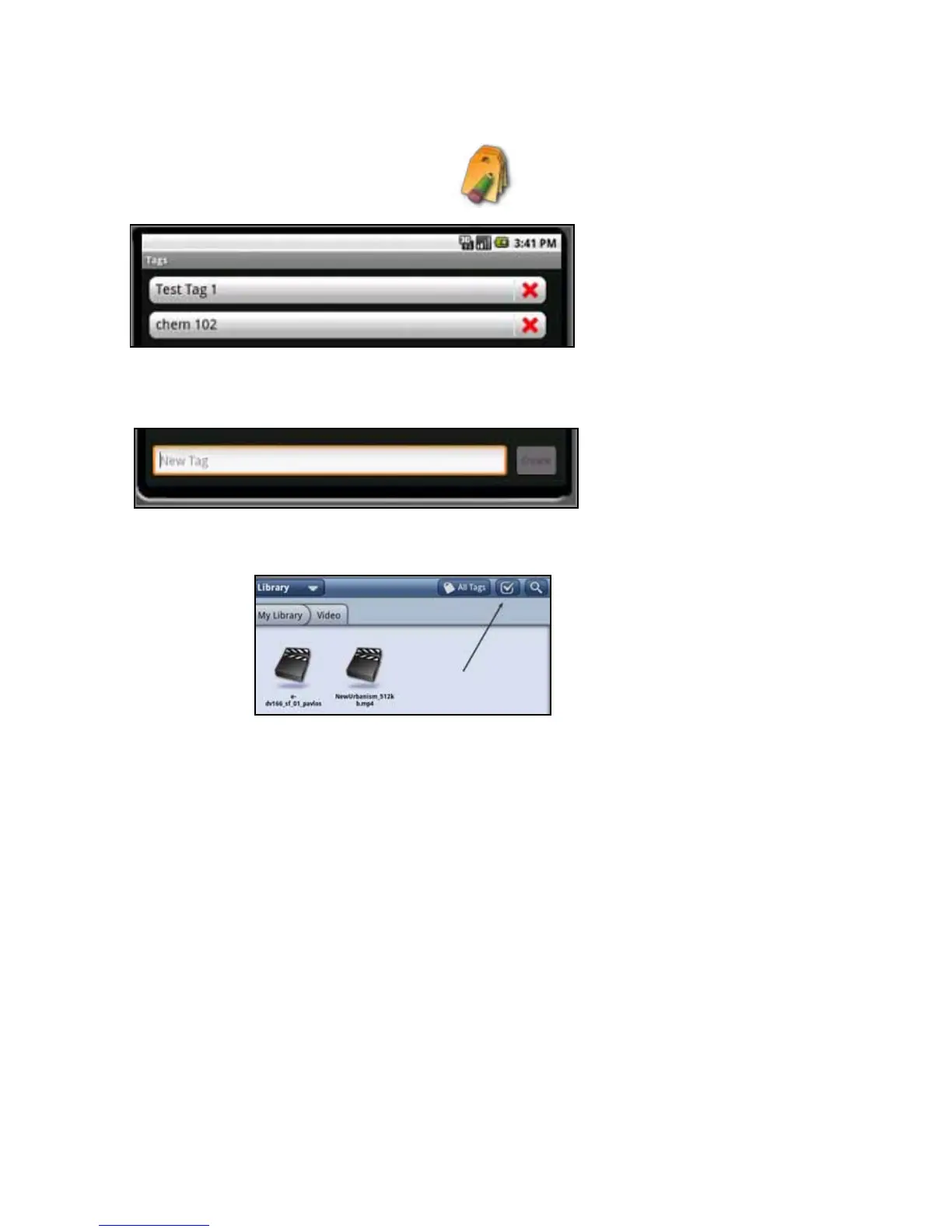
1.OpentheappsmenuandselecttheTagsicon .Alistoftagsopens.
2.Toaddanewtag,touchNewTag.Todeleteatag,presstheredXnexttothetagname.
3.Enterthenameforthetagusingthekeyboardthatopens.
4.AfteryouentertheTagname,selectCreate.UsethebackbuttontoexittheTagmenu.
5.Toassociateanitemwithatag,openyourlibrary.Selectthecheckmarkatthetoprightto
turnoncheckmarks.
6.Browseforthebookorlethatyouwanttotagandpressthecheckmarkontheright.
ChooseAddTagsatthebottomoftheLCDscreen,thenchoosethetagfromthelistand
pressApply.
ReturntoContents



 To Next Page