48
Moving Files to the Pocket eDGe using the Mini-USB Connector
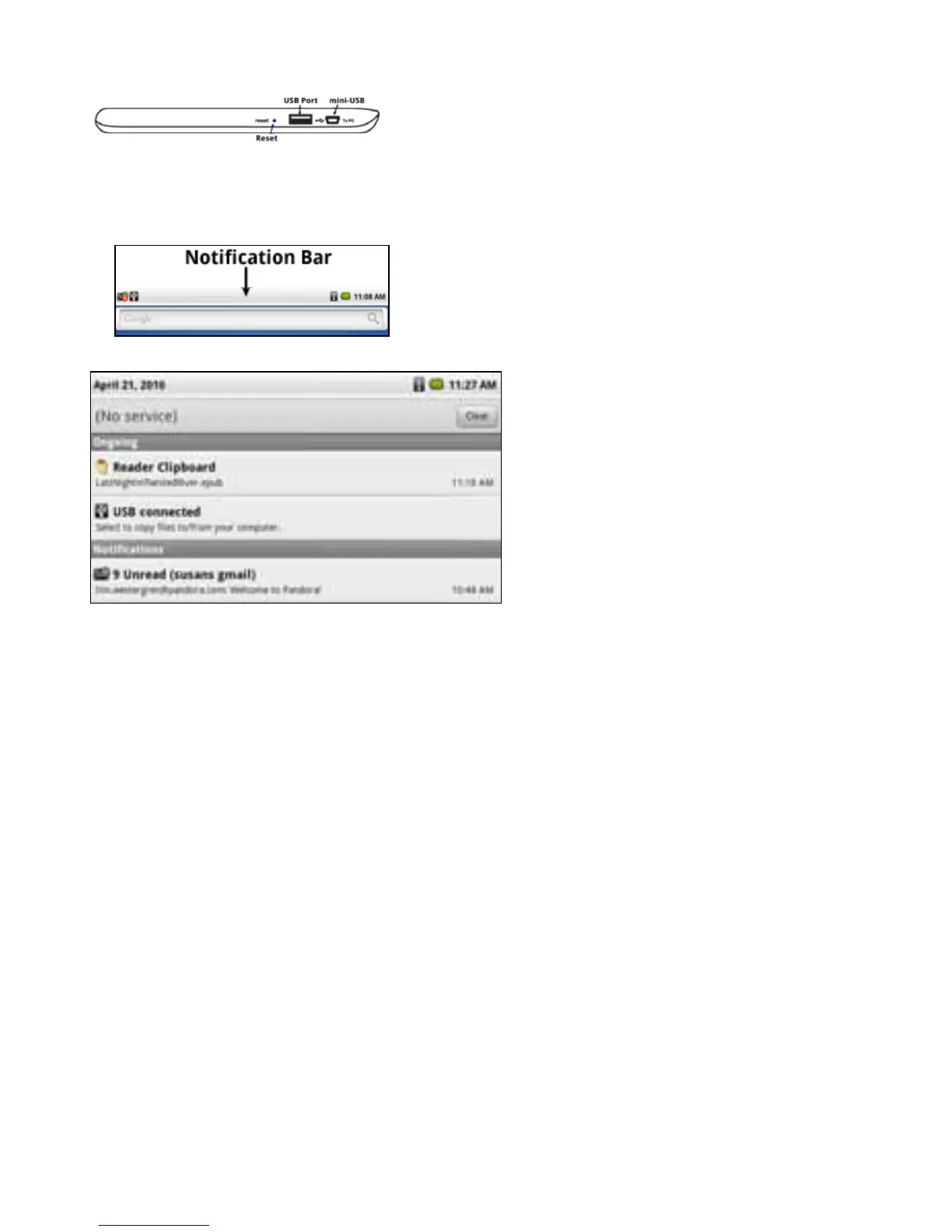
Themini-USBportisonthetop(indefaultconguration)ofthePocketeDGeonthereaderside.
Tocopylesusingthemini-USBcable:
1.ConnectthedevicetoaPC,MAC,orLinux-basedPCusingthemini-USBcable.
2.OncethePocketeDGeisconnectedtothePC,aUSBiconappearsinthenoticationbaratthetopofthetab-
let.
3.Pressandholdthenoticationbaranddragitdownasshown.
4.SelecttheUSB connected message,thenselectMount.Yourcomputershouldnowrecognizethedeviceasa
drive.
NOTE:WhileyouaremovinglesfromaPCtothePocketeDGe,youwillnotbeabletoperformanyotherfunc-
tionsinvolvingtheLibrary.
5.SelectaleonyourPCandmoveittotheeDGe/publicfolder.
6.Onceyouhavemovedtheles,openthenoticationsbaronthePocketeDGeagainbydraggingdownthe
USBicon.SelecttheTurn off USB Storage message,thenselectTurn Off.
Return to Contents



 To Next Page