EasyManua.ls Logo

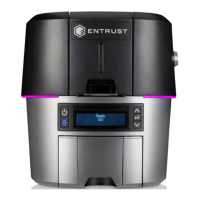
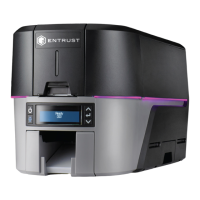
Entrust Sigma DS2 - User Manual

Default Icon
90 pages
Print Icon
To Next Page IconTo Next Page
Loading...
August 2020
528060-001, Rev A
User’s Guide
Sigma DS1, DS2, and DS3 Direct to Card Printers

Table of Contents

Other manuals for Entrust Sigma DS2

Questions and Answers

  • V
    Veronica SawyerAug 29, 2025
    What to do if Entrust Sigma DS2 Printer is not connected to the network?
    • P
      Paula MossAug 29, 2025
      If your Entrust printer is not connected to the network, or your PC is not connected to the network, make sure that both ends of the data cable are properly connected. If you find any defective cables, replace them.
  • E
    ewallsAug 28, 2025
    What to do if Entrust Printer shows Message 500?
    • E
      Eric MathisAug 28, 2025
      If you encounter Message 500 after sending a card to print on your Entrust printer, consider switching from DHCP network addressing to static IP addressing, especially if this issue occurs frequently.
  • L
    Lisa CrossAug 27, 2025
    Why Entrust Printer Properties shows printer is not available?
    • K
      Kristine CharlesAug 27, 2025
      If the Printer Properties > Status tab shows that your Entrust Printer is not available, ensure that you are using the same type of data cable (USB or network) that was used when the printer was initially installed. You cannot switch the type of data cable after installation. Also, verify that the current printer IP address matches the IP address on the Printer Properties > Ports tab.
  • M
    Mary WarnerAug 26, 2025
    How to fix loose cable on Entrust Sigma DS2 Printer?
    • L
      Lauren AndersonAug 27, 2025
      If the cable of your Entrust Printer is loose, reconnect the USB cable to the ports on both the PC and the printer. Then, power the printer off and back on. If the PC and printer still do not communicate, restart the PC.
  • K
    Katherine KingAug 25, 2025
    What to do if print job disappears from Entrust Sigma DS2 queue?
    • P
      Patricia HobbsAug 26, 2025
      If a print job disappears from the print queue on your Entrust Printer but doesn't print, it might be because the printer USB cable was disconnected after the application sent the job. Reconnect the cable and try the job again.
  • Q
    qleachAug 25, 2025
    How to fix Entrust Printer when PC USB port does not communicate with the printer USB port?
    • B
      Brittany VillarrealAug 25, 2025
      To resolve the issue where the PC USB port isn't communicating with the printer USB port, open Device Manager and find the list of USB devices. Disable the shutdown option for each hub in the list. If necessary, restart your PC for the changes to take effect. If you're using a laptop, allow time for USB communication to enable after hibernation. Try unplugging and reconnecting the USB printer port. As a last resort, replace the PC port or the PC. Contact your PC or port vendor for further assistance if needed.

Summary

Introduction to the Sigma Card Printers

About this Manual

Overview of the manual's content and purpose.

Intended Audience

Defines the target users of this printer manual.

Technical Support Information

Provides contact information for technical assistance.

About the Sigma Card Printers

Sigma Card Printers Overview

General description of the Sigma card printers' capabilities and models.

Printer Components Overview

Detailed breakdown and illustration of the printer's physical parts.

Printer Left Side Components

Identifies and explains ports and connectors on the printer's left side.

Printer Front and Right Side Components

Details components visible on the front and right side of the printer.

Printer Cover and Locks

Instructions on opening the printer cover and details on locks.

Multi-Hopper Printer Configuration

Specifics about the multi-hopper configuration and its components.

Multi-Hopper Cartridge and Loading

Explanation of cartridges and their loading mechanism for multi-hopper.

Internal Printer Components

Description of internal parts like the printhead and ribbon mechanism.

Print Ribbon System

Information on print ribbons, cartridges, and cleaning rollers.

Prefilled Print Ribbon Cassette

Details on the all-in-one print ribbon cassette.

Printer Back Connections

Description of modules and connections located on the back of the printer.

Printer Configuration Label

Explanation of the configuration label and its meaning.

Using the Printer

Printer Overview, Controls, and Interface

Introduces the printer, its system, controls, and navigation via LCD.

Network Configuration and IP Address Retrieval

Instructions for finding the printer's IP address (IPv4 and IPv6).

Card Printing Operations and Supplies Management

Procedures for printing cards, test cards, and loading supplies.

Printer Management Dashboard

How to access and use the Printer Dashboard for management.

Print Cards

Preparing to Print Cards

Prerequisites and checks before starting card printing.

Printing Cards from Software

Steps for printing cards using ID software or other applications.

System Maintenance

Printer Cleaning Procedures

Instructions for cleaning the printer, printhead, and using the cleaning card.

Preparing Printer for Use

Steps to ready the printer after maintenance or for initial use.

Emptying the Reject Tray

How to remove rejected cards from the printer.

Troubleshooting

Basic Troubleshooting Steps

Identifying and resolving common issues in the card production system and printer functions.

Installation Problems

Troubleshooting common issues during printer installation (USB/Network).

Printer Driver and Communication Issues

Resolving problems with the card printer driver and communication links.

Card Appearance Problems

Diagnosing and fixing issues related to the quality of printed cards.

Magnetic Stripe and Ribbon Issues

Troubleshooting magnetic stripe encoding and print ribbon problems.

Clearing Card Jams and Error Messages

Procedures for removing jams and responding to printer messages.

Driver-Specific Messages

Explains specific messages from the driver and SDK.

Entrust Sigma DS2 Specifications

General IconGeneral
Print Resolution300 dpi
Card Capacity Input Hopper125 cards
Card Capacity Output Hopper25 cards
ConnectivityUSB, Ethernet
Print TechnologyDirect-to-card dye-sublimation / resin thermal transfer
Card SizesCR80
Operating System SupportWindows 7, Windows 8.1, Windows 10, Windows Server 2016, Windows Server 2012, Windows Server 2008
Card Thickness0.010 inches to 0.040 inches (0.25 mm to 1.02 mm)
Print SpeedUp to 250 cards per hour (YMCKO)

Related product manuals